Delete this image and record?

Once deleted, this image and its history record cannot be recovered. Cached copies may remain accessible for 3–4 hours due to network caching.

Confirm Payment

After payment, click "Confirmed" to update your account information.

Your subject. A fresh canvas.

Remove the Background.
Make Room for Your Ideas.

Give your subject a place in your next project. Upload a photo, remove its background, and download a cutout. No prompt needed.

  • 3 free guest attempts daily
  • No prompt needed
  • 2 credits when signed in
Original
Background removed
Keep the subject. Clear the surroundings.Illustration
Upload · remove · download
Your background removal workspace

Upload one photo and remove its background. JPEG, PNG or WebP · up to 20MB.

Upload image
Upload subject imageJPEG, PNG or WebP · up to 20MB · 1 image
Keep the subject
Remove the background

No prompt or extra settings needed. Review the edges of your cutout before downloading.

3 free guest attempts per day. Shared by IP and browser; resets at midnight New York time.

Your cutout will appear here

Upload a photo and choose Remove background. The checkerboard helps you inspect transparent areas.

Generated result

Background removal without a prompt, ready for your next layout. Review pricing and the Privacy Policy for personal or client photos.

Look beyond the background

See What Stays Before You Download

A background remover should make your subject easy to review. Compare the original and cutout at a matching display size, then inspect the downloaded outline at full resolution. The AI-created examples below illustrate possible uses.

Your detail checklist

Hair. Fur. Outlines. Small gaps.

Check the subject and the empty spaces around it. Fine strands, thin handles, and translucent materials can need a closer look after the surroundings are removed.

Keep your original and choose the cutout that fits your project. Review any edge where the subject and background share a similar color.

Review your own image
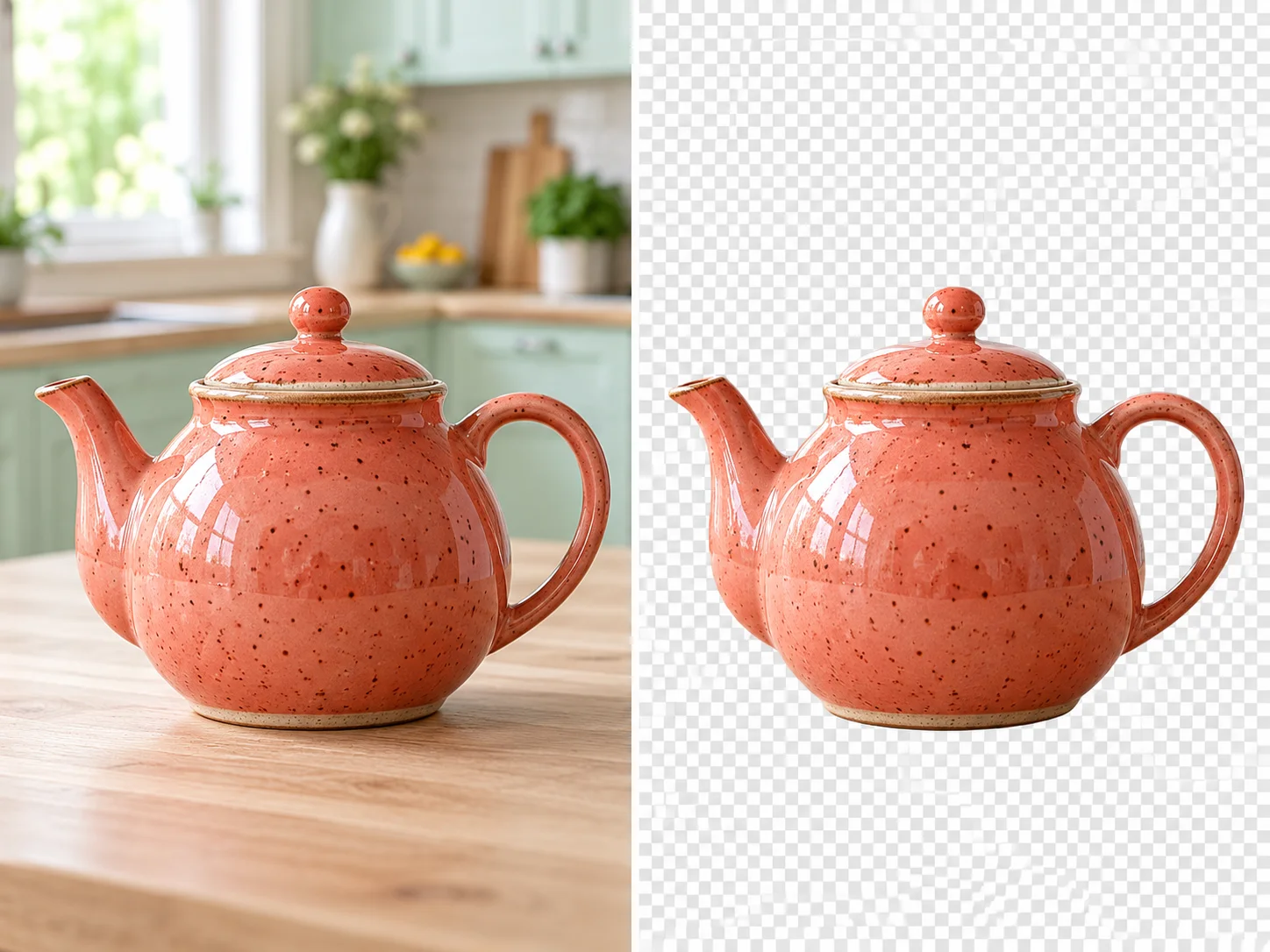
Illustrative comparison of a coral ceramic teapot in a kitchen and isolated on a checkerboard
Product photography

Let the product take the spotlight

Give a shop photo a place in your next catalog, listing, or product collage. Remove the kitchen, tabletop, or other surroundings so the shape and finish of your item can lead the layout.

Check the spout, lid, and the space inside a handle. A useful product cutout keeps those small openings clear and preserves the outline shoppers need to see.

Remove a product background
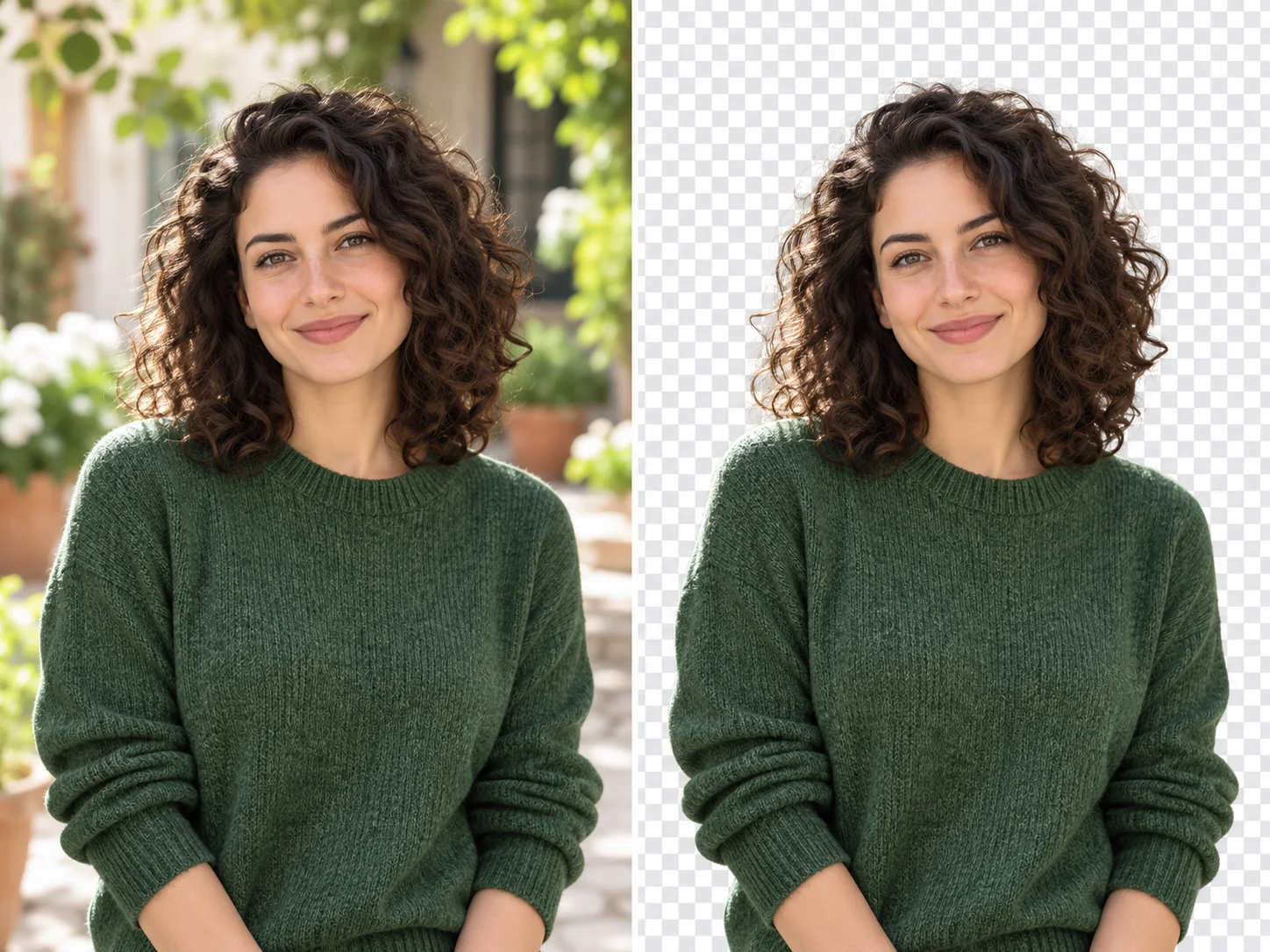
Illustrative comparison of a curly-haired woman in a courtyard and with the background removed
Portraits and profiles

A familiar face, ready for a new setting

Prepare a portrait for a profile, team page, presentation, or creative composition. Start with a clear photo and separate the person from a busy setting without writing a prompt.

Inspect curls, loose strands, glasses, and clothing edges before placing the cutout. Compare with the original so the expression, face, and small details still feel like the person you photographed.

Create a portrait cutout
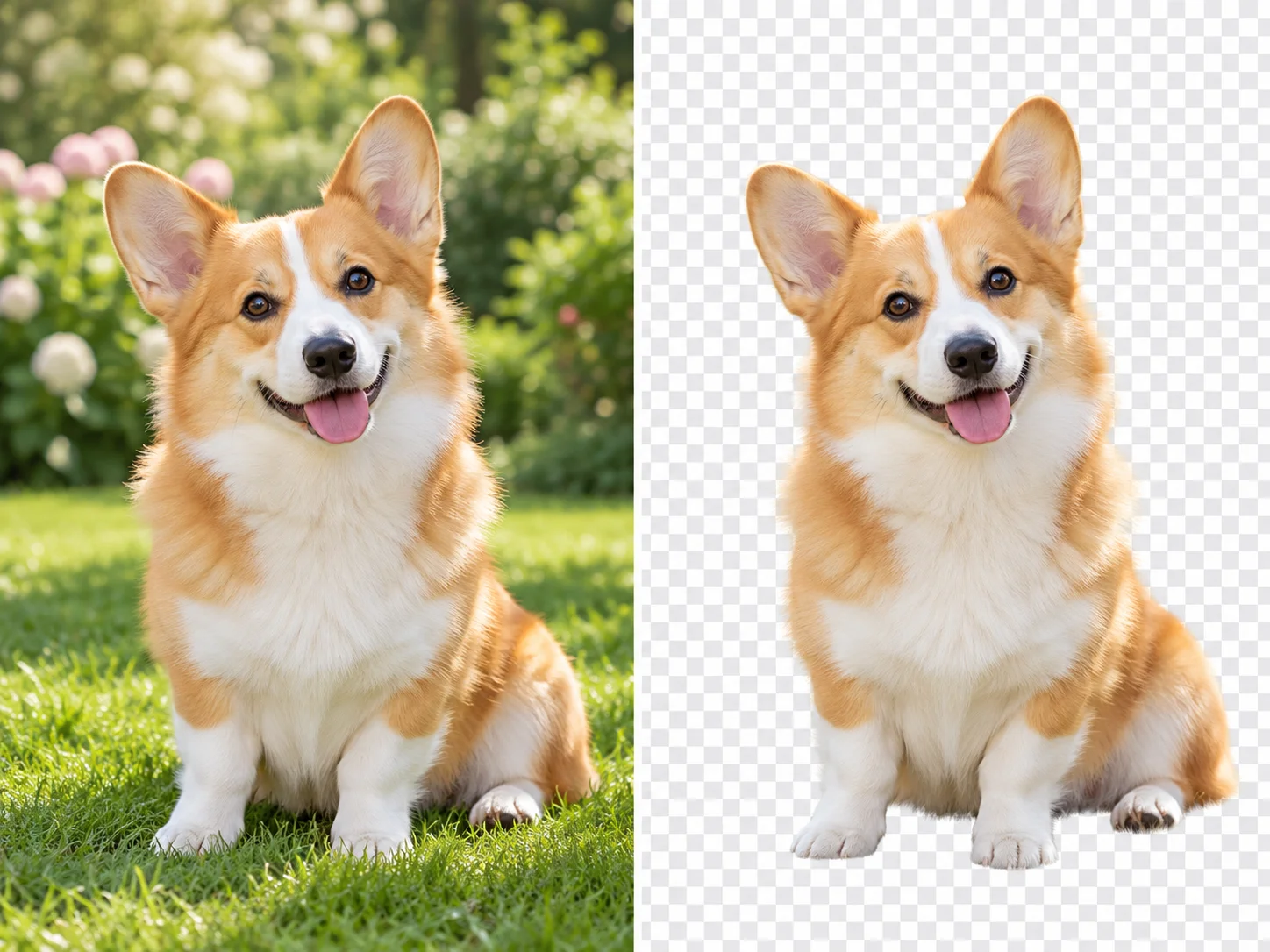
Illustrative comparison of a golden-and-white corgi in a garden and isolated on a checkerboard
Pets and creative projects

Keep the character in every little detail

Bring a favorite pet into a card, mood board, or social post. A background remover gives you a separate subject to arrange with your own colors, type, and other artwork.

Look closely at the ears, paws, whiskers, and fine fur. Similar colors between the subject and its surroundings can make an edge harder to separate, so review those areas at full size.

Make a pet cutout
Three clear steps

Start Your Background Removal Workflow

From a photo with surroundings to a cutout ready for your next project.

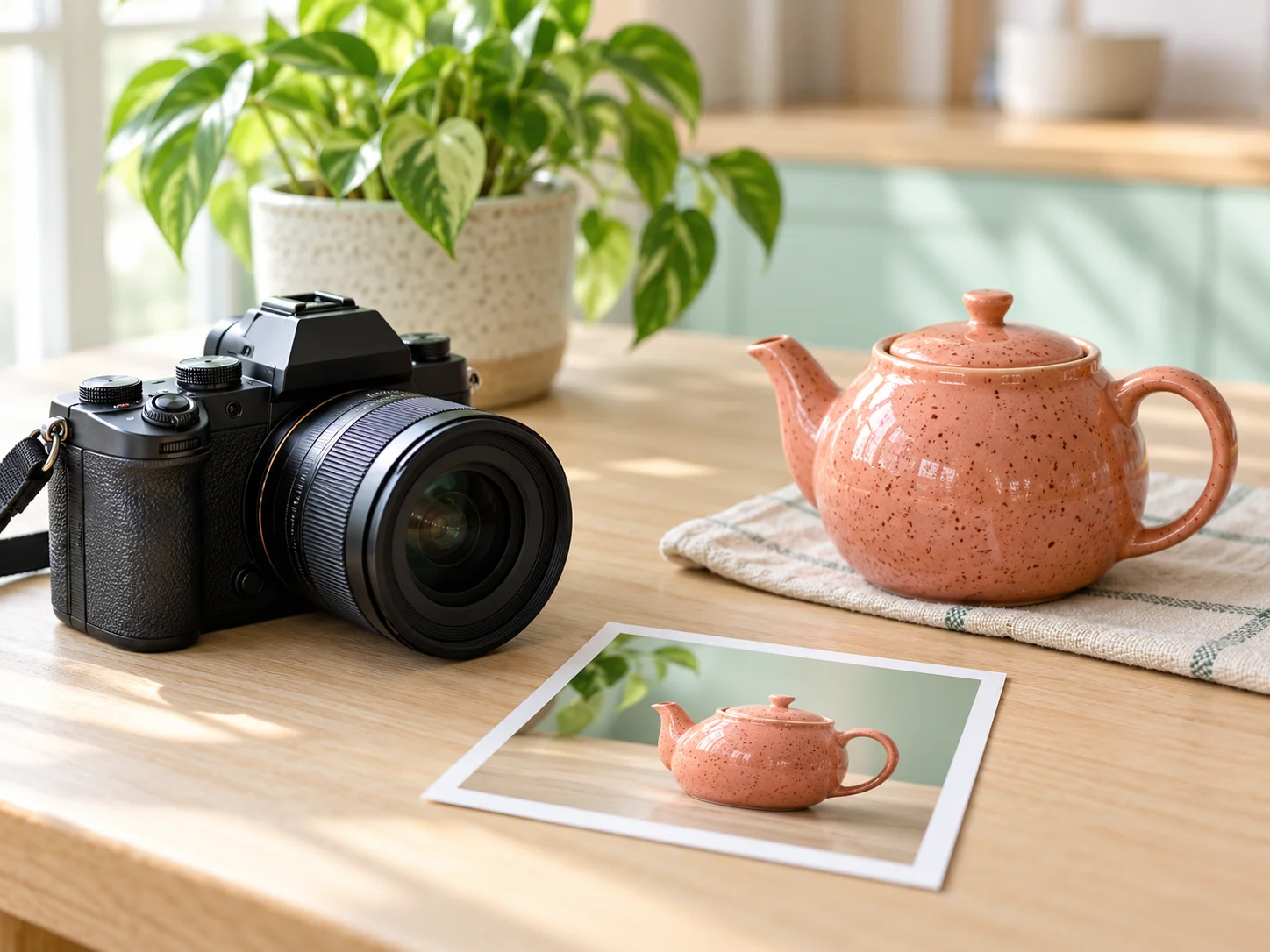
  1. Camera, printed product photo, and a coral ceramic teapot on a wooden table
    01

    Start with your best photo

    Choose one JPEG, PNG, or WebP image up to 20MB. A clear original with a distinct subject gives the background remover a better starting point than a heavily compressed screenshot.

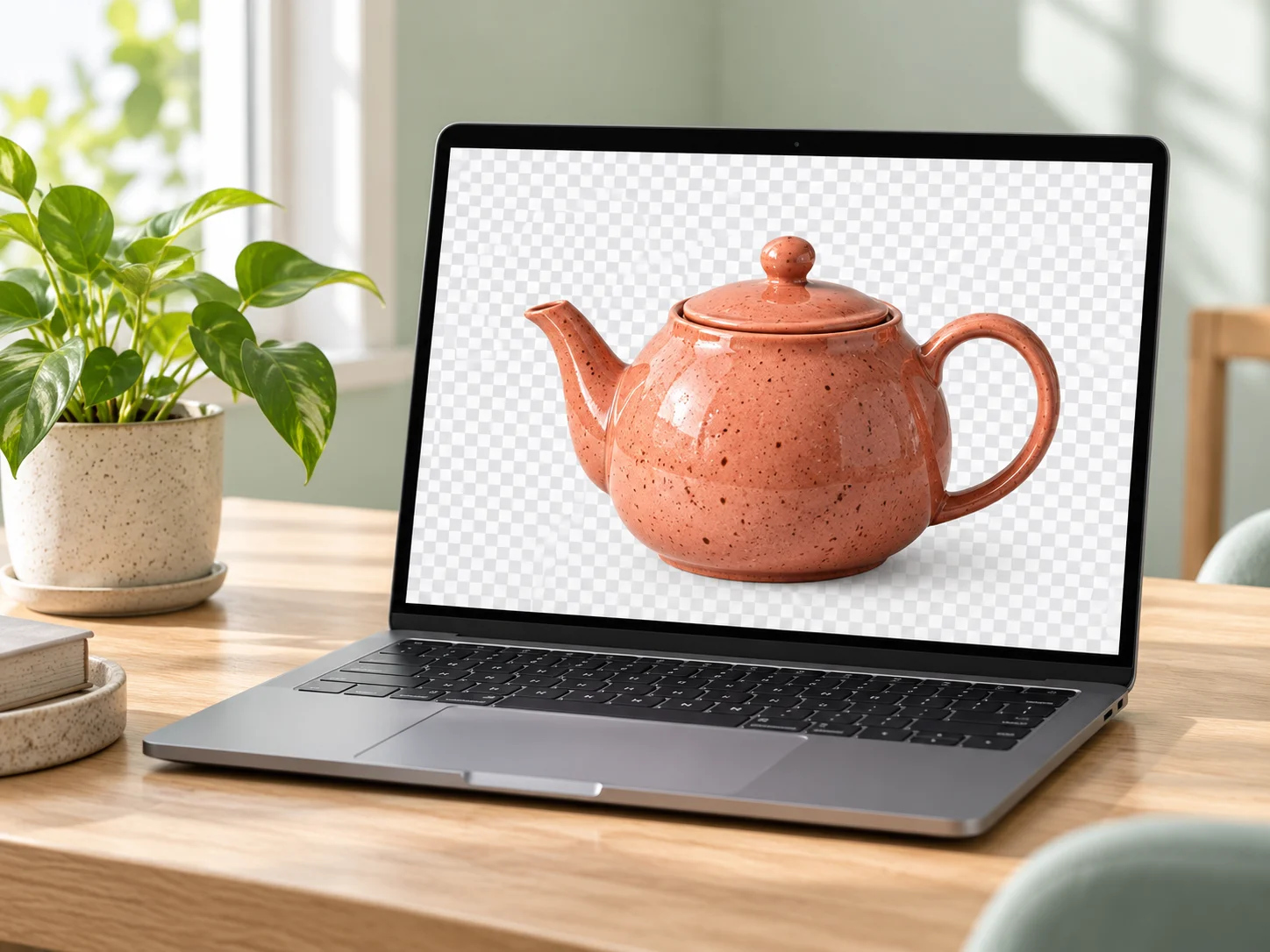
  2. Laptop displaying a coral teapot cutout against a checkerboard preview
    02

    Remove the surroundings

    Choose Remove background. Guests complete human verification for each request; signed-in users use credits. No prompt, manual selection, or extra settings are needed.

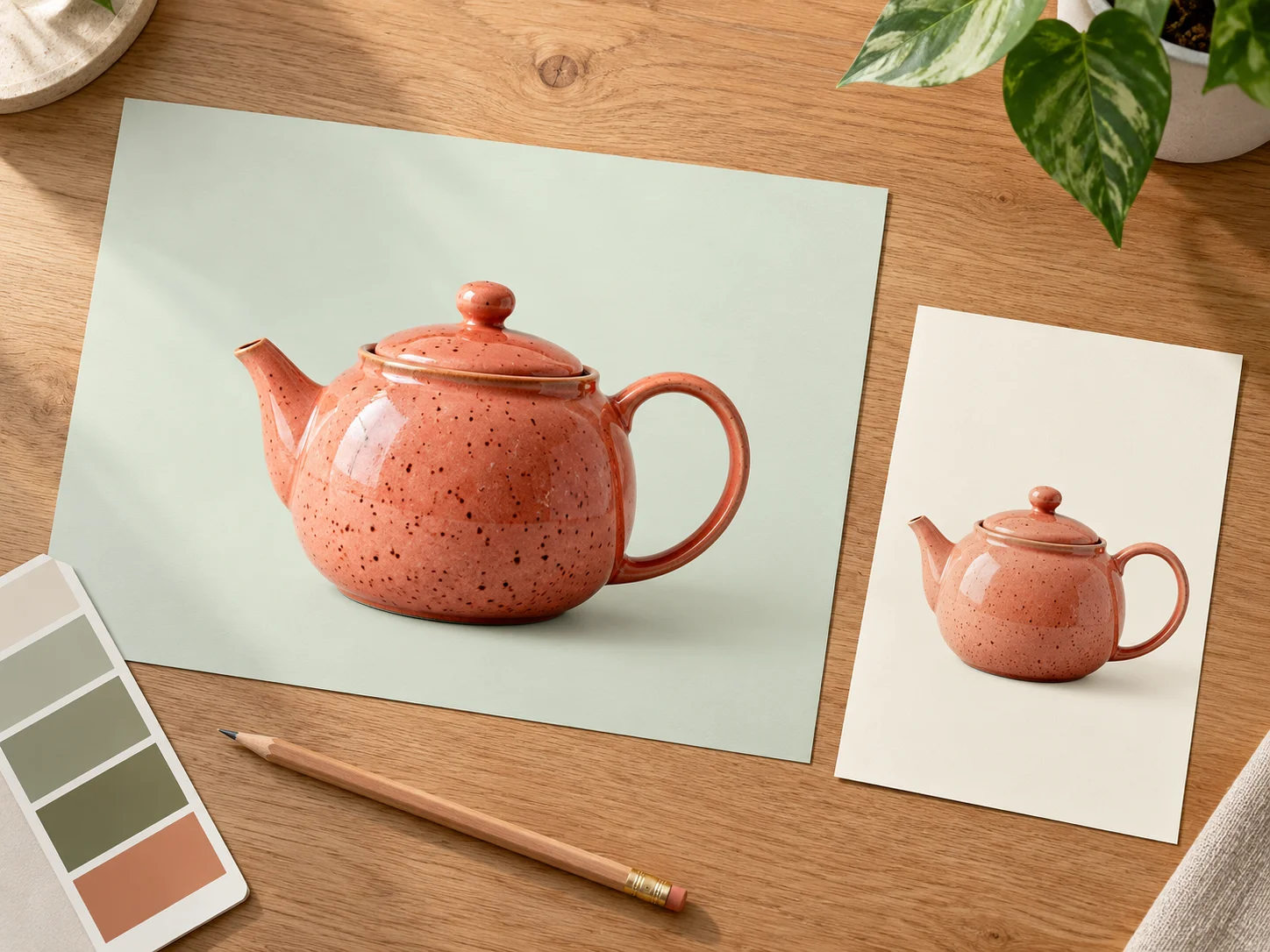
  3. Coral teapot cutouts arranged on mint and cream product layouts on a creative desk
    03

    Review your next layout

    Inspect the finished outline and any gaps inside the subject. Download the result, keep its transparency, and place the cutout in the layout you have in mind.

Made for the details that matter

A Background Remover for Everyday Projects

Product photos

Prepare an item for a catalog, store layout, or product collage. Check thin straps, handles, and the gaps between separate parts. Background removal should keep the product recognizable, including its shape, finish, and readable labels.

Portraits and team pages

Separate a person from a busy setting for a profile, presentation, or team page. Review hair, glasses, and the edges of clothing. A clear source with room around the person makes it easier to judge the finished cutout.

Pets and personal projects

Use a pet cutout in a card, album, or social post. Fur and whiskers need a close look, especially where they blend into grass or furniture. Choose a sharper original if important details disappear along the edge.

Designs and presentations

Arrange a subject beside your own text and artwork in a poster, slide, or mood board. Keep a transparent copy when moving between designs. A checkerboard shown in a preview represents empty areas and should not become part of the final layout.

Understand the empty spaces

Take a Closer Look at the Cutout

Switch between the original and removed-background view to see what changes around the subject. Look at fine edges and openings, as well as the main outline.

Explore an illustrative example here, then upload your own photo in the workspace.

Original and cutoutProduct photography · AI-created illustrative example
Original and cutout: Illustrative comparison of a coral ceramic teapot in a kitchen and isolated on a checkerboard
Keep transparency in your next layout
FormatUploadSupports transparency
JPEGYesNo
PNGYesYes
WebPYesYes
Know the boundary

What an AI Background Remover Can and Cannot Do

A background remover separates a subject from its surroundings. It helps prepare a cutout for another layout while leaving empty areas around the subject. It does not automatically create a new scene or place the subject in a finished design.

Hair, fur, glass, thin objects, and low-contrast edges can be difficult to separate. A partly hidden subject stays partly hidden: removing a background does not reveal the real detail that was behind another object.

A better starting point

Get Better Results from Your Background Remover

Use a sharp original, leave some room around the subject, and avoid heavy compression. Good light and a distinct outline help you judge whether small details survive the cutout.

Inspect the result at the size you plan to use. If an edge looks rough or an important part is missing, try a clearer source. Keep a copy with transparency before placing the image on a solid background or exporting a final design.

Clear before you start

Costs, File Limits, and Privacy

Upload a single JPEG, PNG, or WebP file up to 20MB. No prompt is required. Guests complete verification for each request; signed-in users submit with their existing account.

Account and generation costs

Guests receive 3 free attempts per day, limited by IP and browser. Guests on the same IP share its allowance, which resets at midnight New York time. Every signed-in request costs 2 credits from the first request and does not use guest access. Check current credit options for your next project.

Personal and client images

Images are sent for processing after you choose Remove background and complete any required verification. Read the Privacy Policy for the processing terms, and only upload files you are authorized to use. Invalid inputs, rejected verification, failed uploads, and rejected moderation do not use a free attempt.

Helpful answers

Background Removal Questions

Practical answers about cutouts, access, and the details to review.

Is background removal free?

Guests receive 3 free submission attempts per day, limited by both IP address and browser fingerprint. Guests on the same IP share its allowance. The allowance resets at midnight New York time and is separate from Photo Edit and Image Upscaler.

How much does it cost when I sign in?

Every signed-in request costs 2 credits, starting with the first request. Signed-in requests do not use the guest allowance. Credits are charged after a task is created; failed processing follows the existing refund process.

Do I need a prompt or an account?

No prompt is needed. Upload one photo and choose Remove background. You can use the daily guest allowance without an account after completing human verification, or sign in to use credits.

Which files can I upload?

Upload one JPEG, PNG, or WebP file up to 20MB. A clear subject with good contrast against the background is a helpful starting point. Only one image is processed in each request.

Will the checkerboard appear in my download?

The workspace checkerboard helps you see transparent areas; it is not added as a background to your result. Preserve the downloaded file’s transparency when using it elsewhere. Converting a transparent image to JPEG fills its empty areas because JPEG does not support transparency.

What happens if a guest attempt fails?

Invalid inputs, failed human verification, failed uploads, and rejected image moderation do not consume a free attempt. Once a submission reserves an attempt for model task creation, that attempt is not returned if task creation fails.

What should I check in the result?

Inspect hair, fur, thin objects, transparent materials, and areas where the subject blends into the background. Background removal may miss fine details. Compare the finished image with your original before using it in a final layout.

Start with your original

Plan Your Next Background Removal Project

Choose your photo, remove the surroundings, and give your subject a fresh start.

Upload image

WE'RE HERE TO HELP

Contact us

Questions about CiciGPT, your account, or a purchase? Email us.

Open email app