Delete this image and record?

Once deleted, this image and its history record cannot be recovered. Cached copies may remain accessible for 3–4 hours due to network caching.

Confirm Payment

After payment, click "Confirmed" to update your account information.

Free · Online · Reference-based creation

Free AI Image to Image Generator

Reimagine your reference photo as a watercolor portrait, a new product scene, or a different time of day. Describe the transformation and the subject details to keep recognizable.

  • 1 free daily try with Photo Edit
  • Model-based credits shown before generation
  • JPEG, PNG & WebP references
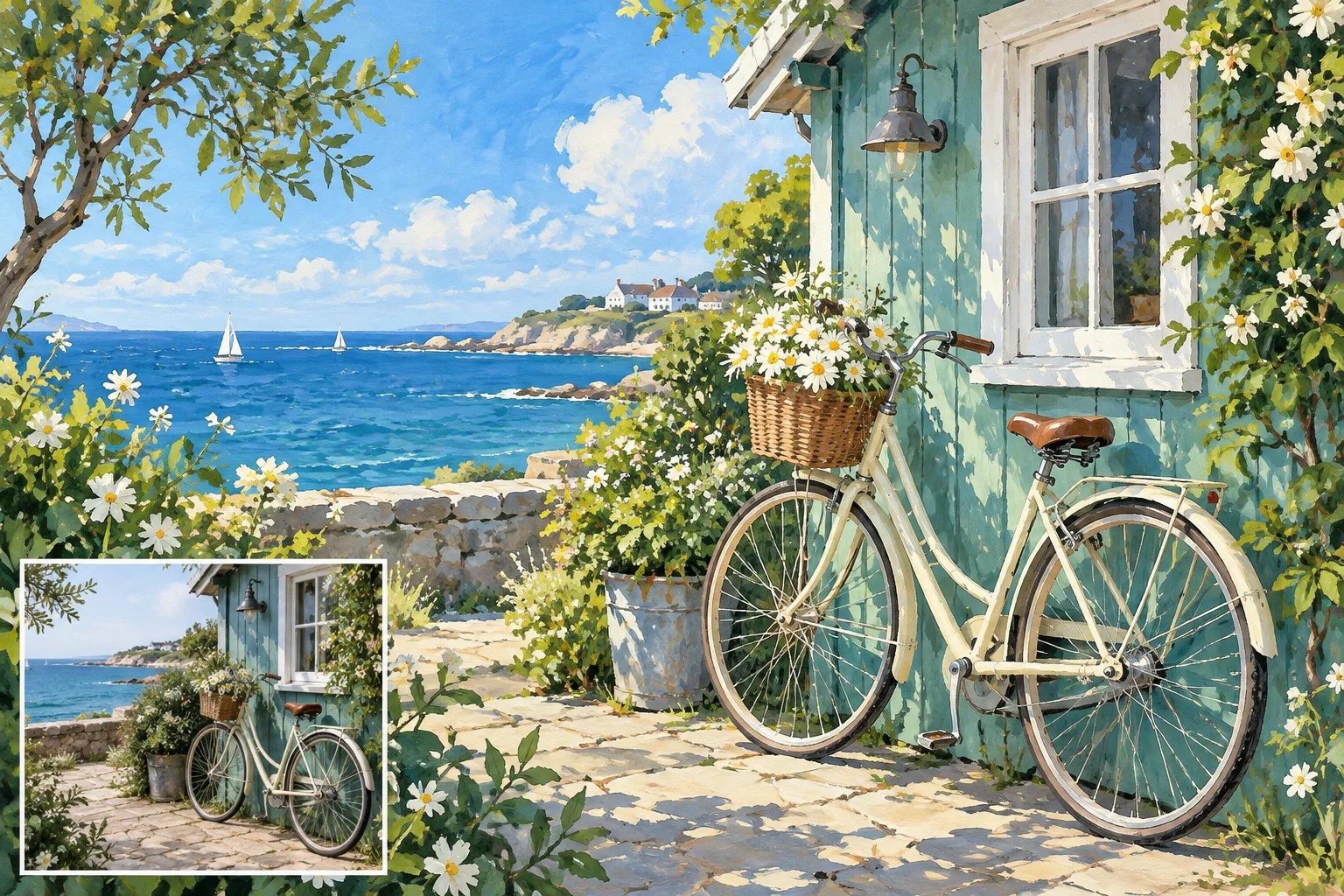
CiciGPT gouache output of a seaside bicycle with the reference photo inset
Made with CiciGPT · Photo to gouache
Start with your reference

Upload, describe, create

Give your photo a new style, setting, or mood. Describe what to change and what to keep recognizable.

01 · Reference image

Upload a reference imageJPEG, PNG or WebP · up to 20MB · 1 image
Describe the subject, lighting, background, and intended use.0 / 2000
A new direction starts here

Your next image, inspired by yours.

Upload a reference, describe what to change and what to keep, then generate your new version.

Explore prompt ideas Your generated result will appear here.

Generated result

Credits depend on your model and quality; check the amount on Generate image before you start. See model costs and free access. Only upload images you have permission to use. Image privacy

Made with CiciGPT

Image to image examples: compare the reference and result

See how a portrait, product, landscape, and everyday photo become a new version. Compare the details that remain recognizable with the parts the model reinterprets.

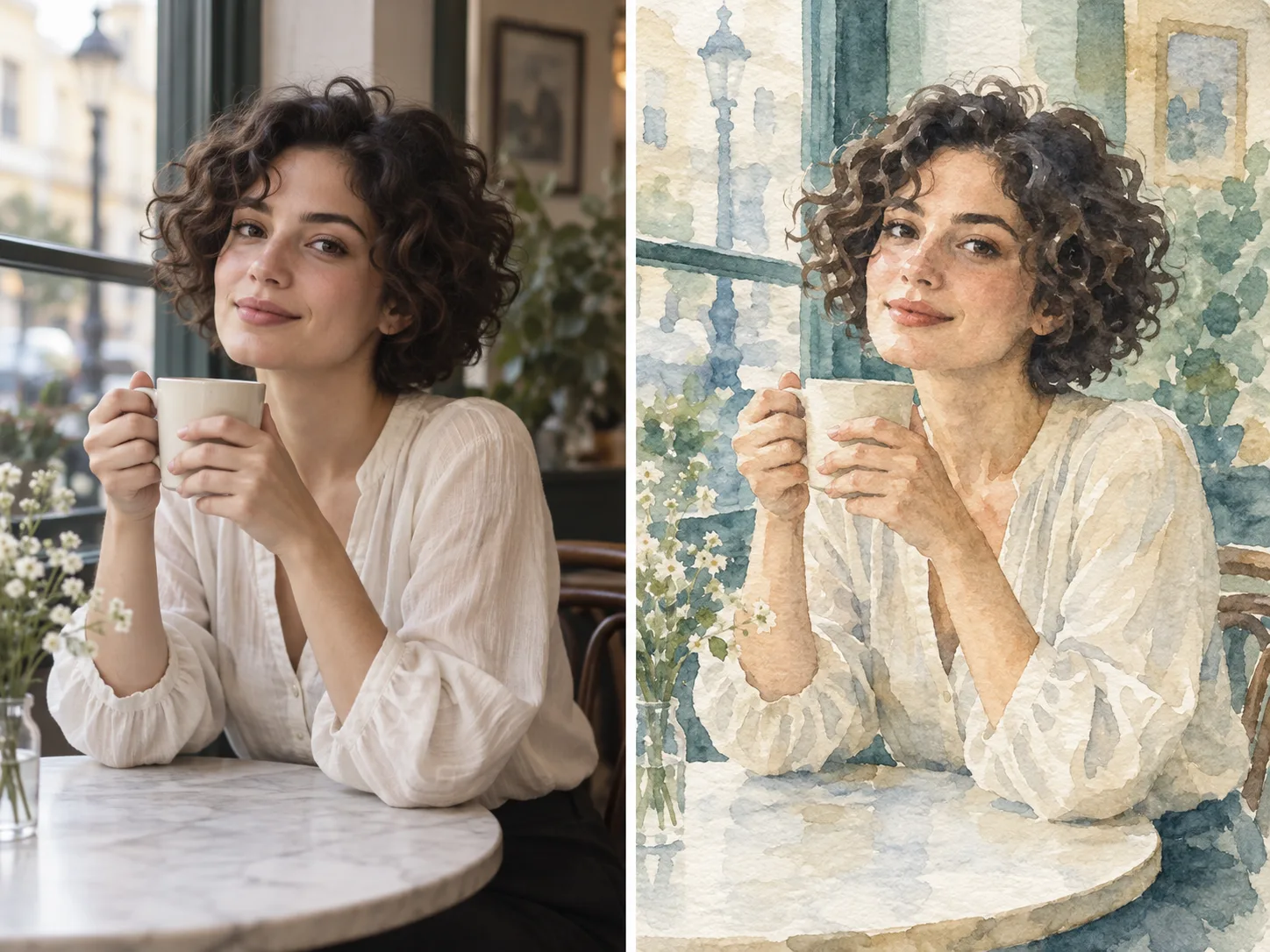
Reference portrait on the left and CiciGPT watercolor output on the right
Left: reference · Right: output · CiciGPT generated result
Portrait to watercolor

Turn a café portrait into an illustration

What changed: Photographic texture becomes watercolor washes with visible paper grain.

What stayed recognizable: Curly hair, the seated pose, the cup, and the window-side framing.

Look closely: Facial features, fingers, and the folds of the shirt are reinterpreted rather than copied exactly.

Try a similar prompt

Suggested instructions for a similar direction; the original generation prompt is unavailable for this example.

Use this photo as a reference. Render it as a soft watercolor illustration. Keep the main subject, pose, and framing recognizable. Use muted colors and avoid adding extra objects.
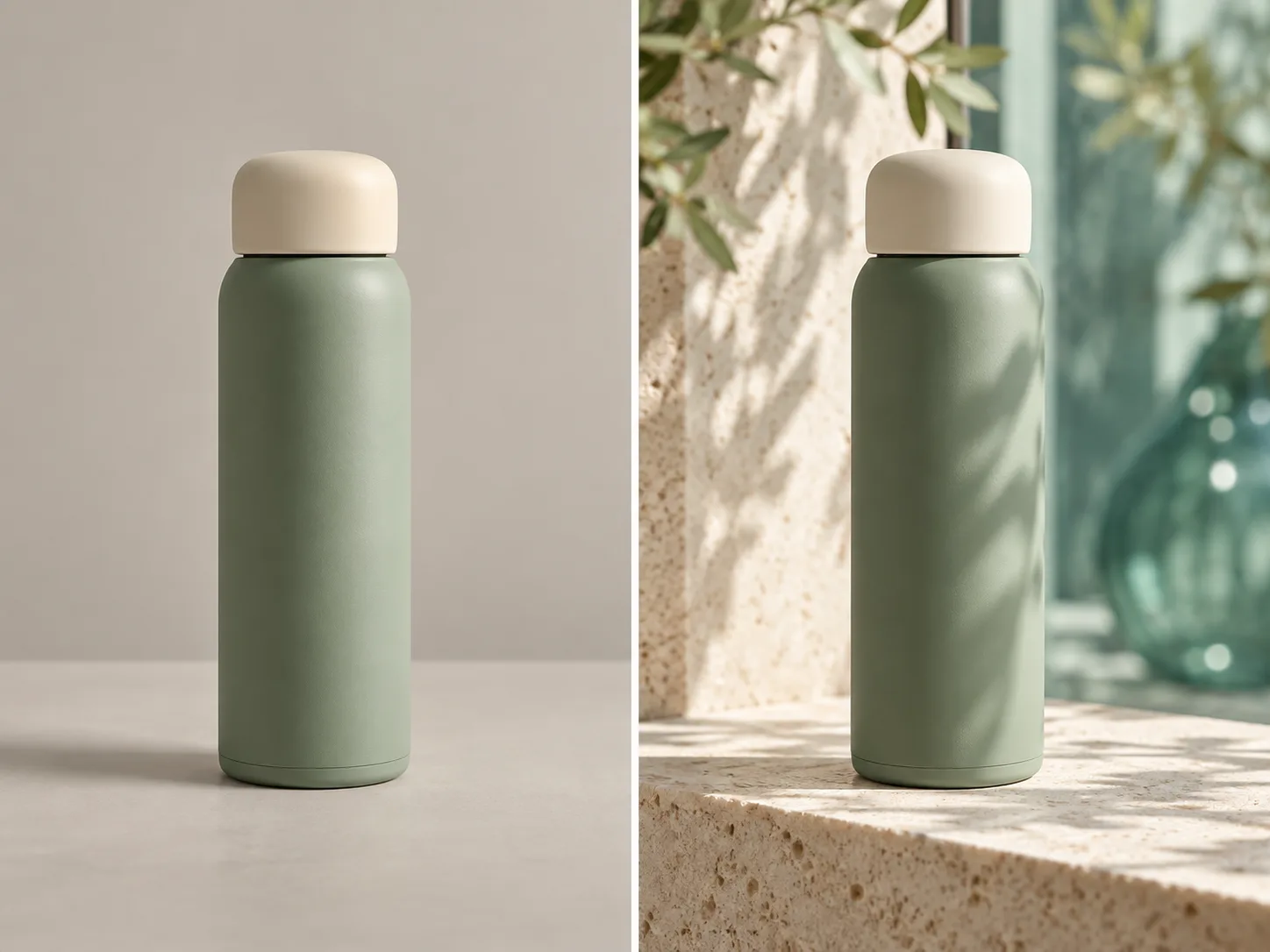
Sage bottle reference on the left and CiciGPT output on a sunlit stone surface on the right
Left: reference · Right: output · CiciGPT generated result
Product in a new setting

Move a bottle from the studio into sunlight

What changed: A plain backdrop becomes a stone setting with foliage shadows and directional light.

What stayed recognizable: The sage bottle, cream cap, upright placement, and overall silhouette.

Look closely: This bottle has no visible label, so this example does not demonstrate accurate logo or packaging text reproduction.

Try a similar prompt

Suggested instructions for a similar direction; the original generation prompt is unavailable for this example.

Use this product photo as a reference. Place the item on a pale stone surface beside soft window light. Keep the product shape, cap, color, and camera angle recognizable. Do not add text or accessories.
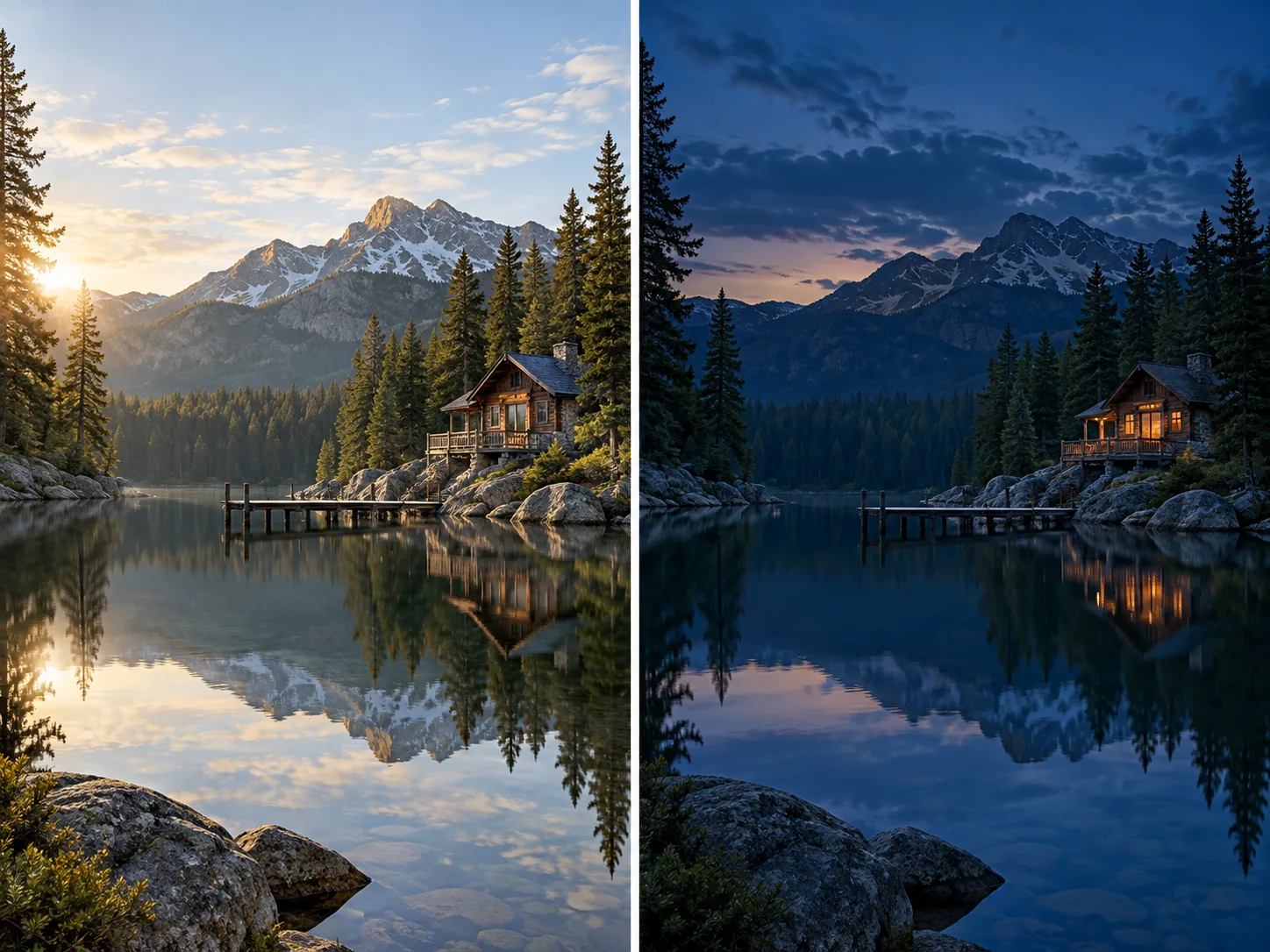
Daylight cabin reference on the left and CiciGPT blue-hour output on the right
Left: reference · Right: output · CiciGPT generated result
Lighting and atmosphere

Reimagine a lakeside cabin at blue hour

What changed: Warm daylight becomes a deep blue evening with glowing cabin windows.

What stayed recognizable: The cabin by the lake, mountain backdrop, trees, and reflected composition.

Look closely: The shoreline, clouds, and small building details shift. Compare the layout as well as the color.

Try a similar prompt

Suggested instructions for a similar direction; the original generation prompt is unavailable for this example.

Use this landscape as a reference. Change the scene to a calm blue-hour evening with gentle light. Keep the horizon and main building positions recognizable. Avoid adding people.
CiciGPT gouache bicycle scene with the photographic reference in the lower-left inset
Inset: reference · Main image: output · CiciGPT generated result
Photo to gouache

Give a seaside bicycle photo a painted finish

What changed: The seaside scene gains painted brushwork, brighter blues, and simplified textures.

What stayed recognizable: The bicycle, flower basket, green cottage, and coastal setting.

Look closely: Spokes, flowers, and distant buildings are illustrative details, not exact reproductions.

Try a similar prompt

Suggested instructions for a similar direction; the original generation prompt is unavailable for this example.

Use this seaside bicycle photo as a reference. Reimagine it as a colorful gouache illustration with visible brushwork. Keep the bicycle, flower basket, green cottage, and coastal composition recognizable. Avoid adding people.
About these examples and their generation settings

These examples were generated with CiciGPT. The original model, quality, aspect ratio setting, prompt, and generation date are unavailable for these published images. Suggested prompts let you try a similar direction; results will vary.

From reference to result

How to generate an image from a reference photo

01

Upload a clear reference

Upload a JPEG, PNG, or WebP up to 20MB. Photo Edit uses one reference here; choose GPT Image 2.5 and Multiple to combine references.

02

Describe what to change and keep

Choose a preset below or write your own style, scene, or lighting direction. Name the subject, pose, or framing to preserve, then check the model and credit amount.

03

Generate, review, and download

Compare the output with your reference and refine one mismatch at a time. Download as JPG or PNG; GPT Image 2.5 also supports WebP.

Choose a creative direction

What will you change in your reference image?

PROMPT IDEAS

Image-to-image AI (img2img) uses your picture and instructions to create another version. Use these prompt presets to explore a style, rebuild a scene, or change the light. Each button fills the workspace so you can adjust the instructions before generating.

Style & texture

Reimagine a style

Start with a clear photo and explore an illustration direction.

Use this photo as a reference. Render it as a soft watercolor illustration. Keep the main subject, pose, and framing recognizable. Use muted colors and avoid adding extra objects.

What to keepMain subject, pose, and framing

What to check in the result

Check faces, hands, and small details. A new style can change proportions.

Setting & light

Explore a new scene

Use an existing product photo to explore a different setting.

Use this product photo as a reference. Place the item on a pale stone surface beside soft window light. Keep the product shape, cap, color, and camera angle recognizable. Do not add text or accessories.

What to keepProduct shape, cap, color, and camera angle

What to check in the result

Review packaging, logos, and text carefully before using a product image.

Mood & color

Change the atmosphere

Try another lighting direction with the same landscape reference.

Use this landscape as a reference. Change the scene to a calm blue-hour evening with gentle light. Keep the horizon and main building positions recognizable. Avoid adding people.

What to keepHorizon, layout, and building positions

What to check in the result

Compare the layout with your reference. Generated scenes are interpretations.

Using a prompt only fills the workspace. Generation starts when you choose Generate image.

Choose, prompt, refine

Keep your reference useful and your next attempt focused

01

Start with visible detail

Use a clear subject and framing close to your goal. A close-up cannot show a full-body pose; a blurry label gives the model little text to work with.

02

Separate change from preservation

Try: “Change the photo to watercolor. Keep the curly hair, cup, seated pose, and framing recognizable.” For several styles, keep the reference and preservation instructions the same.

03

Fix the most important mismatch

If the subject drifts, reduce the transformation and name the feature to preserve. If a product floats, specify the surface and contact shadow. Check faces, hands, text, and geometry before downloading.

Model costs and free access

Check the model and credits before you generate

Costs depend on the selected model and quality. The Generate image button shows the required credits before you start.

Image-to-image generation costs
ModelGuest accessSigned-in cost per generation
Photo Edit1 free generation daily5 credits
GPT Image 2.5Sign-in requiredLow: 2 · Medium: 4 · High: 8 credits

Guest Photo Edit access resets at midnight New York time (ET). New accounts receive a one-time gift of 5 credits on first registration; how far these go depends on your model and quality. See credit packs.

Choose your workflow

A new interpretation or a specific photo edit?

Use this image-to-image workspace to explore a new visual direction: painted portraits, rebuilt settings, or several styles from one reference. Use the AI photo editor for a specific instruction such as removing an object, changing a background, or recoloring clothing. Both entry points use the shared CiciGPT editor; the prompts and starting task differ.

Starting with a drawing? Turn a sketch into an image. Creating character reactions? Try the AI sticker workflow.

Before using your result

Review the details that matter

A reference guides generation, but small details, faces, text, and proportions can change. Check product labels and logos carefully, and compare important shapes with the source.

Your image and prompt are sent to the editing service when you generate. Read our Privacy Policy and Terms for image handling and use.

A few useful answers

Questions about CiciGPT image to image

Need a hand? Contact support

Is CiciGPT’s image-to-image generator free?

Photo Edit offers guests 1 free generation per day, resetting at midnight New York time (ET). GPT Image 2.5 requires sign-in. Signed-in costs vary by model and quality; see the model cost table above and the amount shown on Generate image.

What happens after I use my free guest generation?

Sign in to continue or return after the guest allowance resets. New accounts receive a one-time gift of 5 credits on first registration. The number of generations depends on the model and quality you choose. You can buy more credits if needed.

What is image-to-image AI?

Image-to-image AI, also called img2img, uses an existing image and your instructions to create a new version. The reference can guide the subject, composition, or visual style.

How do I create an AI image from my photo?

Upload a clear photo, describe what to change and what to keep, then generate. Compare the result with your reference and check important details before downloading.

Will the result look exactly like my reference?

Not always. AI may change small details, text, faces, or proportions. Describe what should remain recognizable and review the result carefully.

How is this different from text-to-image generation?

Image-to-image starts with a visual reference and a prompt. Text-to-image starts primarily from a written description. Use a reference when you already have a subject or composition to build on.

Which images can I upload?

Upload JPEG, PNG, or WebP images, up to 20MB each. Photo Edit on this page accepts one reference; GPT Image 2.5 also offers Multiple mode. Choose a clear image that you have permission to use.

Can I try several styles from the same photo?

Yes. Keep the same reference uploaded and change the style in your prompt, for example from watercolor to anime or gouache. Generate each version separately, keeping the same preservation instructions so you can compare them. Each generation uses the selected model’s allowance or credits.

Can I adjust reference strength or a denoising slider?

This workspace uses prompts, model selection, and the available image settings. It does not expose a reference-strength or denoising slider. Tell the model which subject details and composition to preserve.

Give your reference image a new direction

Upload an image, describe your idea, and explore a new version.

Upload an image Check model costs and free access

WE'RE HERE TO HELP

Contact us

Questions about CiciGPT, your account, or a purchase? Email us.

Open email app