Delete this image and record?

Once deleted, this image and its history record cannot be recovered. Cached copies may remain accessible for 3–4 hours due to network caching.

Confirm Payment

After payment, click "Confirmed" to update your account information.

AI sketch to image · Make your ideas visual

Turn Your Sketch into an Image with AI

Draw a sketch here or upload a clear image of one. Add an optional description to guide the style, then review the generated image.

  • Draw or upload a sketch
  • Add a prompt if you want
  • Review before downloading
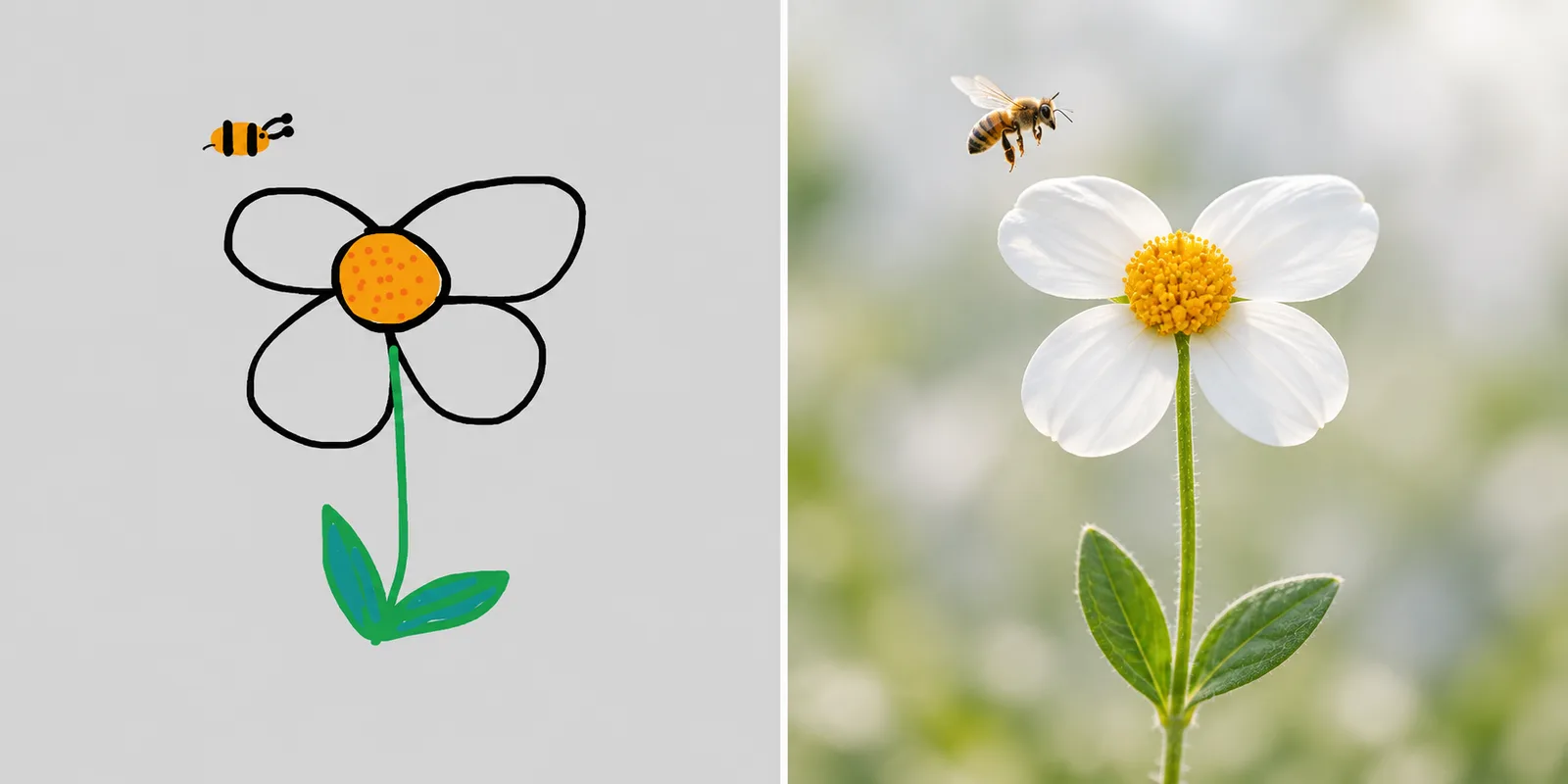
Simple hand-drawn flower and bee transformed into a realistic flower photograph
From your sketch to a finished imageA rough flower doodle becomes a photo-style image while the main shapes stay recognizable.
FROM SKETCH TO IMAGE

Turn your sketch into an image

Upload a drawing or a clear photo of a paper sketch, describe the result, and review the generated image.

01 · Sketch

Optional. If left blank, the sketch will be interpreted with a default prompt.0 / 2000
See what a simple sketch can become
Demo: a hand-drawn flower and bee sketch beside a photo-style image of the same flower and bee
Hand-drawn sketchPhoto-style image

Upload your own drawing and describe the look you want. Your generated result will appear here.

Generated result

A reference plus a direction

What is sketch to image AI?

Sketch to image AI uses a drawing, line art, doodle, or photo of a paper sketch as a visual starting point. Your prompt explains the subject, style, materials, lighting, and details you want to preserve. The tool creates a new image from both inputs.

The visible shapes and layout guide the result, but they do not lock every pixel in place. Clear sketches and specific instructions make it easier to communicate your idea.

Already have a finished photo or a generated sketch result? Use image-to-image generation to explore another style, scene, or lighting direction from it.

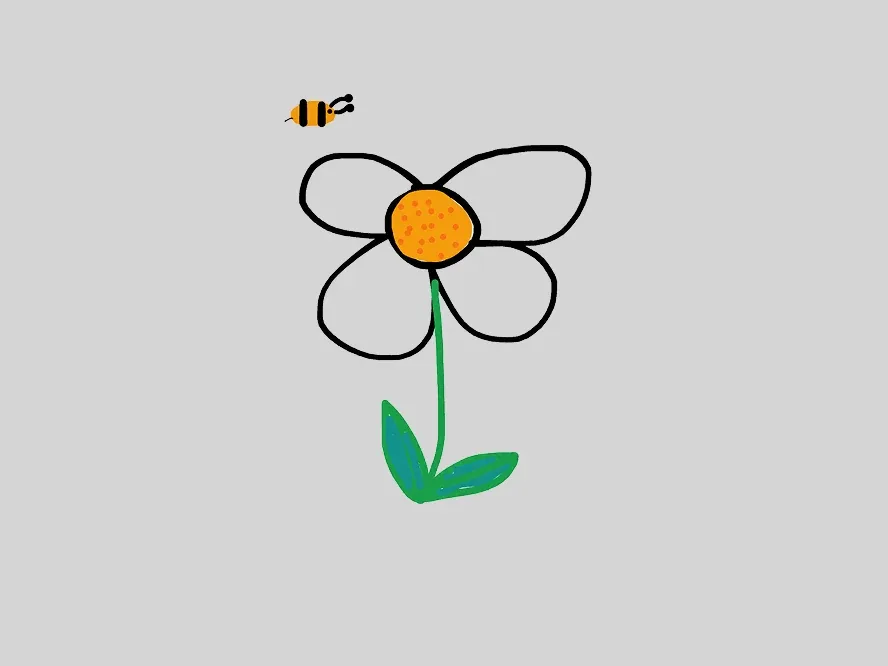
Original simple hand-drawn flower and bee sketch with uneven black outlines and a few flat colors
Start with a sketch like this

Even a quick doodle can communicate the subject and placement. Describe the texture, color, and lighting you want in the result.

Explore a use case

What can you make from a drawing?

These are prompt directions to try in the workspace. They are starting points; inspect every generated result for changes.

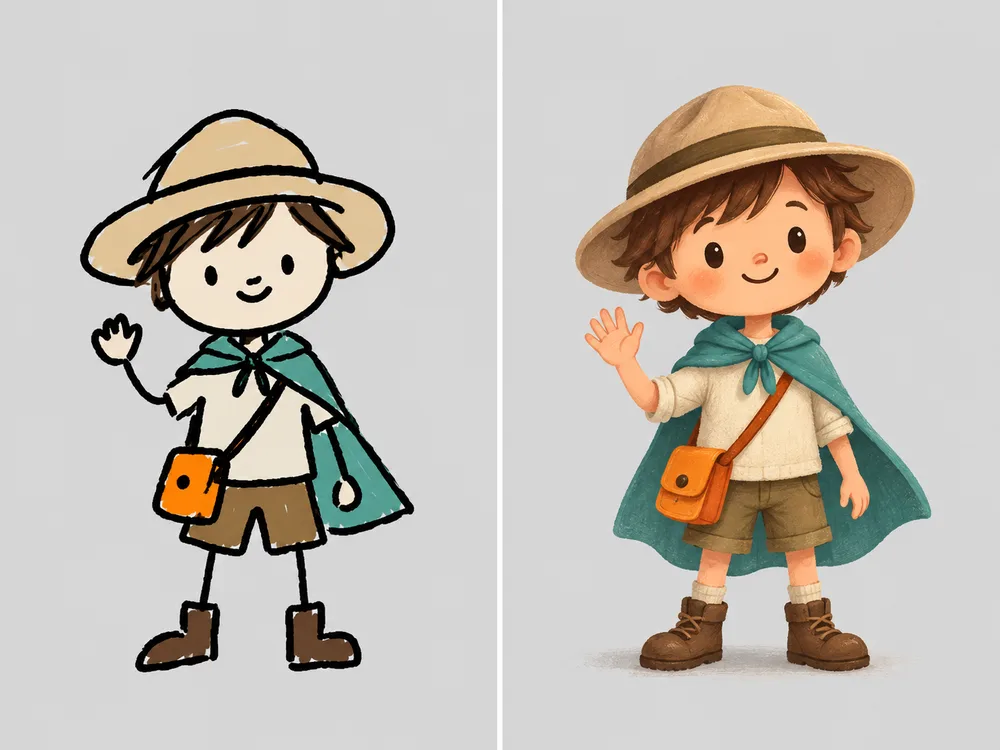
Simple hand-drawn explorer character beside a finished storybook illustration of the same character
Hand-drawn sketch image concept

Character and illustration ideas

Explore color, costume, and lighting from a character sketch while keeping the pose and silhouette recognizable.

“Turn this character sketch into a finished editorial illustration. Keep the pose, silhouette, and costume shapes recognizable.”
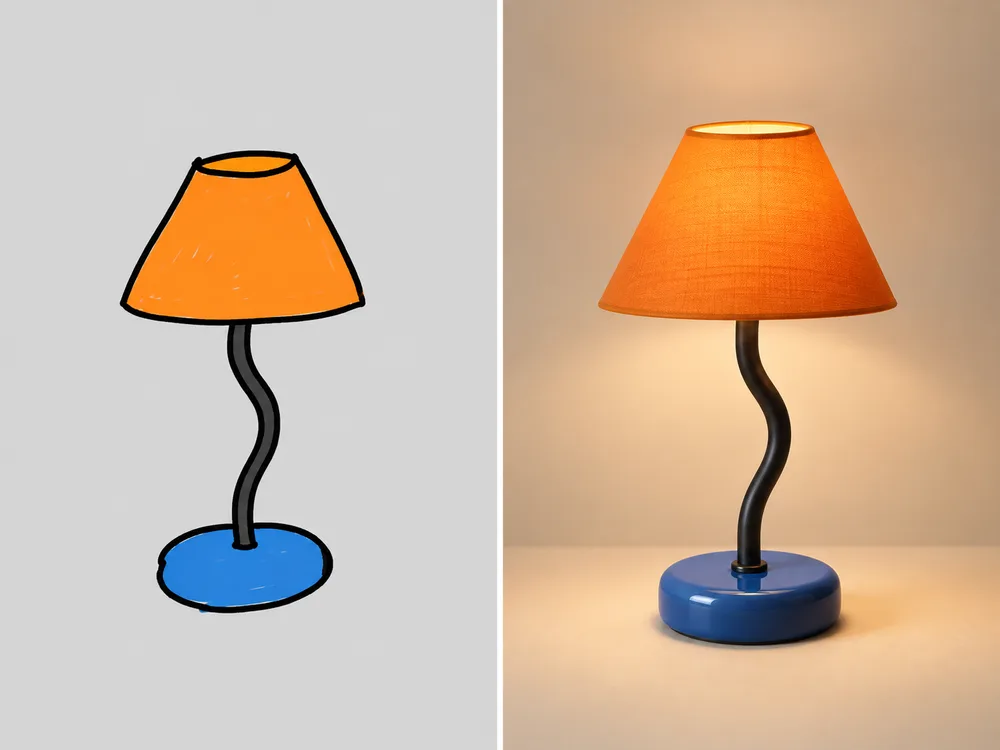
Rough hand-drawn table lamp beside a realistic product concept image that keeps its shape and colors
Hand-drawn sketch image concept

Product concept images

Preview materials and lighting on a rough product drawing before you commit to a final visual direction.

“Turn this product sketch into a warm studio concept image. Preserve the outline, proportions, and placement of the main object.”
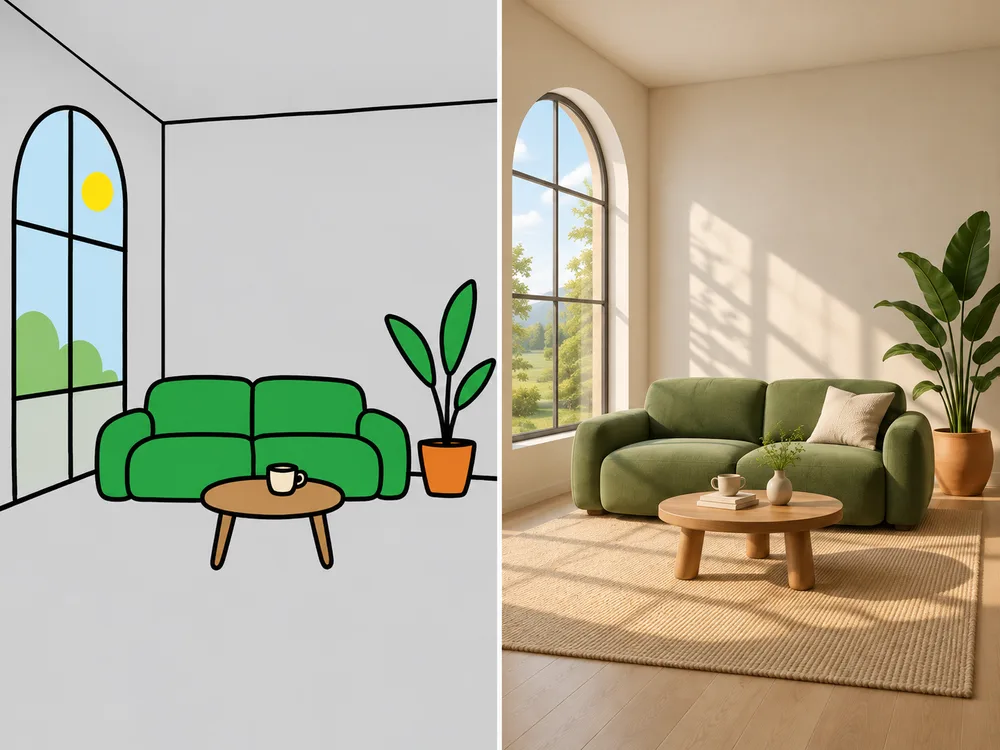
Simple hand-drawn room layout beside a realistic interior concept with the same window and furniture positions
Hand-drawn sketch image concept

Room and scene concepts

Turn a quick room layout or environment drawing into a visual concept for discussion.

“Turn this room sketch into a calm interior concept image. Keep the main walls, windows, and furniture positions recognizable.”
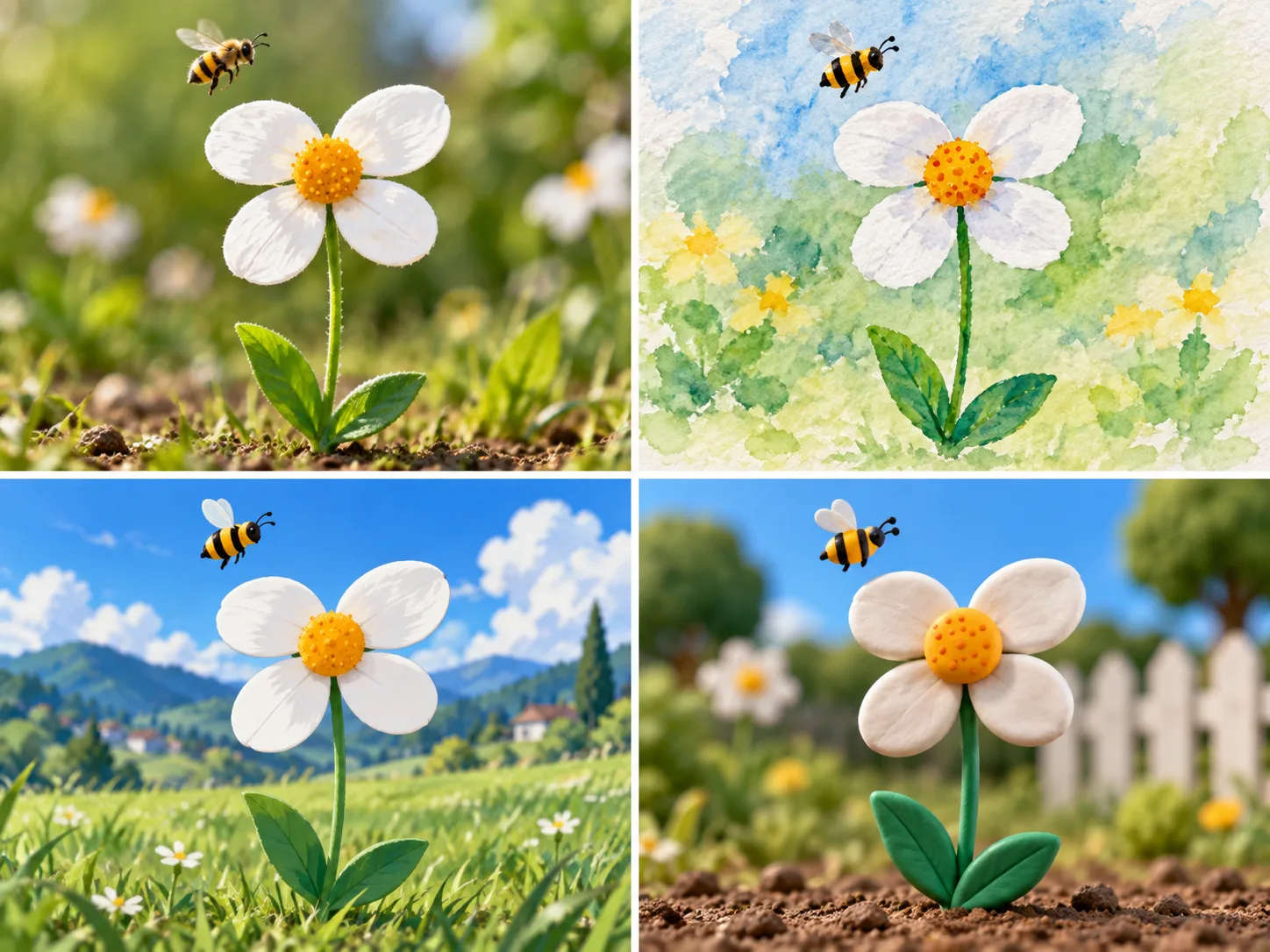
One sketch, different directions

Choose a look for your sketch

Use the same drawing with a different description when you want to compare a realistic, illustrated, or rendered visual direction.

The same simple flower and bee sketch interpreted as a realistic photo, watercolor, anime-style art, and a 3D-style render
Top left: photo · top right: watercolor · bottom left: anime-style art · bottom right: 3D-style render

Realistic photo

Describe materials, camera angle, and soft or directional light. The result is an AI interpretation, not a photograph of a real object.

Watercolor illustration

Ask for paper texture, pigment variation, and a restrained palette while keeping the sketch composition recognizable.

Anime-style art

Name the character treatment and color direction, then specify the pose and silhouette that should remain.

3D-style render

Use this wording for a rendered visual concept. It creates an image and does not export an editable 3D model.

Practical guidance

Tips for better results from rough drawings

Small improvements to the source image and prompt can make the intended subject easier to interpret.

01

Make the lines easy to read

Use even light for paper photos, avoid glare, and crop away the table or surrounding clutter.

02

Name what must stay

Mention the subject, pose, silhouette, placement, or color that matters most to you.

03

Change one idea at a time

If the result drifts, simplify the request and describe the specific detail that needs attention.

Set the right expectation

What this tool can and cannot preserve

Your sketch can guide the visible composition, but generated details may vary. Treat the result as a creative interpretation and review it before sharing or using it in a final design.

Usually useful: recognizable subjects, broad layout, pose, silhouette, and a described visual style.

Check carefully: text, logos, exact quantities, faces, hands, fine patterns, and dimensionally accurate designs.

Output boundary: this tool creates an image, including a 3D-style look when described. It does not export an editable 3D model.

Before you generate

Formats, quality, and credits

Sketch uploads accept JPEG, PNG, and WebP files up to 20MB. Sign in to generate an image. The selected quality uses 2 credits for low, 4 for medium, or 8 for high; output can be PNG, JPEG, or WebP.

Review the pricing page, Terms, and Privacy Policy for current account, usage, and image-handling information.

Generation checklist
  • Upload an image you have permission to use.
  • Describe the subject and the details to preserve.
  • Review text, faces, proportions, and fine details.
From drawing to image

How to turn a drawing into an image

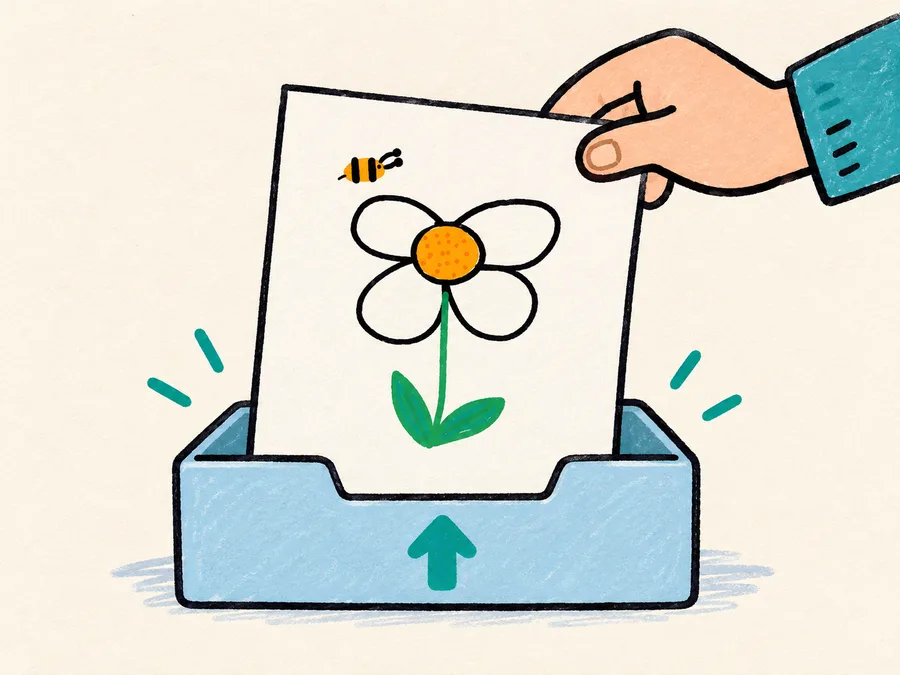
Hand-drawn flower sketch being placed into an upload tray
01

Draw or upload your sketch

Draw on the canvas, or upload a digital drawing, scan, or clear photo of a paper sketch. Keep the lines visible.

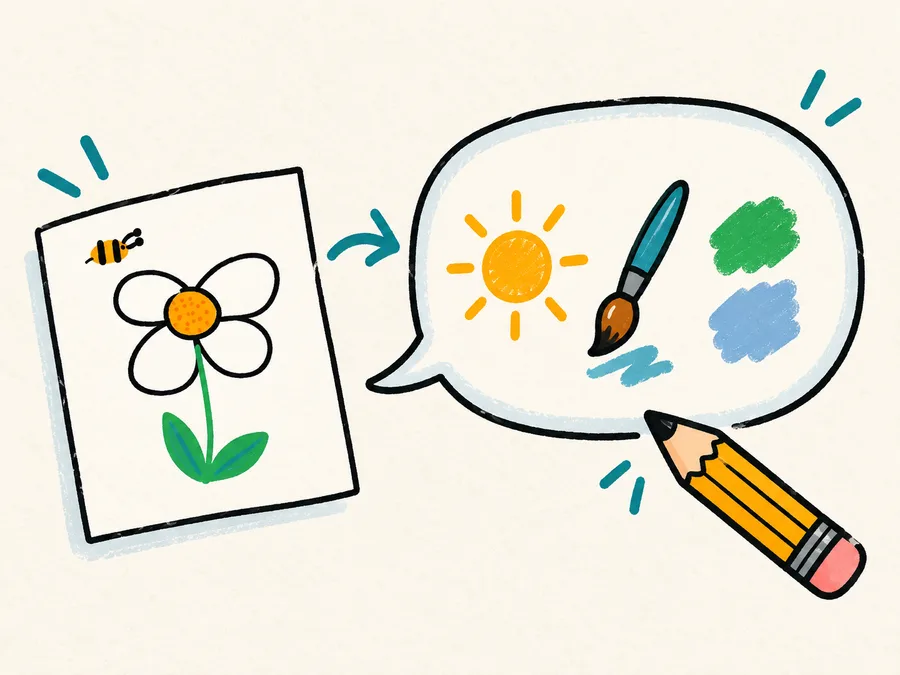
Hand-drawn flower sketch beside visual cues for lighting, color, and style in a prompt bubble
02

Add a direction (optional)

Name a style or detail if you have one in mind. Leave this blank for an original interpretation of your sketch.

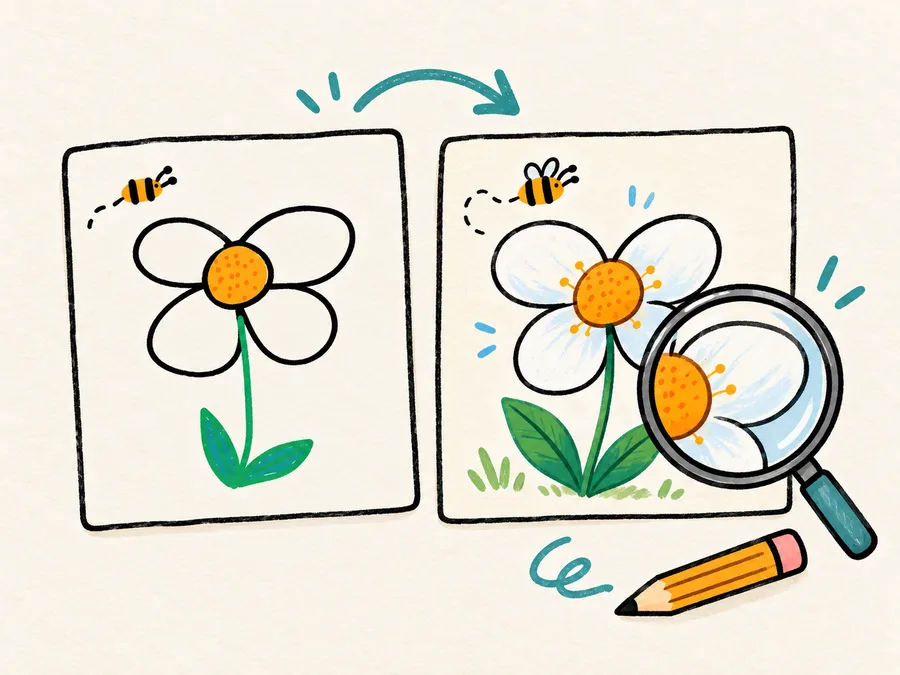
Original flower doodle beside a finished illustration being checked with a magnifying glass
03

Generate and review

Compare the result with your drawing. If a detail changes, refine the prompt and generate again.

Better results from rough drawings

Guide the result with a clear prompt

Try: “Turn this chair sketch into a warm studio product photo. Keep the curved back and wooden legs.” Be specific about what matters most. AI may change small details, text, faces, or proportions, so check the output before using it.

YOUR PROMPT, SIMPLIFIED

Make this sketch into [subject and style].
Keep [shape, pose, or placement] recognizable.
Use [lighting, material, or color].
Avoid [unwanted change].

What it can preserve

Composition with room for interpretation

The visible shapes and layout guide the result, while materials, lighting, and small details are interpreted by AI. A sharper crop and a clear prompt usually provide a better starting point.

Know the boundary

Review every generated image

This tool creates an AI-generated image, not an editable 3D model or a dimensionally accurate design. Check text, faces, quantities, and proportions before sharing or using a result.

Frequently asked questions

Questions about sketch to image AI

Need help? Contact support

Can I turn a photo of a paper sketch into an image?

Yes. Use a clear, evenly lit photo with visible lines and little glare. Upload JPEG, PNG, or WebP up to 20MB, then describe the finished image you want.

Does the result follow my original drawing?

It uses visible shapes and layout as guidance. Small details, text, and proportions may change, so compare the result with the original.

Can I turn a sketch into a realistic photo?

Describe the materials, camera angle, and lighting you want. The output is an AI-generated interpretation, not a photograph of a real object.

Do I need drawing skills?

No. Simple, recognizable shapes can provide a useful starting point. A clear subject and specific description often help.

Which formats can I upload and download?

Uploads support JPEG, PNG, and WebP up to 20MB. Generated images can be downloaded as PNG, JPEG, or WebP. Review the current workspace controls before generating.

Is this sketch-to-image tool free?

Sign in to use this sketch-to-image tool. Generation uses 2 credits for low quality, 4 for medium, or 8 for high. See the pricing page for current account and credit details.

Can I use the generated image commercially?

Review the Terms for current conditions. You remain responsible for rights to source images, likenesses, trademarks, and other protected material.

Are my sketches private and how long are they stored?

See the Privacy Policy for current image handling and retention information. Avoid uploading confidential or sensitive images.

Can it make a 3D model from my sketch?

No. It can create an image with a 3D-style look when described, but it does not export an editable 3D model.

Why does my output look different from the sketch?

Try a sharper image, a tighter crop, and a prompt naming the exact shape, subject, and details to preserve. AI results can still vary.

Ready to see what your drawing could become?

Draw or upload a sketch, describe a style, and review your result.

Start drawing

WE'RE HERE TO HELP

Contact us

Questions about CiciGPT, your account, or a purchase? Email us.

Open email app