
Full Body / Solo / Sexy
AI Pose Generator
Change the pose in your photo.
Upload your photo and guide a new body position with a pose reference. Choose a demo or add your own image, then compare the face, outfit, and pose before downloading. No prompt needed.
1K output · 3 credits · Sign in to generate
- JPEG, PNG & WebP
- Up to 20MB each
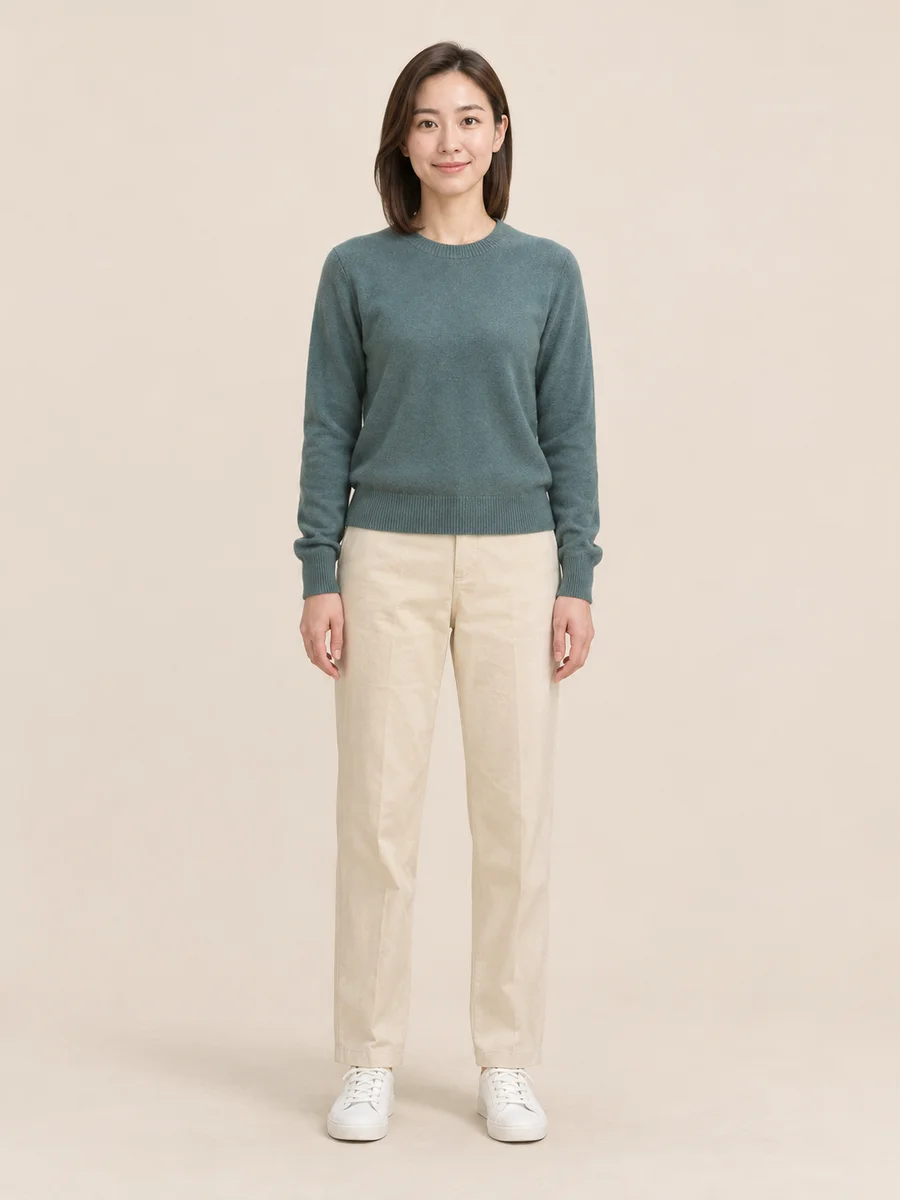
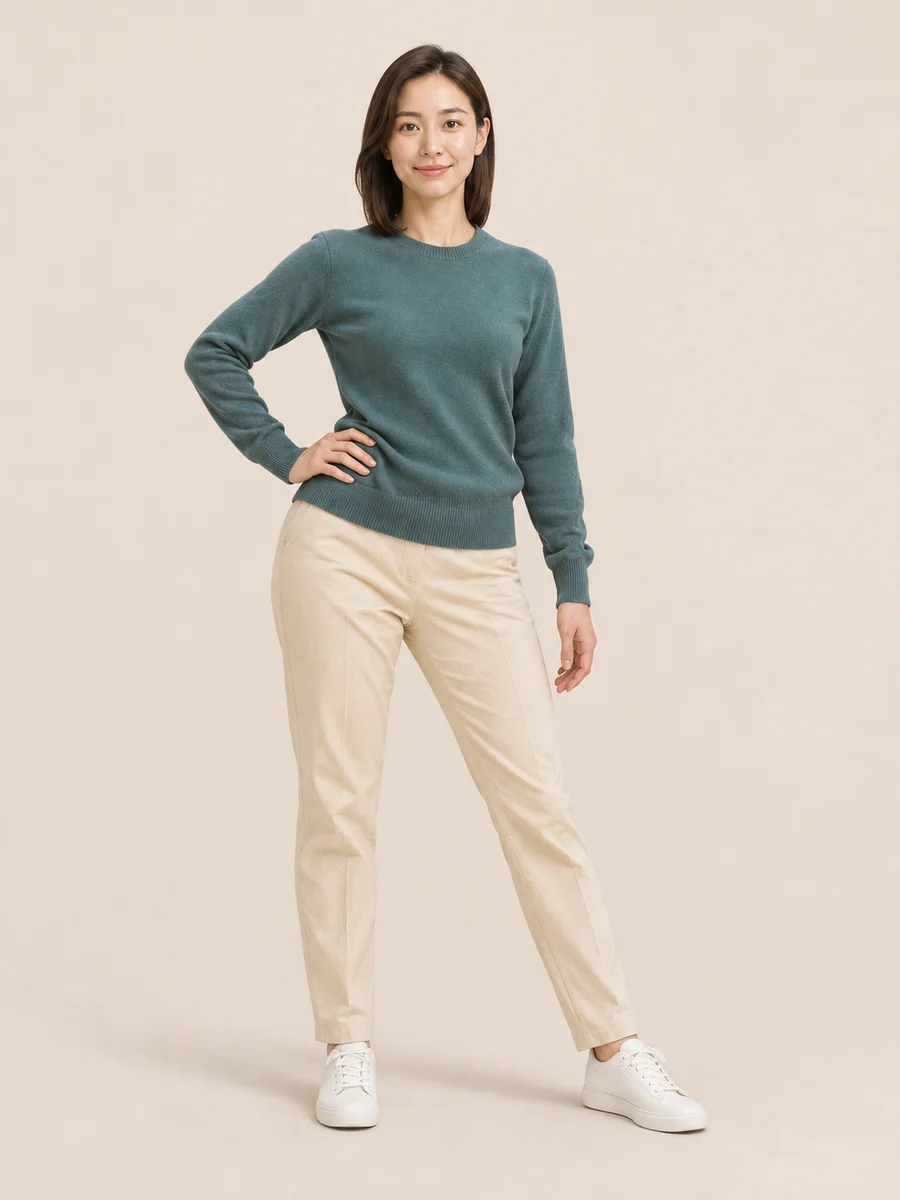
AI-generated illustrations · See the pose references
Your model. A new pose.
Your AI pose workspace
Upload your model photo, then upload a pose image or choose a template. No prompt needed.
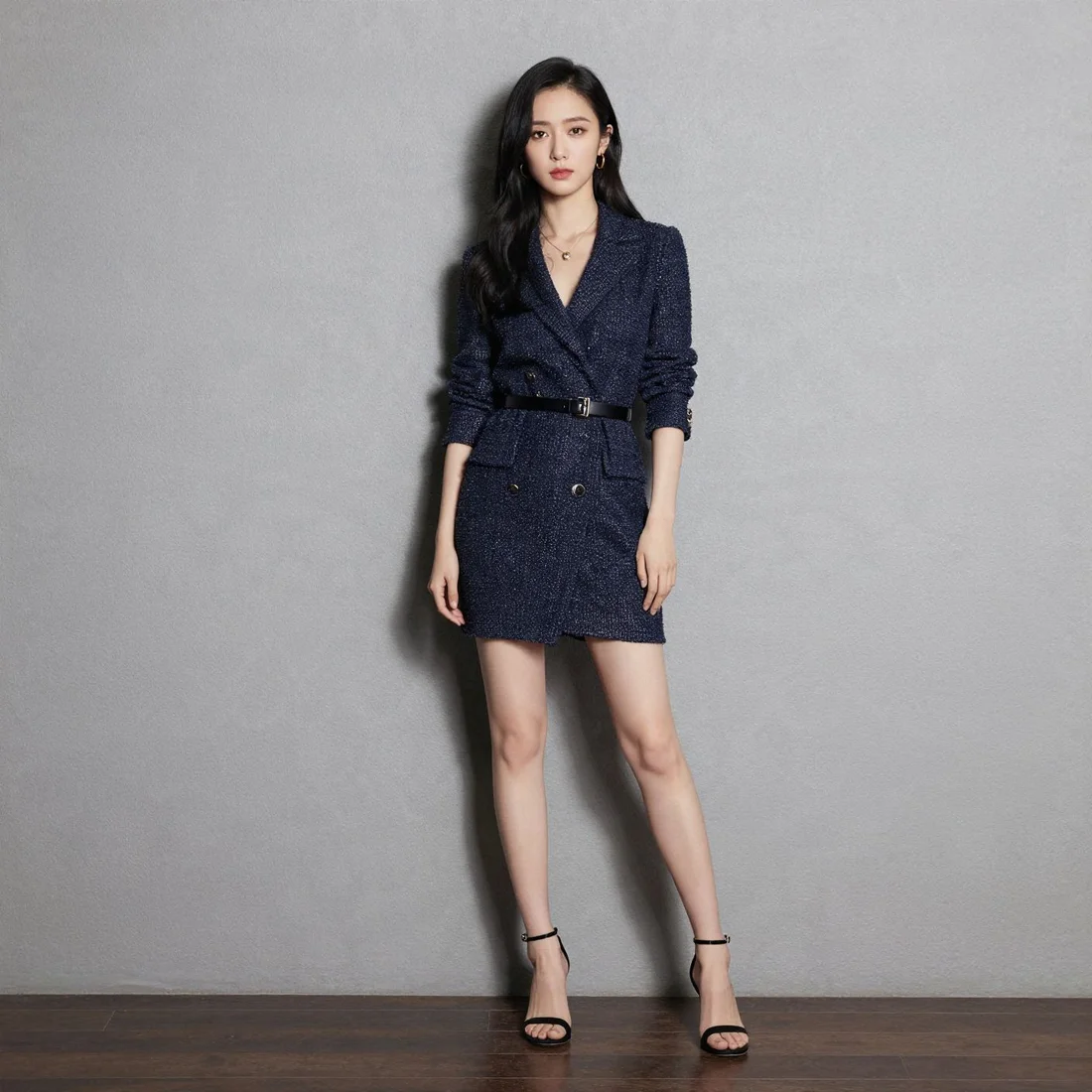
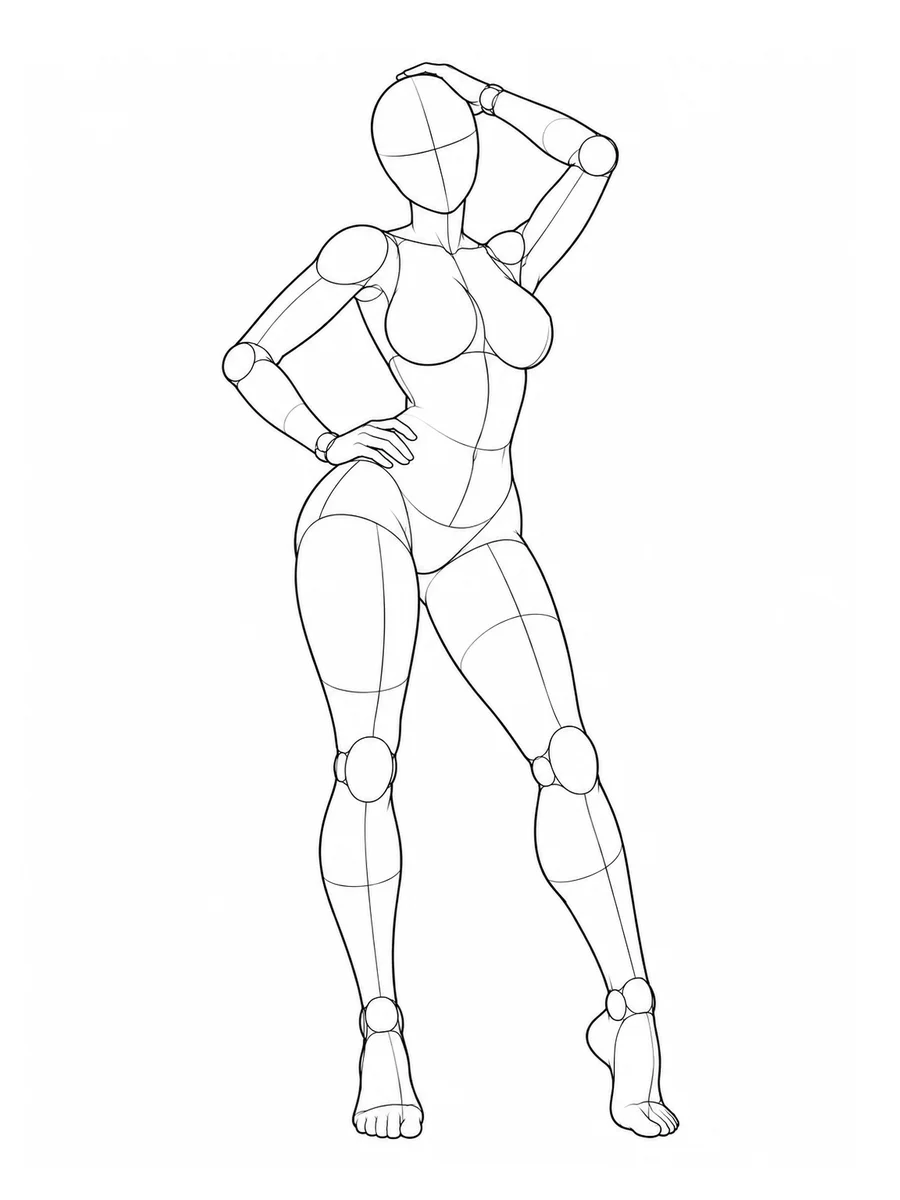
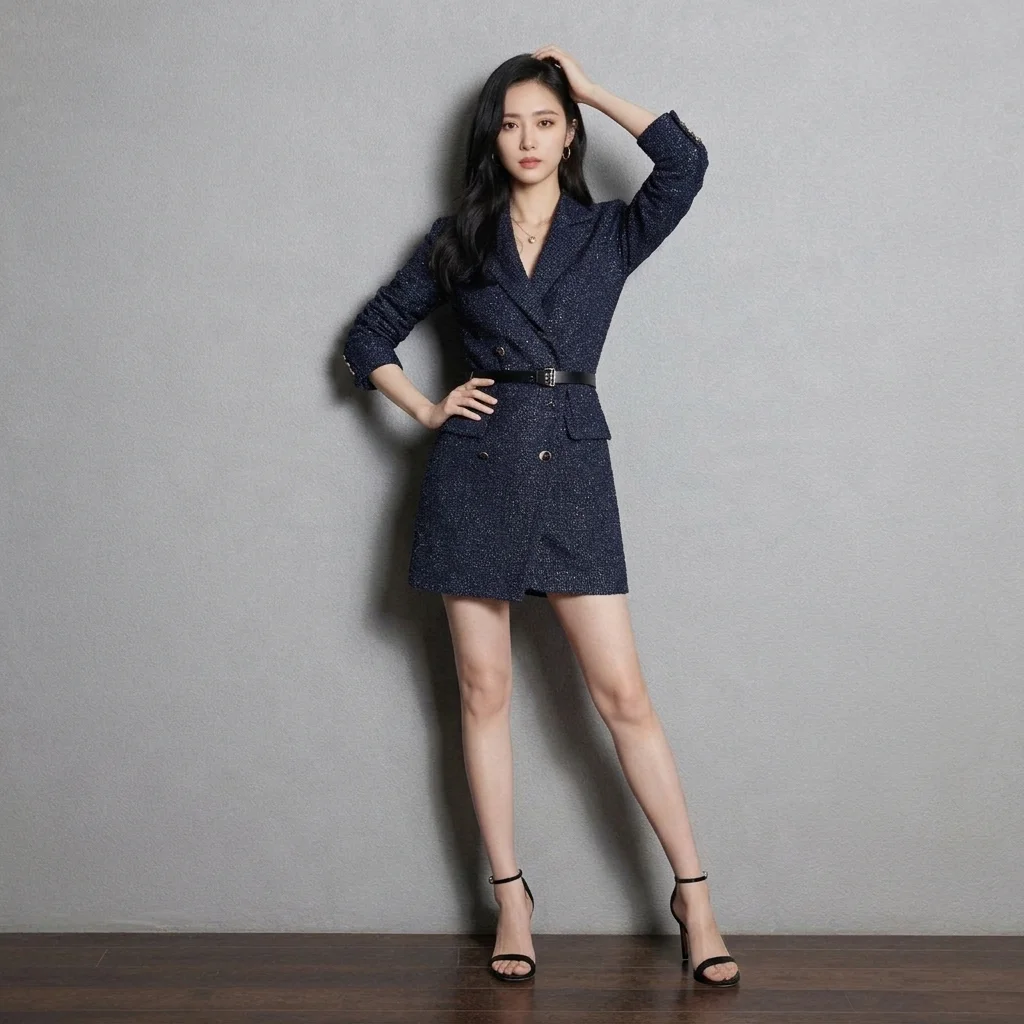
Upload your photo and choose a pose to create your own.
Find your next pose
Back to workspace Choose a pose reference
Browse 172 demo poses. Preview an image, then use it as your second reference.
Showing 1–12 of 172 poses
Full Body / Solo / Sexy
Arching the back while sweeping the hair back with both hands
Full Body / Solo / Sexy
Looking back with hips pushed outward
Full Body / Solo / Sexy
Leaning forward with hands on the knees
Full Body / Solo / Sexy
Standing with one knee hugged to the chest and the back arched
Full Body / Solo / Sexy
Hands against a wall with hips pushed back, in a standing rear-entry setup
Full Body / Solo / Sexy
Looking back over the shoulder with the buttocks emphasized
Full Body / Solo / Sexy
Sweeping the hair back as if taking a shower
Full Body / Solo / Sexy
Standing while bringing the breasts together
Full Body / Solo / Sexy
Stretching both arms overhead while twisting the waist
Full Body / Solo / Sexy
Standing V pose with one leg raised high to the side
Full Body / Solo / Sexy
Hands behind the back with the chest pushed forward
An AI pose changer for your photos
A new body pose, starting with your photo
An AI pose generator creates a new stance, gesture, or seated position in an image. CiciGPT focuses on photo pose editing: your person photo supplies the subject, and a second image guides the body position. The result is a generated variation to review against your original.
Start with your own photo
Use an existing portrait or model photo as the starting point. This AI pose editor generates a new body position from your image and a separate pose reference.
Show the pose you mean
Upload your own reference or browse 172 demo poses. A visual guide communicates the shoulder angle, arm placement, and leg position without a written prompt.
Review one variation at a time
Keep your person photo while trying another reference in a separate generation. Compare each version with the original and download the one that fits your project.
From a reference to a pose idea
Photo and pose references, side by side
See how a standing or seated reference communicates a different body position. These AI-generated illustrations explain pose ideas; they are not recorded outputs from the CiciGPT editor.
POSE P015
A relaxed standing pose, with one hand on the hip
A small shift in weight and arm position gives a standing portrait a different silhouette. Look for a reference with a clear gap between the bent arm and the body.
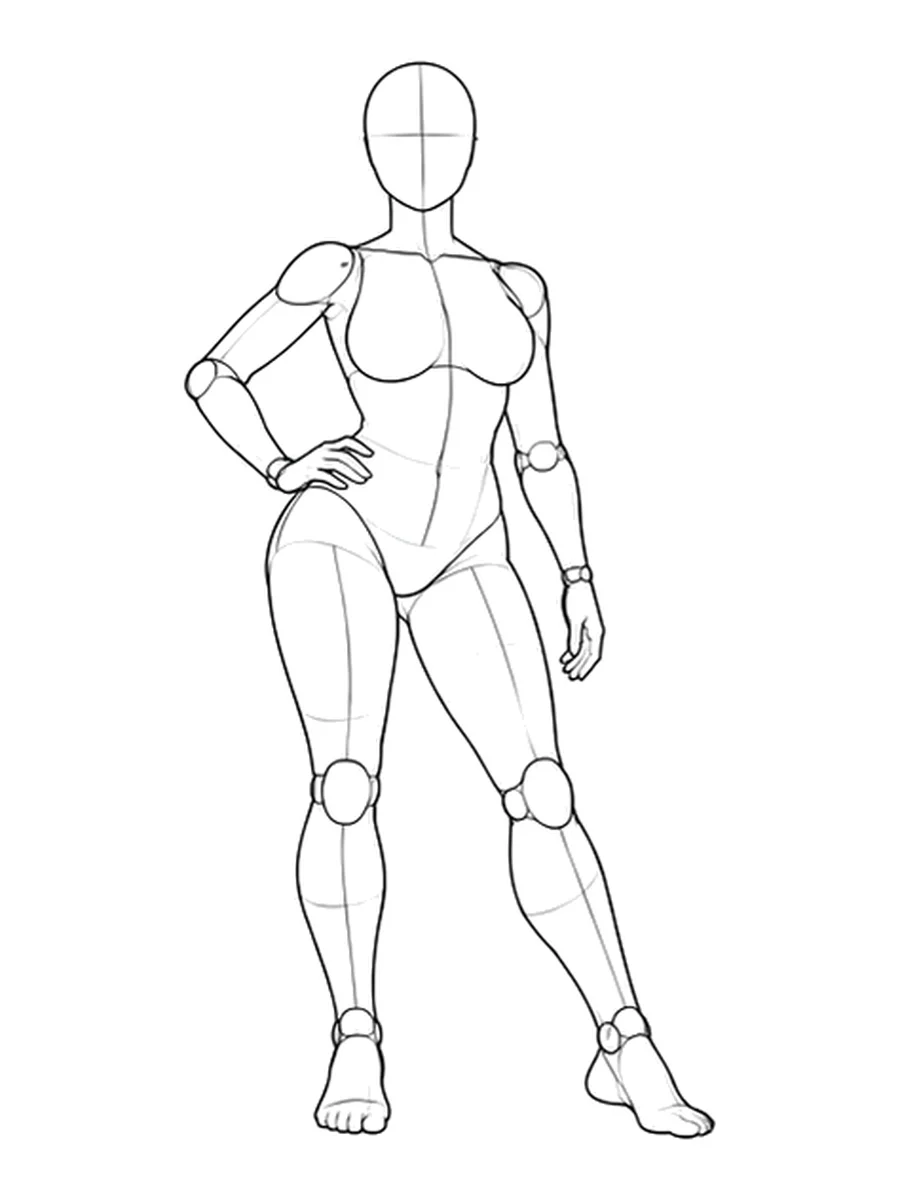
What to review: Compare the fingers on the hip, the sweater hem, and the shape of the pant legs with your source photo.
POSE P012
A seated pose, with one knee raised
A floor-seated reference communicates the knee bend, supporting hand, and head position together. A full-body source gives more information than a tightly cropped portrait.
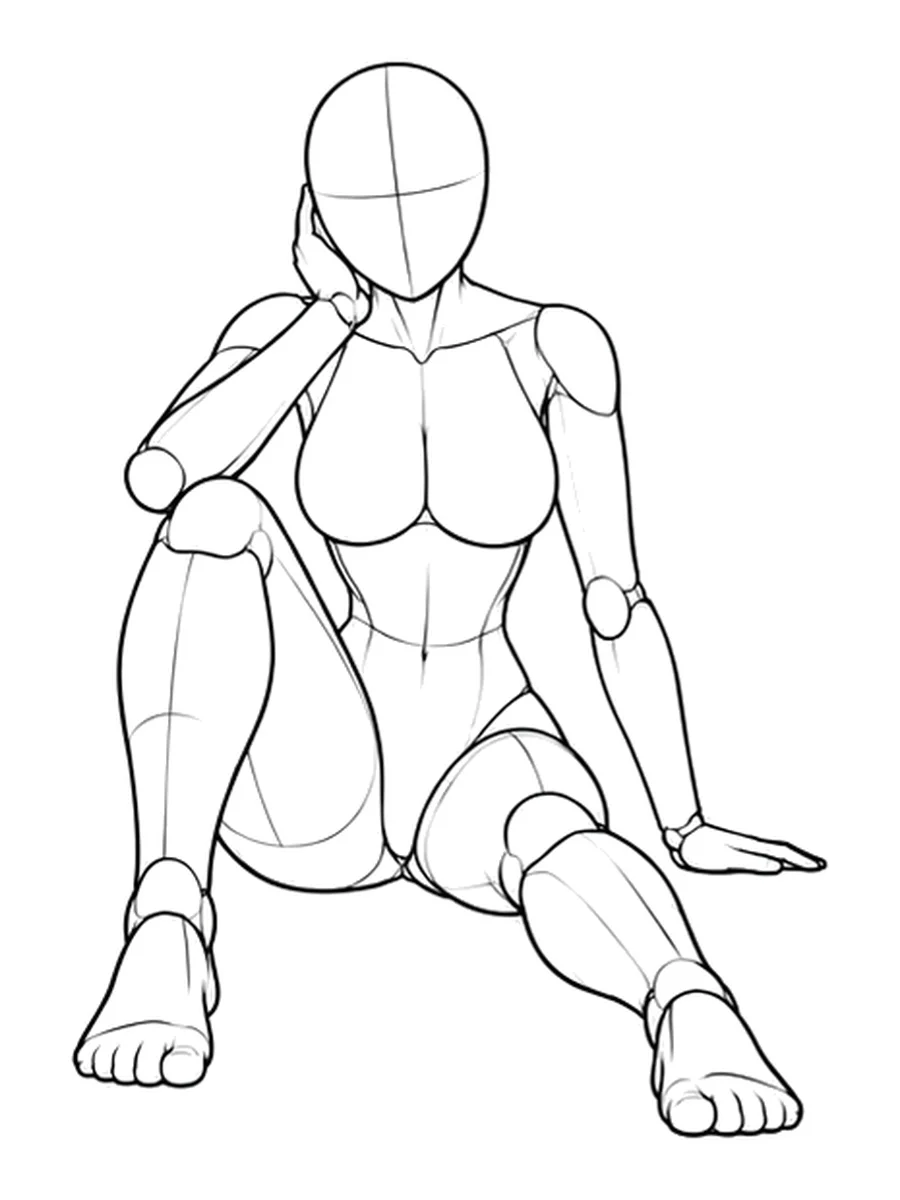
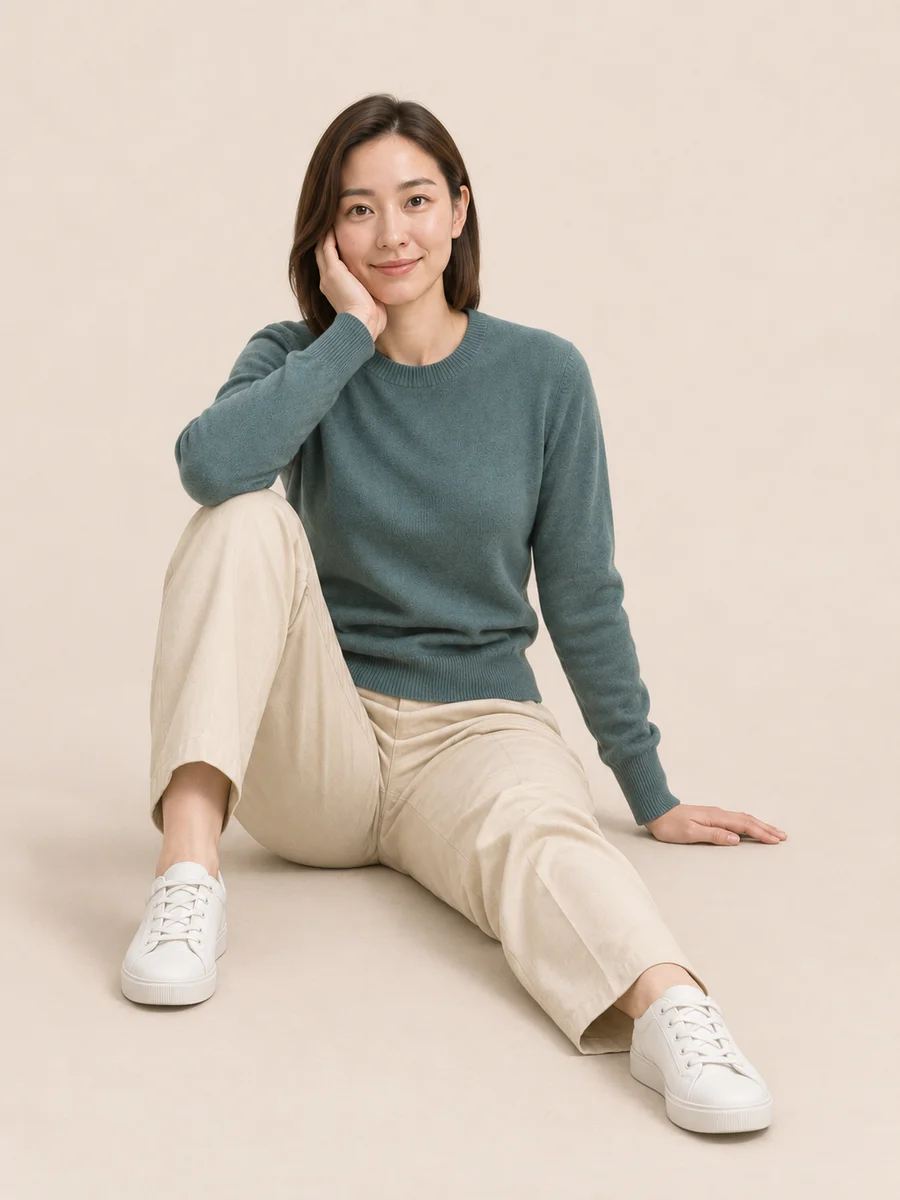
What to review: Check the supporting wrist, bent knee, shoe shape, and contact with the floor. A larger pose change can reveal areas missing from the source.
Your photo + a pose reference
How to change a pose in a photo
Use the AI pose generator from a photo in three steps.
- STEP 01
Upload your photo
Add one clear photo of the person you want to edit. Use a full-body image for a full-body pose change, with the hands and feet visible.
- STEP 02
Choose a pose reference
Upload a second image or choose a demo from the library. This image guides the body position; your first photo supplies the person and outfit. No prompt is needed.
- STEP 03
Generate, review, download
Choose Auto or an aspect ratio. Sign in and generate one 1K image for 3 credits. Compare the face, hands, clothing, and balance before downloading.
JPEG, PNG & WebP · Up to 20MB each · 3 credits per task · Sign-in required. View pricing
Choose the body position
Explore 172 pose reference templates
Filter the demo library by series or category, or search by pose name or ID. Open a larger preview to inspect the hands, feet, and body direction before choosing a reference.
Standing poses
Explore a hand on the hip, a shift in weight, or a turn of the shoulders. Start with a small change and a reference with a clear outline.
Sitting and kneeling poses
Look for visible knees and supporting hands. Check how the hips and feet meet the floor or chair in the generated image.
Upper-body poses
Focus on shoulder direction, head angle, and hand placement. Choose similar body coverage in your source and reference photos.
Full-body poses
Keep the entire figure in frame, including the feet. Allow room for extended limbs and choose an aspect ratio that suits the silhouette.
Make another version of your photo
Pose ideas for portraits, social posts, and fashion
Refresh a portrait or social photo
Explore a relaxed stance, a new hand position, or a different shoulder angle. A simple reference helps communicate the gesture without describing every joint. Compare the facial features and background before sharing.
Explore a fashion-photo variation
Try another model pose to see how an outfit reads in a different stance. Review the seams, fit, logos, and fabric patterns. Newly visible garment areas may be invented, so check product details carefully before using an image in a listing.
Give the pose editor a clear starting point
Choose better photos for a pose change
Clear inputs make the intended position easier to communicate. The source and reference have different jobs: one identifies the person, the other shows the pose.
One person, clearly visible
Choose a sharp, well-lit source photo. Hidden hands, overlapping limbs, and tightly cropped feet leave less information for the pose changer to use.
A reference with readable joints
Use a pose image with a clear body outline. Match the framing to your source: a close-up portrait provides little information for a full-body edit.
Begin with a smaller movement
Try a slight turn or a new arm position before a large change. Moving from standing to seated can require new clothing folds and previously hidden body areas.
Check details before publishing
Zoom in on the face, fingers, wrists, and garment edges. If a result looks awkward, simplify the reference and compare another generation with the source.
A generated variation needs a closer look
Try your references Review the person, not just the pose
Reference-guided pose transfer is a generated edit. The face, hands, proportions, outfit, or background may change, particularly when the new pose reveals something hidden in the original.
Check fingers and wrists, the connection between limbs, body support, and clothing details. If the result is awkward, use a simpler pose or a clearer source photo.
Before you generate
Image requirements, output, and credits
Prepare both images and check the cost before starting. This reference-based photo pose changer creates still images.
Use photos you have permission to upload. See pricing, our Privacy Policy, and Terms for account, processing, and image-use information.
- Required inputs
- One person photo and one pose reference. Upload the reference or select a demo.
- Upload formats
- JPEG, PNG, and WebP; up to 20MB per image.
- Guidance mode
- Reference images. No text prompt or manual 3D skeleton controls.
- Output
- One still image per generation, fixed at 1K.
- Aspect ratios
- Auto (default), 1:1, 2:3, 3:2, 3:4, 4:3, 4:5, 5:4, 9:16, 16:9, 21:9
- Credits and access
- Sign-in required. 3 credits per generation, charged when the task is created.
- Results and history
- Review and download in the workspace. History keeps a record in this browser; download images you want to retain.
Before your next pose
AI Pose Generator FAQs
Answers about reference images, consistency, access, and downloads.
Back to the workspaceHow can I change a pose in an existing photo?
Upload the person’s photo as your model image, then upload a pose reference or choose a demo. Select an aspect ratio, generate, and compare the result with the original. Both images are required; no written prompt is needed.
Can I copy a pose from another photo?
Yes. Your model photo supplies the person and outfit, while a separate reference guides the body position. Upload a JPEG, PNG, or WebP reference up to 20MB, or choose a demo. This guides a generated edit rather than making an exact copy of every detail.
Do I need to write a prompt?
No. Upload your model photo and provide a pose reference using your own image or one of the demo templates. Both images are required in the workspace; no written prompt is needed.
How do I choose a demo pose?
Use a demo is selected by default. Browse 172 templates, narrow the list by series or category, or search by pose name or ID. Select Use this pose to load the reference and return to its preview in the workspace.
Can I switch between a demo and my own pose image?
Yes. Choose Use a demo or Upload your own. Only the currently selected source is used for generation. Switching sources restores the reference you previously selected in that source while keeping your model photo.
Will the face and outfit stay exactly the same?
The model photo guides the person’s appearance, but exact preservation is not guaranteed. Faces, hands, clothing, and backgrounds can change. Compare the generated version with your original, especially logos, seams, and patterns.
Which photos work best for full-body and seated poses?
Start with one clearly visible person in a sharp, well-lit photo. Keep the relevant arms, hands, legs, and feet in frame. For seated poses, choose a reference that makes the body’s support on the floor or chair easy to see.
Can I generate several poses at once?
Each generation creates one result. Keep your model photo and replace the pose reference to try another direction in a separate generation.
Which image formats and sizes can I upload?
Both image uploads accept JPEG, PNG, and WebP files up to 20MB each. Choose a clear model photo and a pose reference with the relevant body parts visible.
Which output aspect ratios are available?
Auto is selected by default. You can also choose 1:1, 2:3, 3:2, 3:4, 4:3, 4:5, 5:4, 9:16, 16:9, 21:9. Output resolution is fixed at 1K.
Is the AI pose generator free?
You can browse the pose library without generating an image. Generation requires sign-in and 3 credits per task, charged when the task is created. The free guest allowance for the general photo editor does not apply to this tool.
Why did the hands or clothing change?
A new pose can reveal areas that were hidden in the original. AI generates those details rather than recovering an unseen photograph. Try a smaller pose change or a clearer reference, then check fingers, limb connections, and fabric details again.
Can I use pose variations for clothing listings?
Review garment fit, seams, logos, and patterns before using an image in a listing. Newly visible fabric or product details may be invented. Use source images you have permission to edit and check the Terms for image-use conditions.
Does this pose editor create a video or a 3D model?
This tool generates a still image. It does not export an animated video, a 3D model, or a rigged character.
What happens to my uploaded photos?
Images submitted for generation are sent to the processing API; editing is not performed only in your browser. The Privacy Policy explains processing and storage. A fixed server-side deletion period is not currently promised, and clearing browser history does not establish server-side deletion.
Where can I find my generated images?
Results appear beside the workspace. Use History to revisit generations saved in this browser and download the result you want to keep.
Continue your edit
More AI tools for your photos
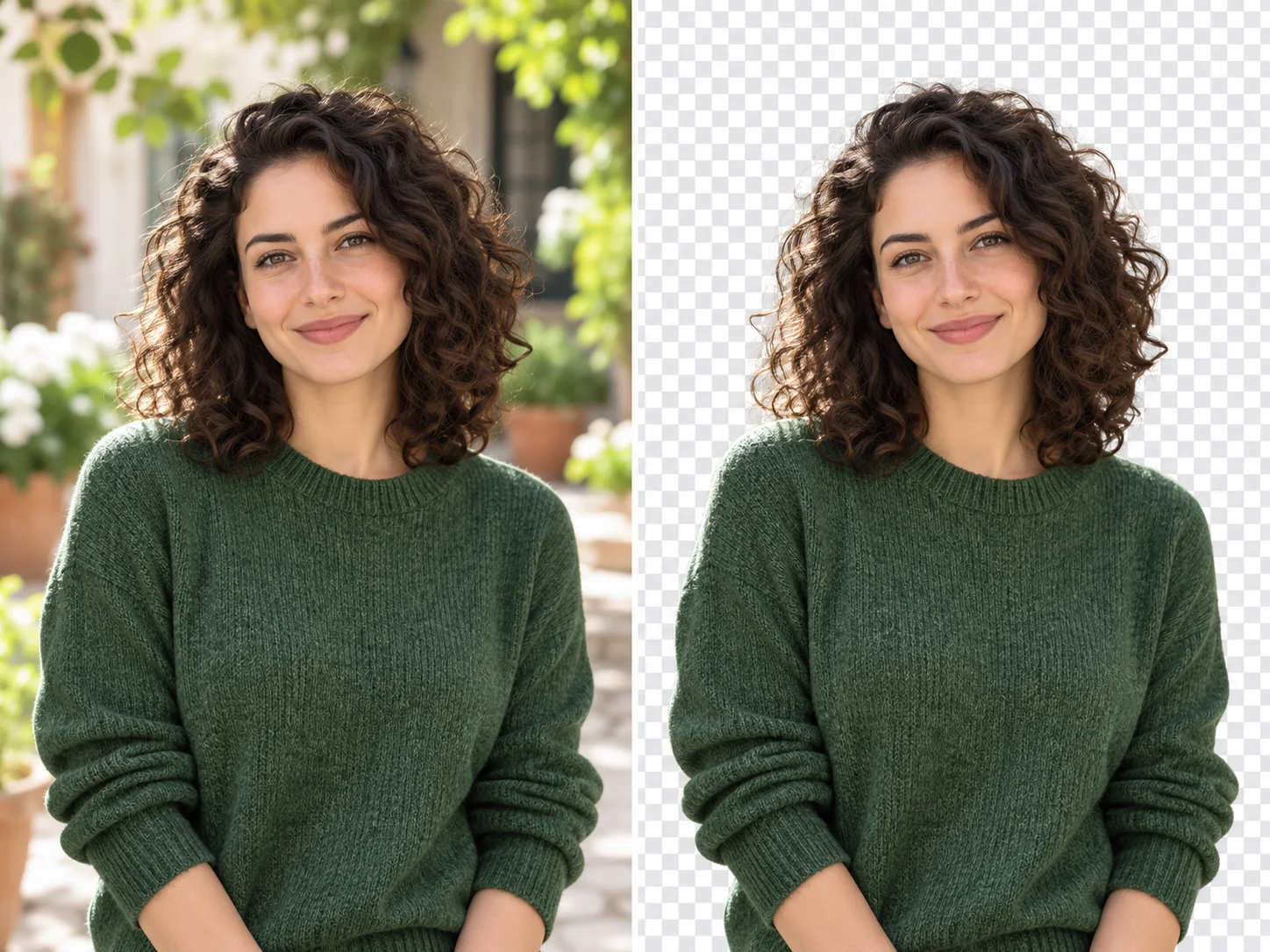
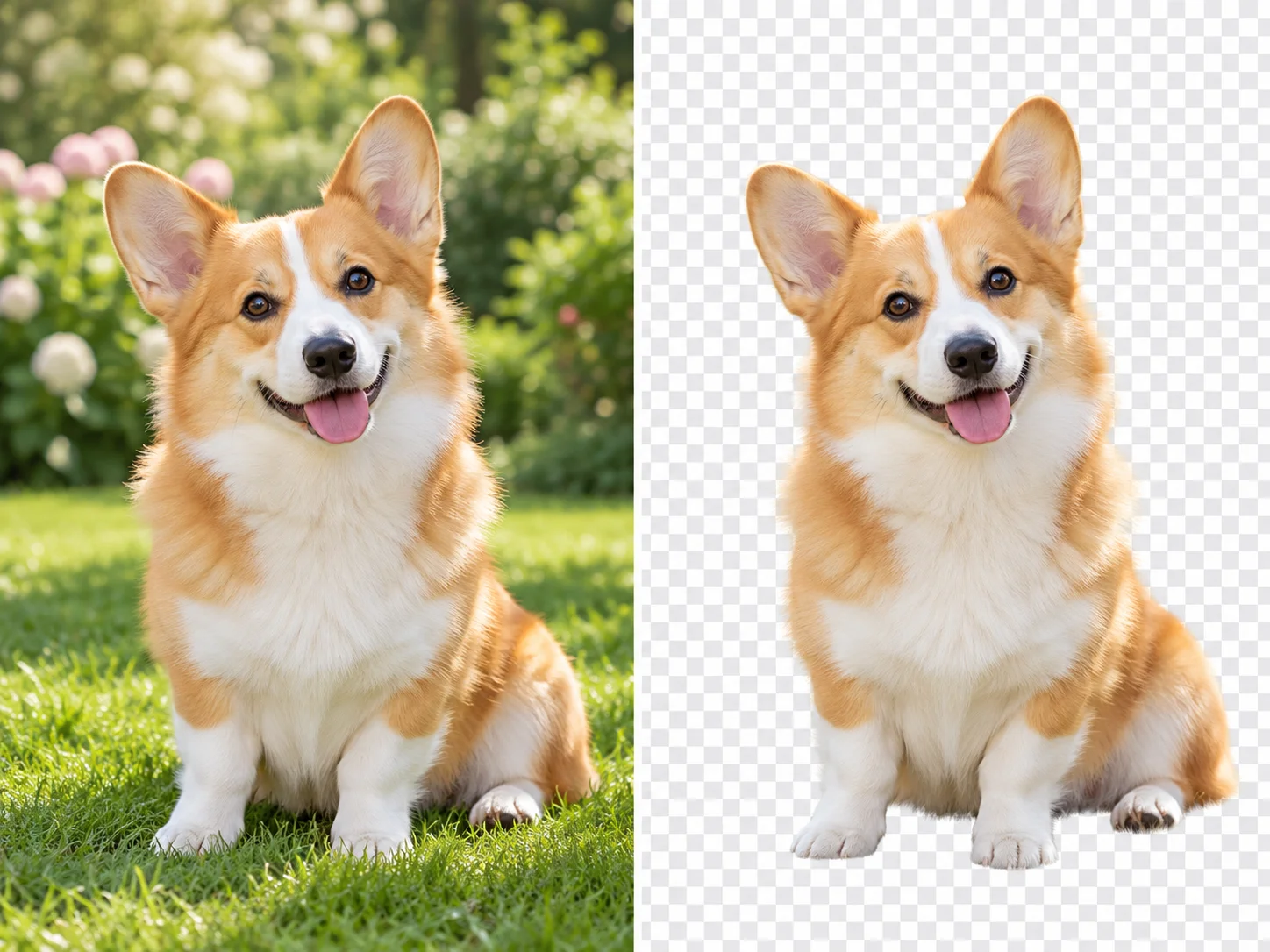
Explore a different image style, remove a background, or refine another part of your project.
Your next pose starts here
Bring your photo. Choose a new pose.
Upload your person photo and a pose reference, then review a new variation.
Create a new poseAI Pose: 3 credits per generation, charged when the task is created. 1K output. Sign-in required.