
A moment in the sunlight
Motion prompt
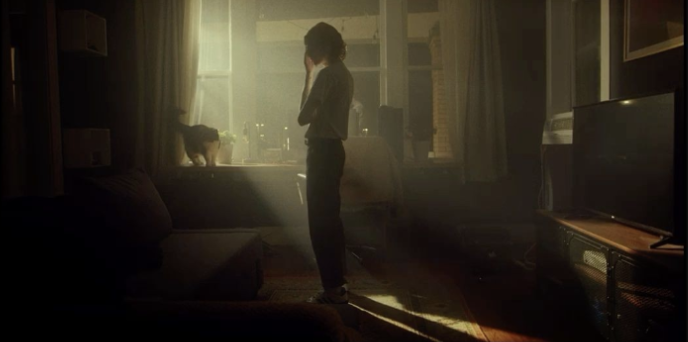
Cinematic motion - the woman looks up out into the sunlight filtering into the room.
Try with 5s · 720p · Auto aspect ratio
Start with an idea or a picture.
Describe a scene to create a video, or upload an image and describe how you want it to move. Review the generated result and refine your prompt when needed.
1–15 seconds · 480p or 720p · 10 paid credits per second
Animate one image with Grok Imagine Video 1.5. Choose your motion, duration, and framing.
Upload an image and describe a short scene. Your generated video will appear here.
Explore motion prompt ideasCompare a portrait, a mountain railway scene, and a beauty clip with their starting images. These image-to-video examples include the full motion prompt and playable output. Use This Example loads the image and settings without starting a paid generation.
Inspect the motion and details for your own use case. These selected clips are examples, not a guarantee that every attempt will match their quality.
Cinematic motion - the woman looks up out into the sunlight filtering into the room.
Try with 5s · 720p · Auto aspect ratio
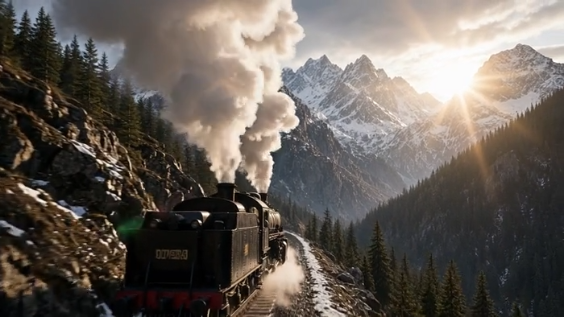
Dynamic shot racing alongside a steam locomotive on mountain tracks, camera panning from wheels to steam billowing against snow-capped peaks. Epic scale, dramatic lighting, photorealistic detail.
Try with 6s · 480p · Auto aspect ratio
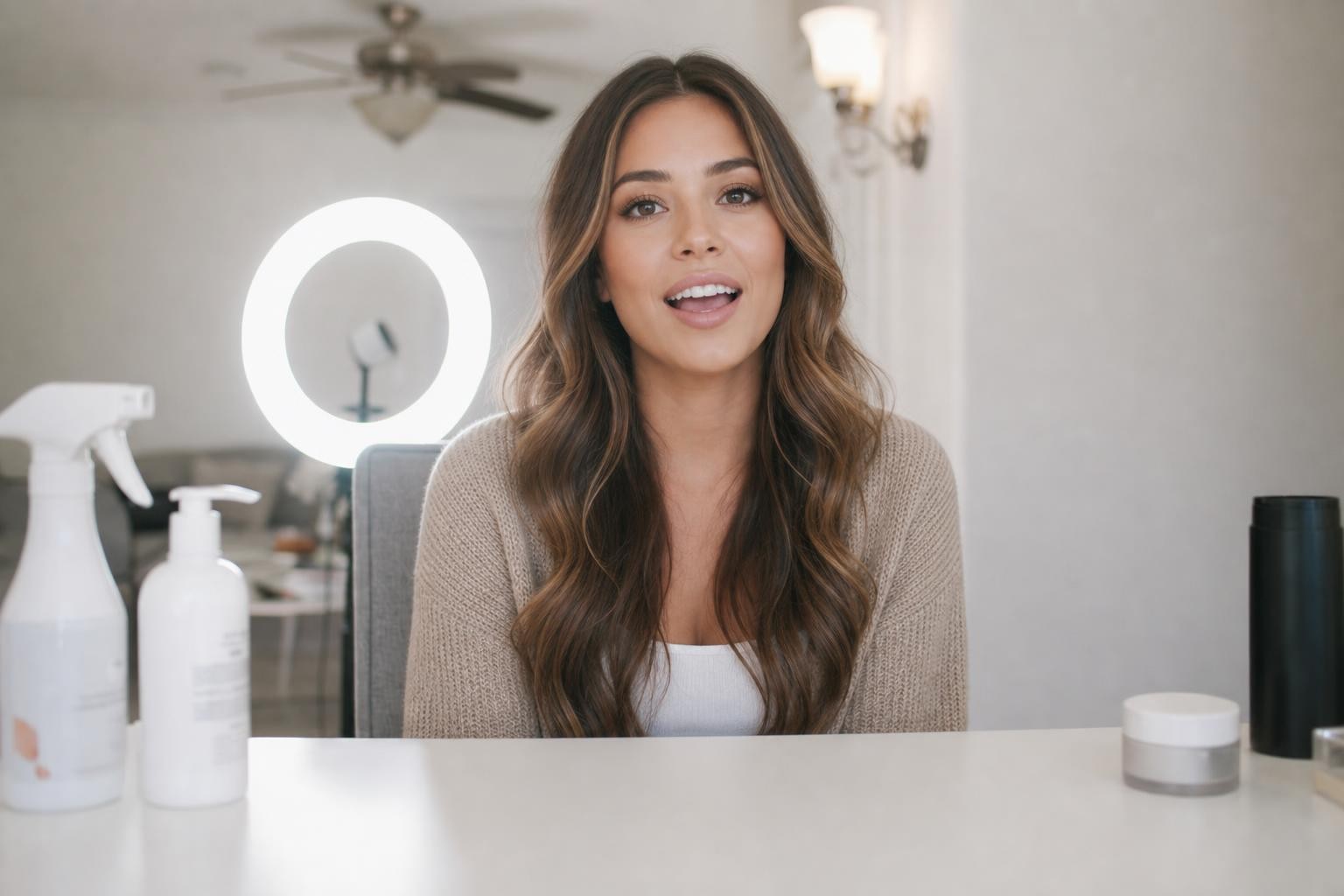
(0-5s) Medium shot, she speaks warmly while gesturing to a product. (5-10s) Slow push-in to a close-up, glowing skin and expressive eyes. (10-15s) Cut to an over-shoulder framing of the vanity as she smiles. Glossy, warm, cinematic.
Try with 15s · 480p · Auto aspect ratio
Describe the subject, the setting, and one clear action. Add a camera direction if it matters to your shot. Text to video is a useful starting point when you want to explore a scene without an existing image.
A red ceramic mug sits on a wooden table beside a window. Steam rises gently in soft morning light. The camera stays still. A single continuous shot.
A starting prompt to adapt and test with your own scene.
Upload a photo or illustration and explain the motion you want to add. Focus on how the subject, camera, or environment should move. A clear source image and a simple action can make the result easier to evaluate.
Use this image-to-video maker to explore motion from an existing picture. An AI video creator can guide a new scene from text, while a reference image gives the shot a visual starting point.
See Photo-to-Video ExamplesKeep the bottle centered. Add a slow camera push-in and a soft moving reflection on the glass. Keep the background still and the label readable.
These are instructions to the model, not a guarantee that every detail will stay unchanged. Check the label, edges, and object shape throughout the generated clip.
Use Text to Video for a written scene, or Image to Video when you already have a visual reference.
Say what happens in the shot and how the camera should behave. Review the settings and the displayed cost before starting.
Play the result from beginning to end. Check the details that matter, then refine your prompt or use the available download option.
These settings apply to the Grok Imagine Video 1.5 workspace above. Check the selected duration and credit cost before each attempt.
Start with a subject and one action. Add the setting, lighting, and camera movement only when they help explain the shot. For image to video, describe the motion you want rather than repeating every detail already visible in the picture.
[Subject] + [action] + [setting] + [camera movement] + [lighting or style] + [details to preserve].
Camera instructions are prompt guidance, not precise motion controls. Start with a simple shot and change one instruction at a time.
Make this photo cinematic.
More specificKeep the mountain landscape recognizable. Let the clouds move slowly across the sky. Use a gentle camera pan to the right with steady daylight.
Cinematic motion - the woman looks up out into the sunlight filtering into the room.
Dynamic shot racing alongside a steam locomotive on mountain tracks, camera panning from wheels to steam billowing against snow-capped peaks. Epic scale, dramatic lighting, photorealistic detail.
Prompt buttons update only the text. Use This Example above also loads the source image and settings. Neither action starts generation.
AI-generated video can change faces, hands, text, logos, and small product details. Watch the full clip for unwanted motion, flicker, and changes between frames. For product content, compare the result with the original photo before using it in a campaign.
Watch for changes to facial features, finger shapes, clothing, and object edges. A recognizable first frame does not establish consistency throughout the clip.
Compare lettering and product shapes with the original. Small text or a moving reflection can become distorted. Do not treat a request to preserve a label as a guarantee.
Play the whole clip for unwanted camera movement, flickering backgrounds, abrupt cuts, or unsuitable sound. Consider whether it works in the project where you intend to use it.
Use source material you have the right to upload. Check the applicable terms and any permissions needed for people, brands, music, or other protected content in your project. Read the Terms of Service before publishing.
An AI video generator creates video from inputs such as a written prompt or a reference image. CiciGPT supports text to video and image to video, so you can start with a scene description or an existing picture.
Text to video starts with a description of the scene you want to create. Image to video starts with an existing visual and uses your instructions to guide motion. Choose image to video when the starting appearance matters, and text to video when you want to explore a new scene.
Upload one JPEG, PNG, or WebP image up to 20MB. Use a photo or illustration you have permission to upload. Choose a clear subject, enough room for the planned movement, and a composition that already resembles your intended shot.
Choose a whole number from 1 to 15 seconds per generation. The default is 5 seconds. A longer clip uses more credits; this workspace does not include a video-extension tool.
CiciGPT offers 480p and 720p video settings. Choose Auto, 16:9, 4:3, 1:1, 9:16, 3:4, 3:2, or 2:3. Select 9:16 for a vertical clip. These are generation settings; exact pixel dimensions depend on the framing. There is no 1080p, 4K, or video-upscaling option in this workspace.
Video generation requires sign-in and paid credits. It has no guest video allowance, and welcome credits cannot be used for video generation. You can watch the public examples and load their inputs before signing in.
Grok Imagine Video 1.5 costs 10 credits per second at either available resolution. A 5-second clip costs 50 credits, a 10-second clip costs 100, and a 15-second clip costs 150. The Generate video button shows the selected cost. Credit-pack prices are shown on the pricing page; the dollar cost of a clip depends on the credit pack purchased.
Credits are deducted after the server creates a job. If the processing provider confirms that the job failed or was cancelled, the backend returns its deducted credits. An initial moderation rejection happens before job creation and deduction. A browser timeout or Stop waiting action does not establish server-side failure, and an unwanted result from a completed job is not a technical failure. If the balance is not restored after a confirmed failure, contact support with the job ID.
Generation time varies with the processing queue and the request. CiciGPT does not promise a fixed completion time. Keep the page open while the job is processing. If you stop waiting, retain the job ID and use Check submitted video again to request its result.
Describe one clear action and the camera behavior you want. Start with a simple shot, review the result, and change one instruction at a time. For image to video, use a clear source image and focus your prompt on motion.
Not always. Generated motion can alter faces, lettering, edges, or the shape of an object. Ask for the details you want to preserve, keep the action focused, and inspect the full clip before using it.
Audio is not a selectable setting in this workspace. Play the generated video and inspect any soundtrack before using it. CiciGPT does not provide a separate voiceover, music, or audio-editing control here.
This workspace has no watermark setting. Inspect the actual generated file before publishing; this page does not promise watermark-free output for every result or plan.
Check the CiciGPT Terms of Service, applicable model-provider conditions, and rights to your source material before commercial use. Permission to upload an image does not establish rights to every person, brand, or other protected element in it. CiciGPT does not guarantee copyright ownership, exclusivity, or acceptance by an advertising platform.
Generating a video sends the image, prompt, and settings to CiciGPT and its processing providers. A local preview is not a generation request. The Privacy Policy explains content handling; a fixed deletion period for every server and processing system is not promised. Avoid confidential uploads and contact support about retention or deletion questions.
No. Stop waiting ends result polling in this browser. A submitted job can continue on the server and may still use credits. Use Check submitted video again to retrieve its result, and keep the job ID if you need support.
Edit distractions, explore a visual style, or enlarge your source image before animating it. Download the result from the image tool, return to this AI video creator, and upload that file as your starting image.
Make a focused edit to the subject or scene before adding motion.
Edit Your Source PhotoExplore a new style, scene, or mood from a reference image.
Explore Image to ImagePrepare a larger image with the available upscaling tools.
Explore Image UpscalerRemove a photo background and download a cutout without writing a prompt.
Explore Background RemoverTurn a reference photo into expressive sticker artwork.
Explore AI Sticker MakerUse a drawing as the starting point for a new image.
Explore Sketch to ImageMaintained by CiciGPT · Updated . See Privacy for content handling, Terms for usage conditions, or for support.
Upload a starting image and describe the moment you want to create.
Create a VideoGrok Imagine Video 1.5 · Sign-in required · 10 paid credits per second