Delete this image and record?

Once deleted, this image and its history record cannot be recovered. Cached copies may remain accessible for 3–4 hours due to network caching.

Confirm Payment

After payment, click "Confirmed" to update your account information.

Small image. A clearer next step.

Image Upscaler
for Your Next Photo Project

Give portraits, product photos, and favorite memories more room. Choose your enlargement scale, restore facial details, and download a larger image.

  • JPG, PNG & WebP
  • Up to 20MB
  • Face restoration
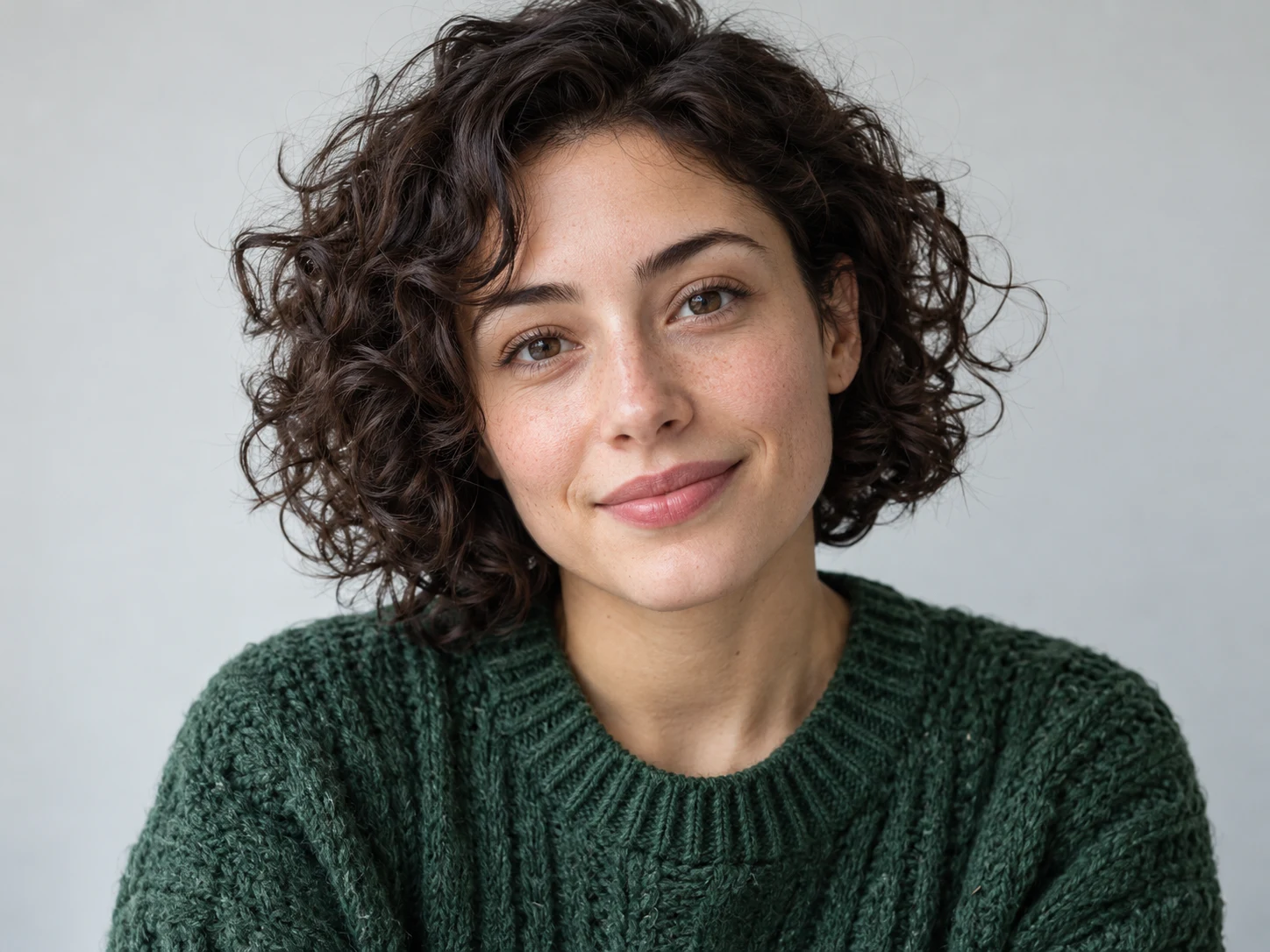
Portrait of a woman with curly hair and a green knit sweater
Upload · enlarge · review

Your image workspace

Enlarge your image at 2x, 4x, or 8x with face restoration. JPEG, PNG or WebP · up to 20MB.

Upload image

Upload subject imageJPEG, PNG or WebP · up to 20MB · 1 image

Restore and upscale

Face restoration

Check facial details against your original before using the result.

Your result will appear here

Upload your original and start 2x enlargement. Compare faces, lettering, and textures with your source before downloading.

Generated result

Image enlargement with face restoration, at the scale your project needs. Review pricing and the Privacy Policy for personal or client photos.

Look beyond the thumbnail

See What Changes Before You Download

An image upscaler should make the result easy to judge. Compare the same area of your original and edited photo at a matching display size, then inspect the downloaded file at full resolution.

Your detail checklist

Hair. Fabric. Outlines. Lettering.

Check texture and identity, not just apparent sharpness. AI can create plausible detail, but it cannot prove what was present in the original scene.

Keep your source file and choose the version that fits your project. A sharper thumbnail alone is not evidence of a better image.

Review your own image
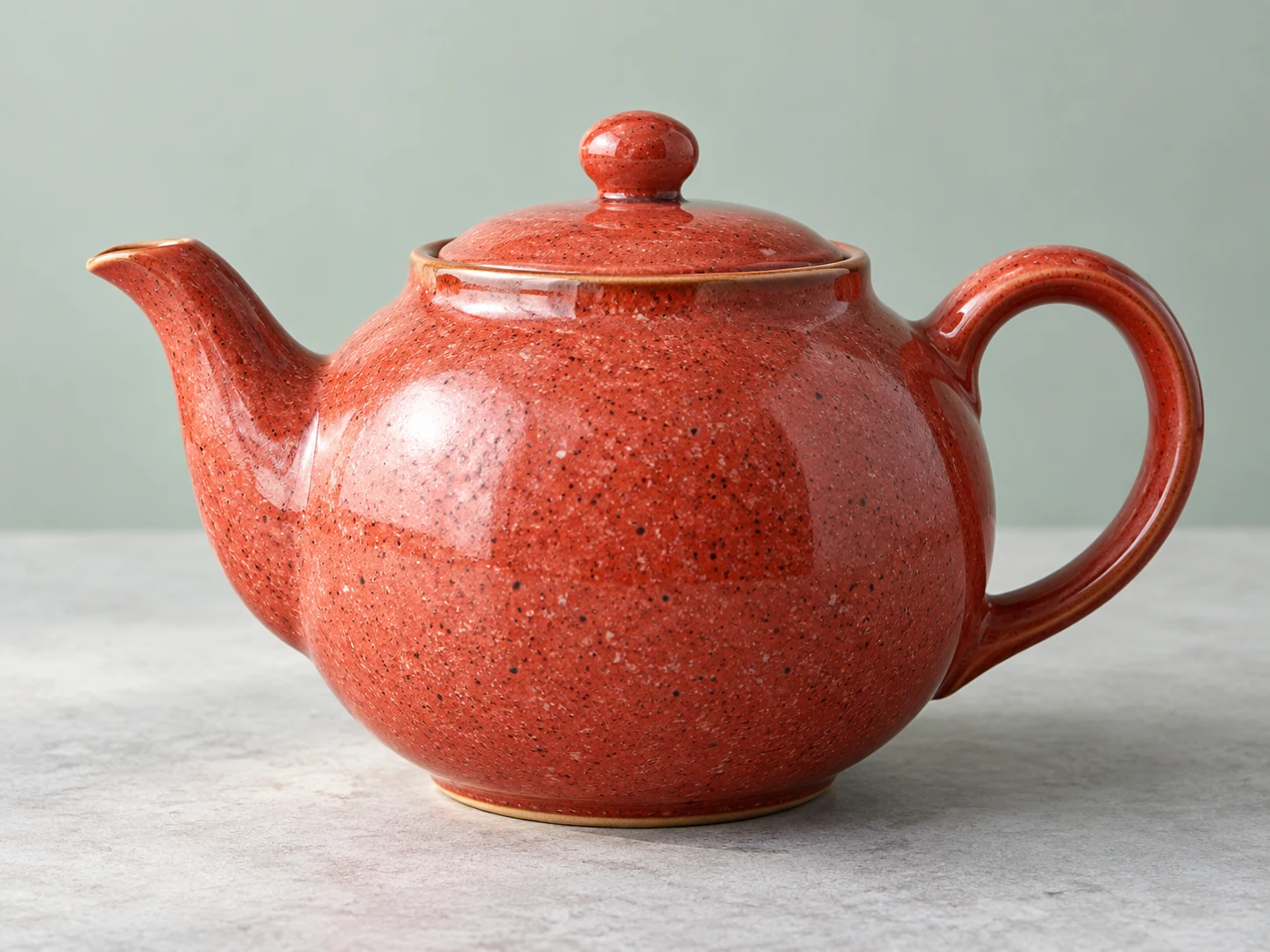
Coral ceramic teapot with a finely speckled glaze
Product photography

A closer look at the things you make

Turn a small shop photo into a larger product image. From the curve of a ceramic handle to the texture of a handmade glaze, give shoppers room to see the details that make your work distinctive.

Choose 2x for a modest enlargement or 4x for a larger layout. Compare the finish, shape, and markings with the original before adding the result to your store.

Enlarge a product photo
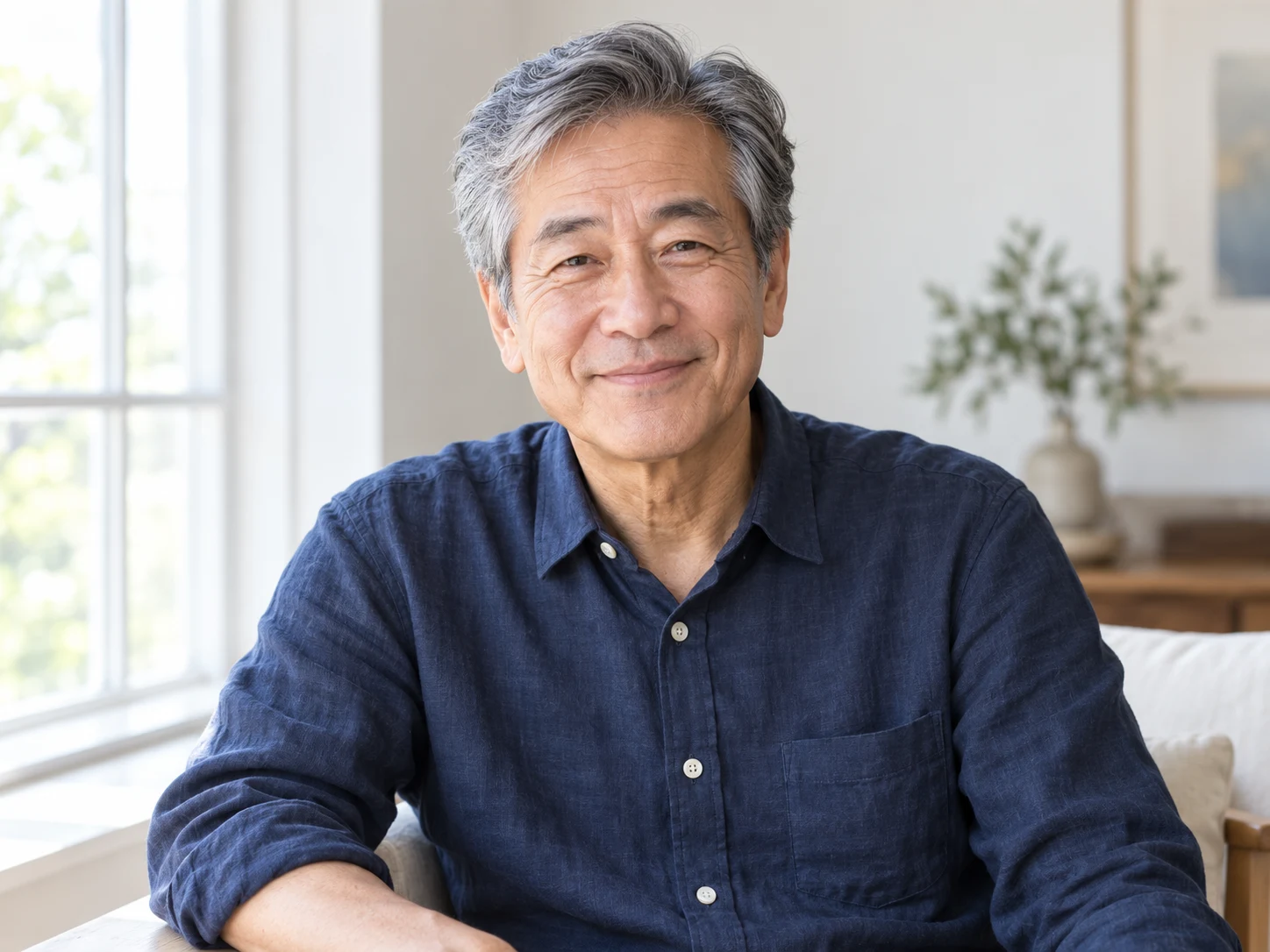
Smiling older man beside a window, with natural skin and hair detail
Portraits and family albums

Make room for a familiar face

Bring a favorite portrait into a family album, a profile, or a larger photo display. Face restoration helps you explore a clearer interpretation of a small original without writing a prompt.

Look closely at the eyes, smile, and hair before choosing your final version. Keep the original nearby so the person you remember still looks like themselves.

Restore a portrait
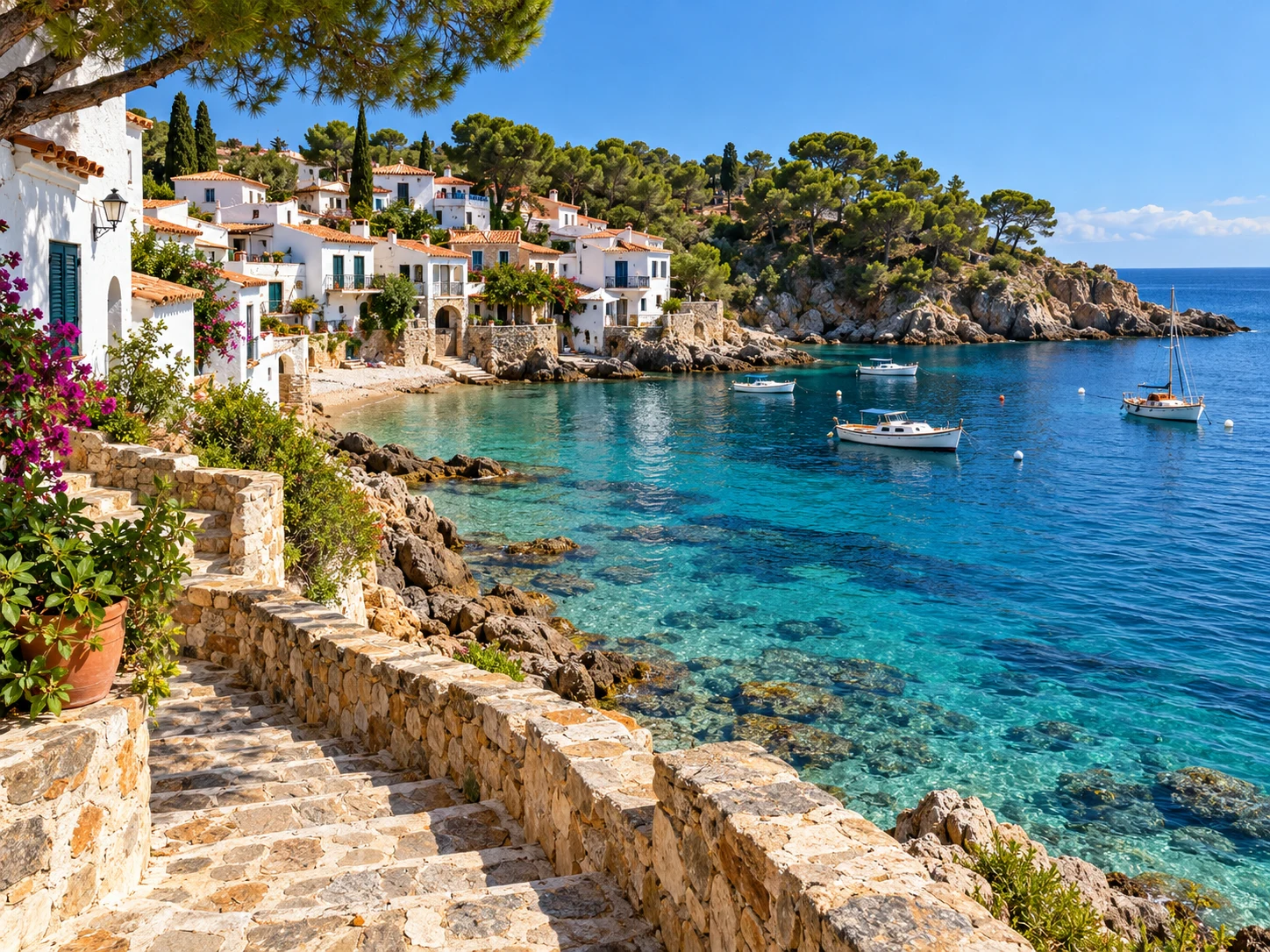
Coastal village with stone steps, white houses, and boats in turquoise water
Travel photos and prints

Let a favorite view fill the frame

Give a holiday photo space in a presentation, travel journal, or wall print. Select the enlargement that suits your layout, with up to 8x available when signed in.

Check roof tiles, distant buildings, and water textures at your intended display size. For a print, compare the downloaded dimensions with your printer's requirements.

Enlarge a travel photo
Three clear steps

Start Your Image Upscaler Workflow

From a small original to an image ready for your next project.

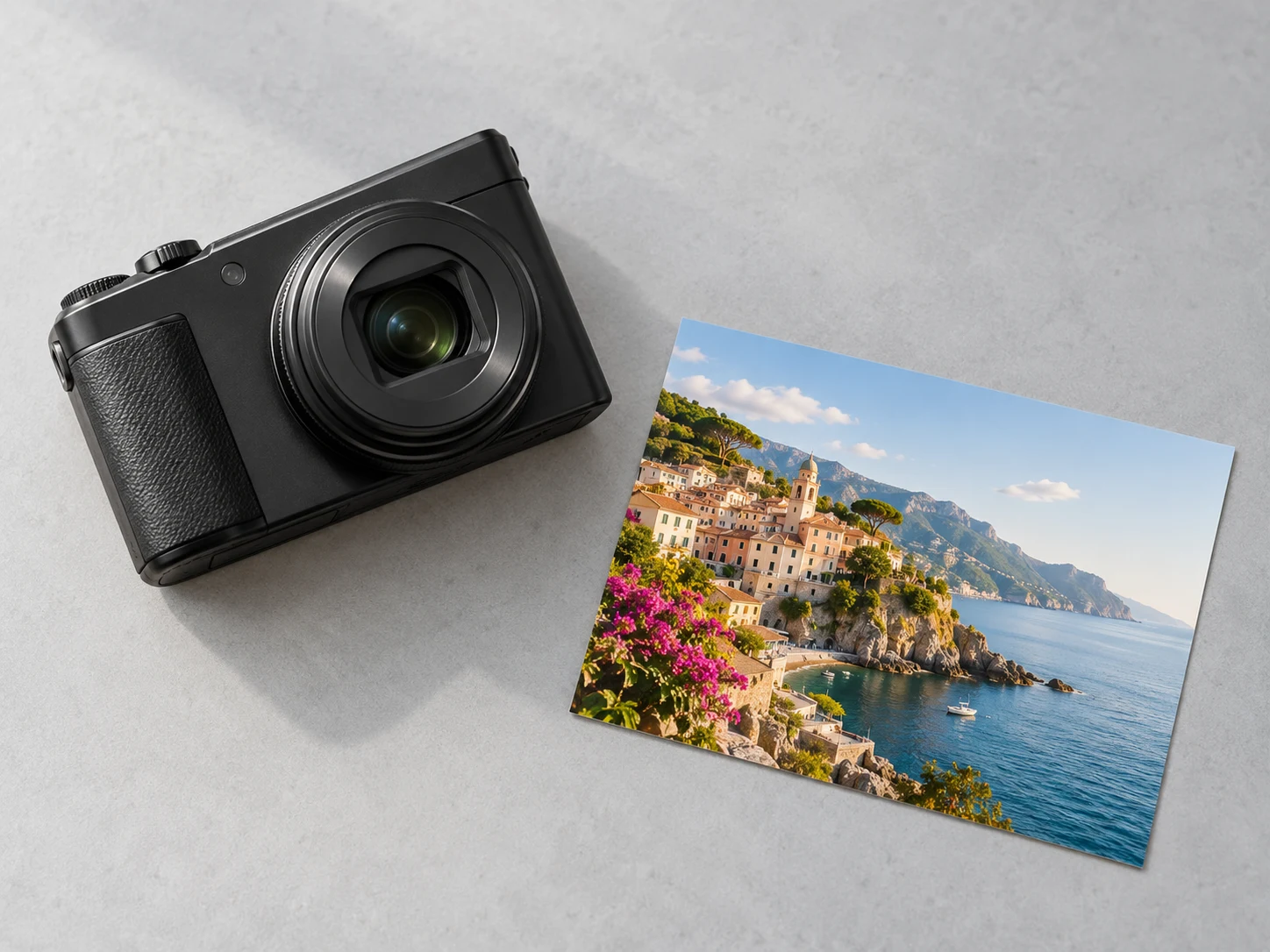
  1. Digital camera beside a coastal photo on a desk
    01

    Start with your best photo

    Choose one JPEG, PNG, or WebP image up to 20MB. A file from your camera or original photo library gives the upscaler more detail to work with than a compressed screenshot.

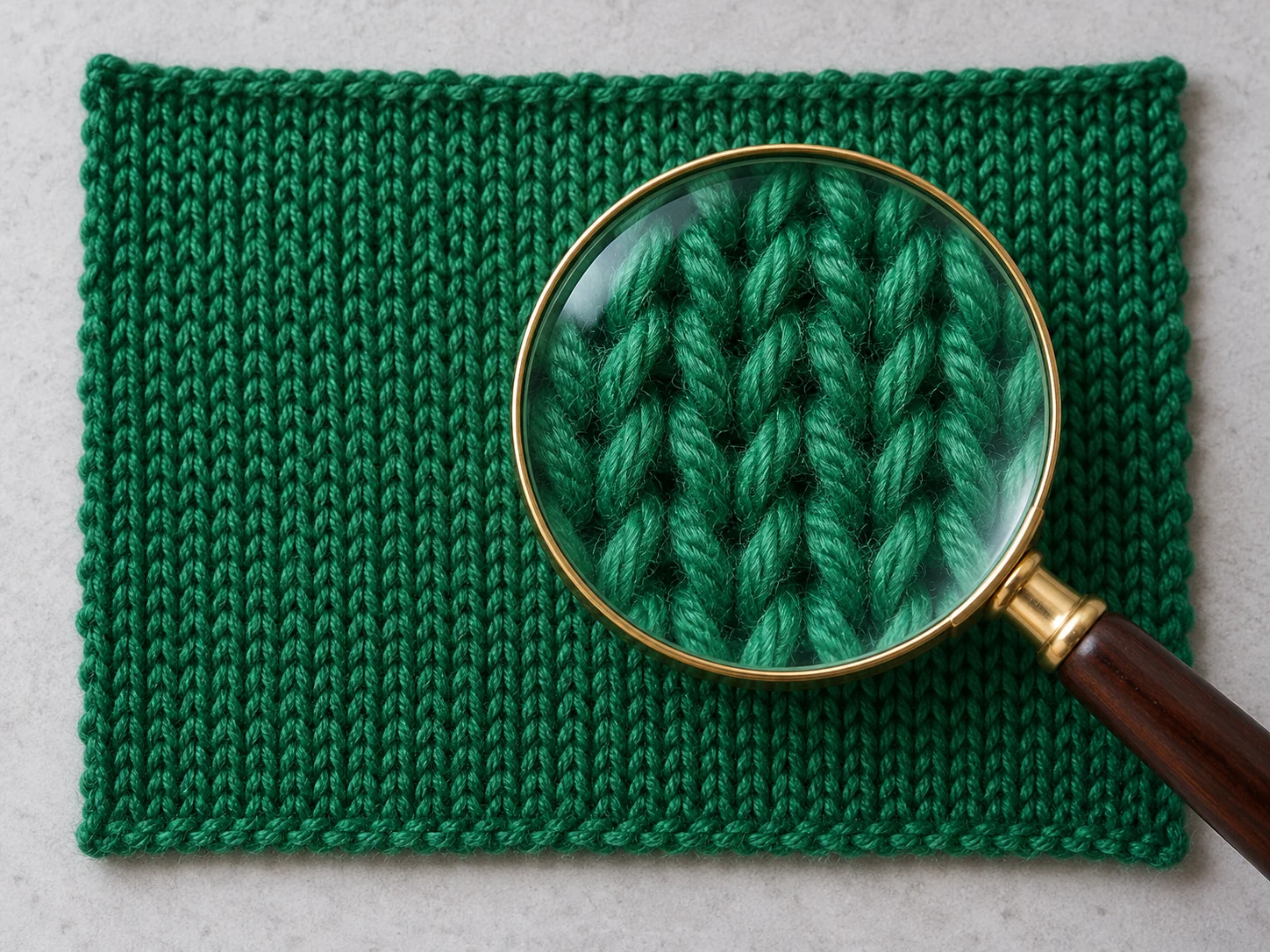
  2. Magnifying glass revealing the texture of green knitted fabric
    02

    Choose your enlargement

    Select 2x, 4x, or 8x, then choose Upscale image and complete verification. The 8x option requires an account. Your selected scale is applied to both image dimensions.

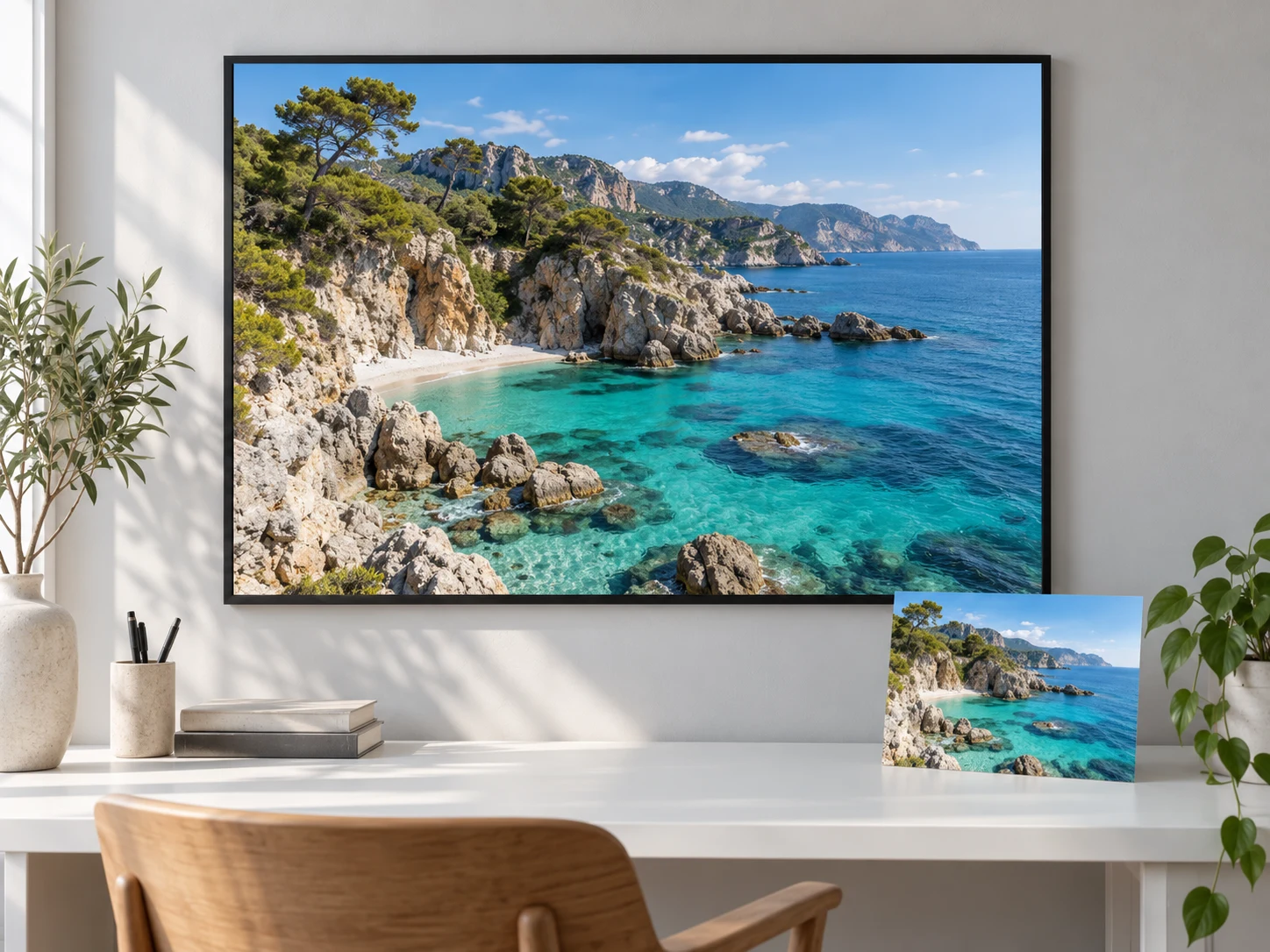
  3. Large framed coastal print with a small matching photo below it
    03

    Find the right final size

    Inspect the finished image at its intended size. Compare faces and fine textures with the original, then download the version that works for your screen, layout, or print.

Made for the details that matter

An Image Upscaler for Everyday Projects

Product photos

An image upscaler can help prepare larger product pictures for store layouts. Examine stitching, material texture, and packaging carefully. Added detail should not misrepresent the item you sell. If a label changes or a pattern becomes inaccurate, replace the source photo.

Portraits and family pictures

A photo upscaler can make a small portrait easier to use in a larger layout. Compare eyes, teeth, hair, and skin texture with the source. A heavily blurred face may become sharper without becoming more accurate. Preserve the identity of the people in your pictures.

Illustrations and AI artwork

Use an image upscaler carefully on drawings and generated artwork. Check linework and repeated patterns, especially in anime. Pixel art needs particular care: smoothing a deliberately square edge can change the style instead of improving it.

Prints and presentations

An 8 by 10 inch print at 300 pixels per inch needs 2400 by 3000 pixels. Reaching those dimensions does not guarantee a sharp print. Inspect the image at its intended size and request a proof for important work.

Understand the pixels

Choose the Right Output Size

Your scale multiplies both width and height. A 1000 by 750 pixel photo becomes 4000 by 3000 at 4x. Choose the size that fits your project, then check the downloaded image at full resolution.

Plan your dimensions here, then select your enlargement in the workspace.

2000 × 1500 px3.00 megapixels · 4× the pixel count
Enlargement dimensions
Original2x4x8x
512 × 5121024 × 10242048 × 20484096 × 4096
1000 × 7502000 × 15004000 × 30008000 × 6000
Know the boundary

What an AI Image Upscaler Can and Cannot Do

Ordinary resizing estimates new pixels from nearby pixels. An AI image upscaler uses a learned model to generate a larger interpretation of the source. Cleaner edges and more convincing textures are estimates rather than recovered evidence.

Image upscaling is useful for creative layouts, everyday pictures, and low resolution artwork. It is less reliable when you need an exact record of a tiny face or fine text. Enlarging the existing picture also differs from expanding the scene beyond its frame.

A better starting point

Get Better Results from Your Image Upscaler

Keep a copy of the original, upload the least compressed version available, and inspect the parts people will notice. For portraits, that means the face. For products, it means shape, material, and readable labels.

If an image upscaler result shows halos, repeated textures, or strange lettering, choose a clearer source. Avoid repeatedly processing an already edited image, because each pass may introduce further changes. A smaller, believable picture can be more useful than a larger file with distracting artifacts.

Clear before you start

Costs, File Limits, and Privacy

Upload a single JPEG, PNG, or WebP file up to 20MB. Choose 2x, 4x, or 8x enlargement with face restoration. No prompt is required, and the service determines the output format.

Account and generation costs

Guest access is available for 2x and 4x. Signed-in credit prices are 2 credits for 2x or 4x, and 3 credits for 8x. The 8x option requires sign-in. Check current credit options for your next project.

Personal and client images

Images are sent for processing after you choose Upscale image and complete verification. Read the Privacy Policy for the processing terms, and only upload files you are authorized to use.

Helpful answers

Image Upscaler Questions

Practical answers about resolution, cost, and the details AI may change.

Can I enlarge a photo without losing quality?

An image upscaler may make enlargement look better than basic resizing, but no method guarantees perfect quality for every source. Heavy blur and severe compression limit what any tool can achieve. Start with a clear original and inspect the result at its intended display size.

Is this image upscaler free?

You can try 2x and 4x as a guest, subject to availability. When signed in, the workspace displays the credit price for your selected scale: 2 credits for 2x or 4x, and 3 credits for 8x. The 8x option requires sign-in.

Which enlargement scales can I choose?

Choose 2x, 4x, or 8x in the workspace. The default is 2x, and 8x requires sign-in. The output-size calculator helps you plan dimensions separately; it does not change your workspace selection.

Does 4x mean four times as many pixels?

No. A 4x image upscaler multiplies both width and height by four, producing sixteen times as many pixels. A 512 by 512 image becomes 2048 by 2048 pixels. This is not automatically 4K, which describes a different size convention.

Can an image upscaler recover small text?

AI may create convincing characters that differ from the original. Check labels, serial numbers, and other important text against a readable source. Do not treat a clearer result as proof that missing information was recovered.

Will a PNG keep its transparent background?

PNG input alone does not guarantee transparency in an AI-generated result. The service chooses the output format. Inspect the background and edges after downloading. This page does not promise transparent-background preservation or a watermark policy.

Can I use an image upscaler for printing?

Calculate the required pixels from print size and pixels per inch, then inspect the actual output. A larger file can still contain soft or artificial detail. Ask your print provider for its size requirements and make a proof before ordering a large print.

Start with your original

Plan Your Next Image Upscaler Project

Choose your photo, select a scale, and give the details more room.

Upload image

WE'RE HERE TO HELP

Contact us

Questions about CiciGPT, your account, or a purchase? Email us.

Open email app