Single imageRemove an unwanted person
Prompt
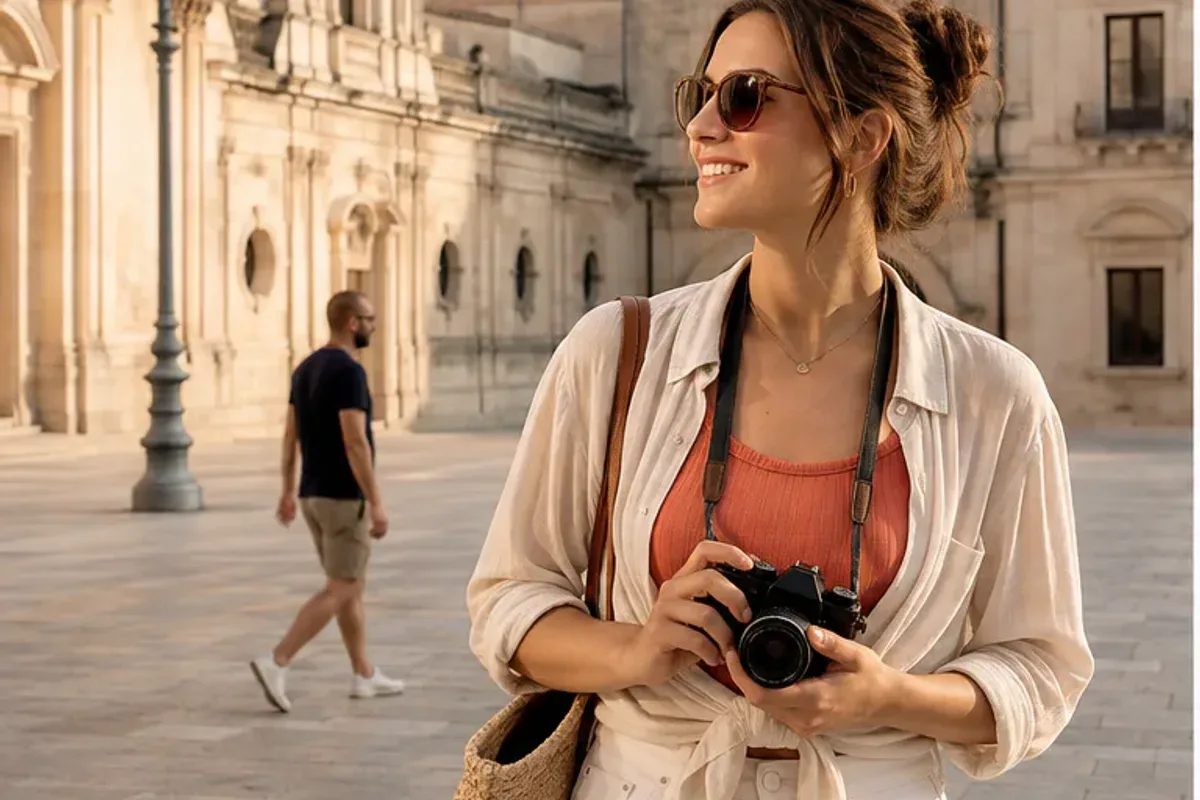
“Remove the passerby behind the traveler. Rebuild the plaza naturally and keep the subject, architecture, and warm light unchanged.”
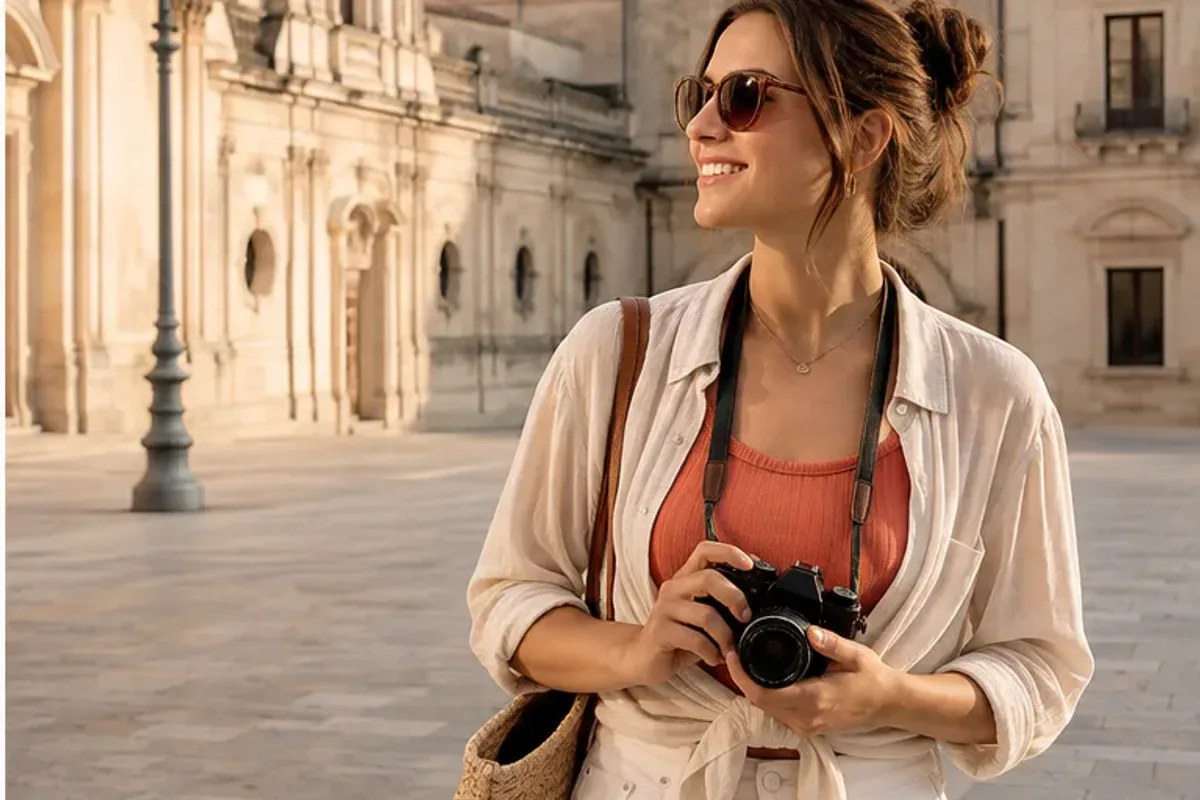
Edit your photos with a simple prompt.
CiciGPT is an online AI photo editing tool that turns written instructions into photo edits. Remove unwanted objects, change backgrounds, retouch portrait lighting, or combine two reference images. Describe what to change and what to keep.
Photo Edit: 3 free guest edits daily, no sign-up needed. GPT Image 2.5 requires sign-in and credits.
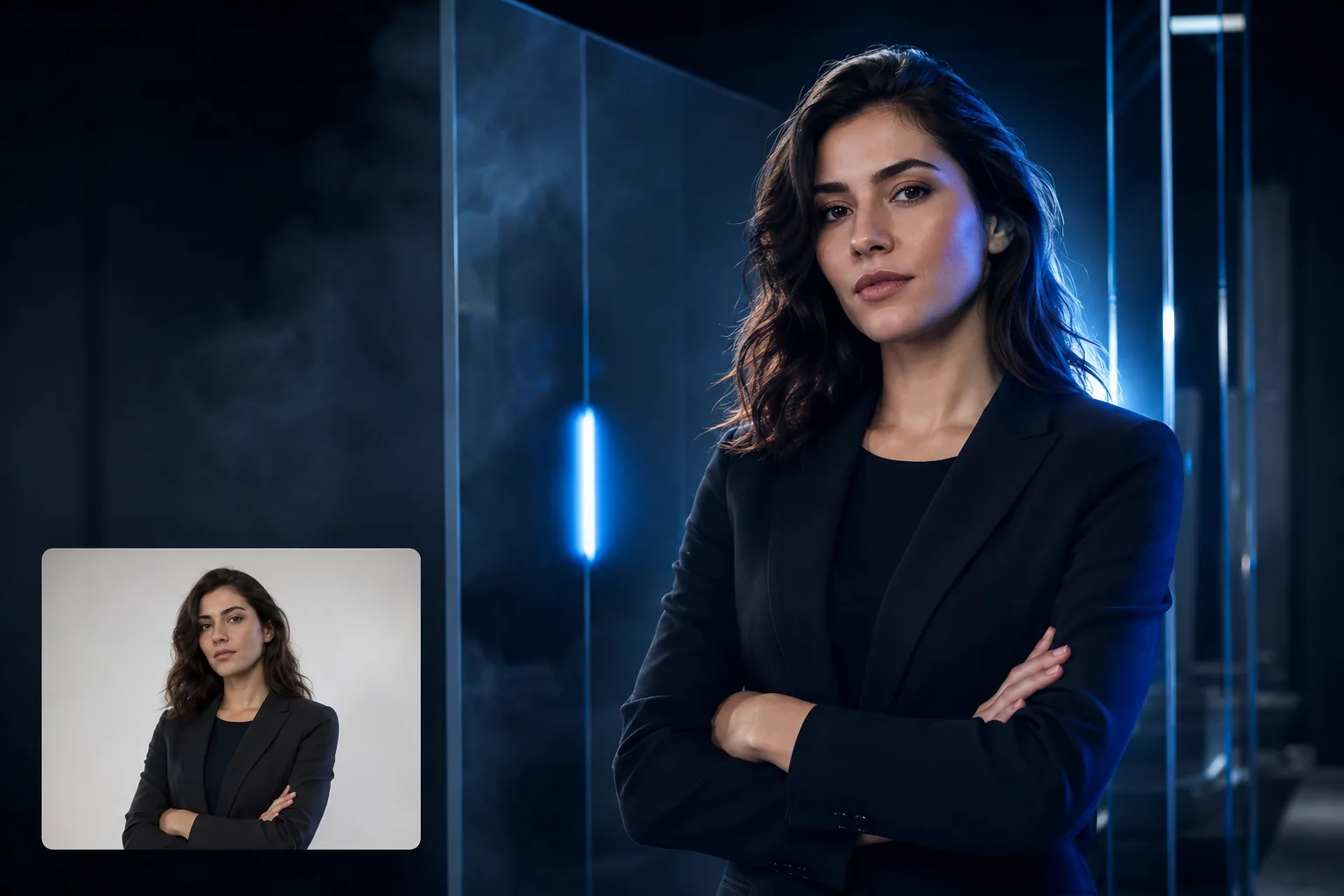
Start with one photo, or add a second image as a reference. Tell CiciGPT what to change and which details to preserve.
Photo Edit: 3 free guest edits daily. No sign-up needed to try. File support and credit details.
See how a written prompt guides each AI image edit.
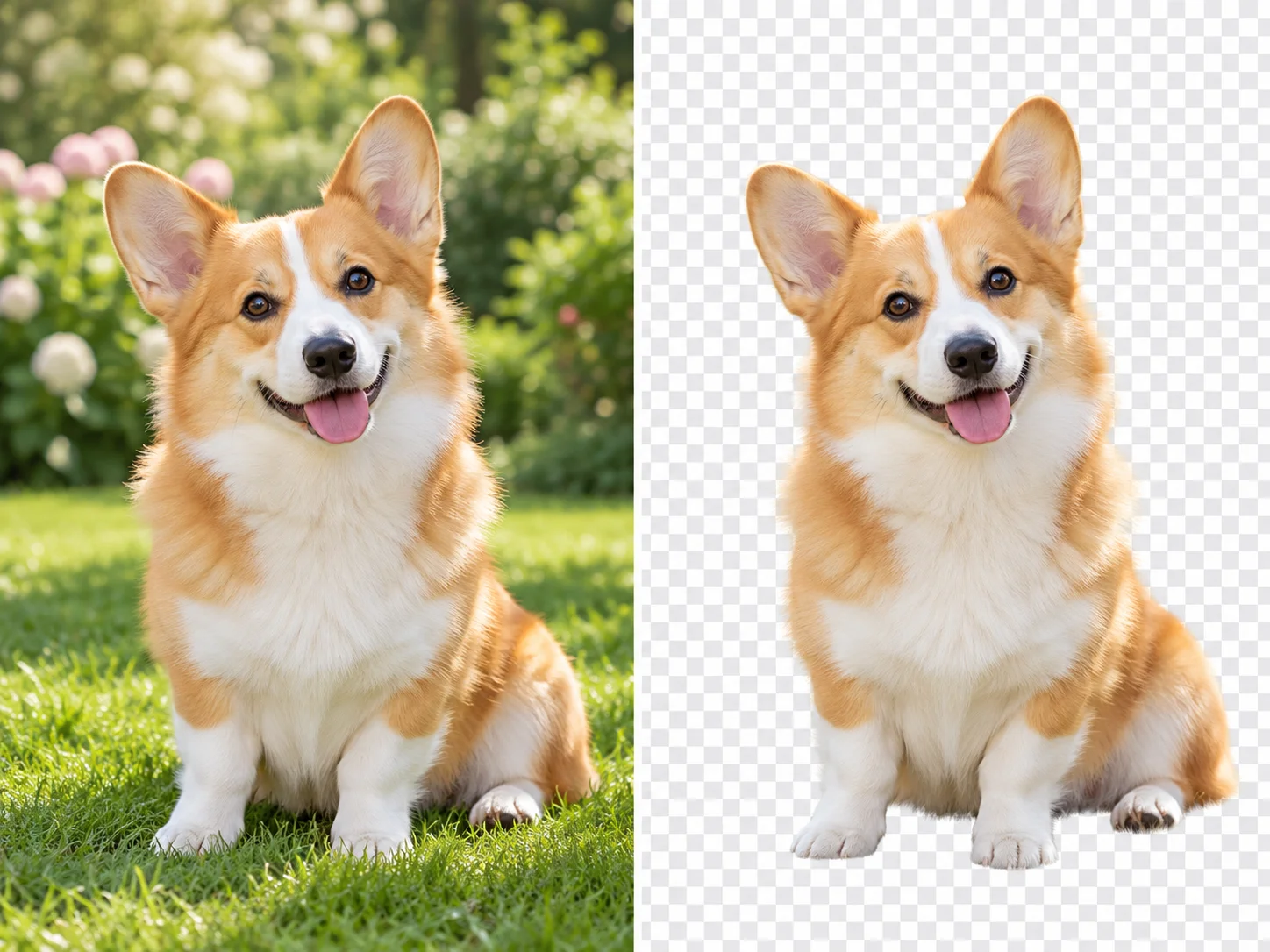
Compare real CiciGPT results for object removal, backgrounds, lighting, and color.
BeforeAfterDrag the divider to see the difference.
Edit product photos, portraits, and travel memories with a prompt that explains the change you need.
 Editing concept
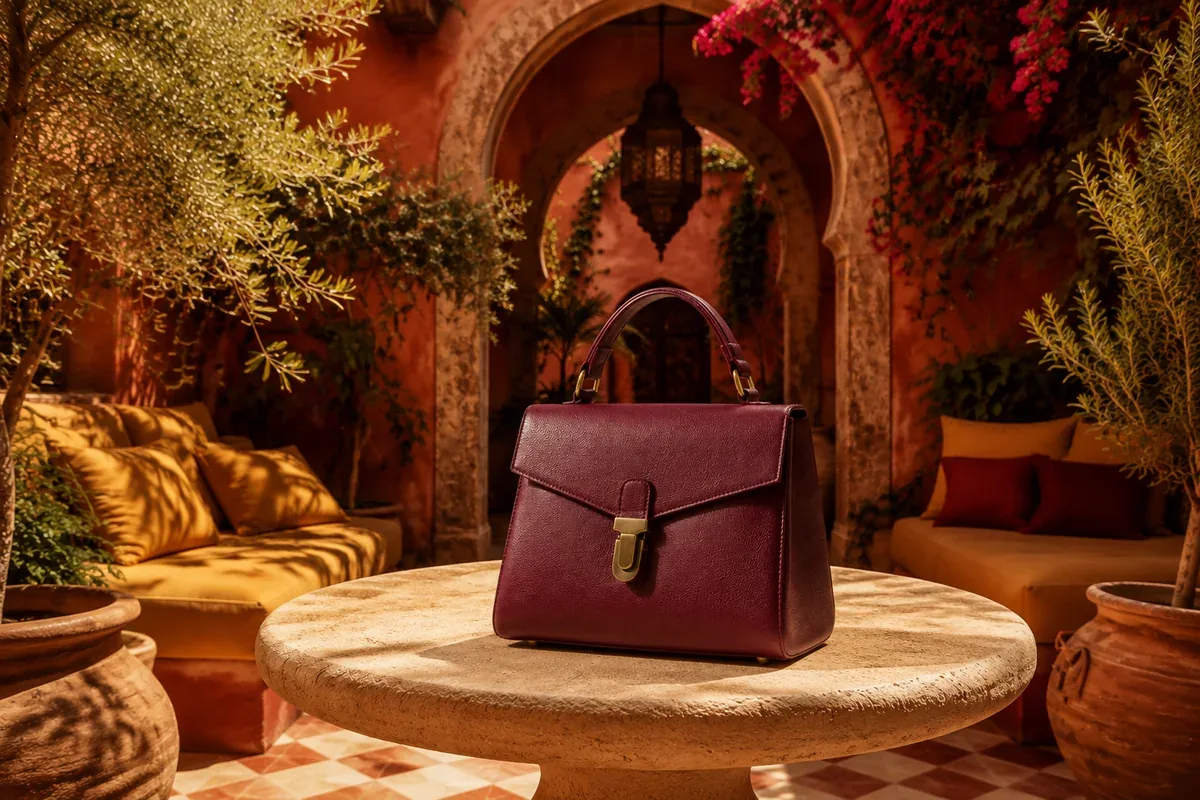
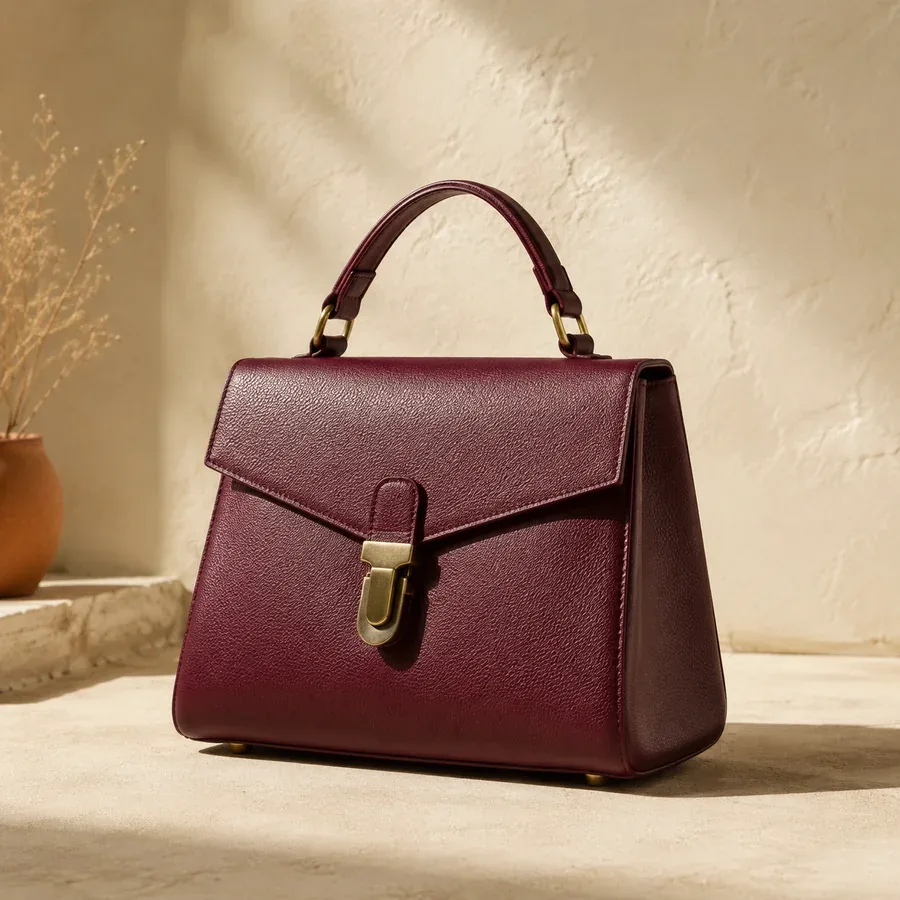
Use CiciGPT to replace a busy product background, explore a studio setting, or adjust the light. Start with your own product photo and describe the scene you need for your shop. Check colors, labels, and fine details before using the result in a listing.
 Editing concept
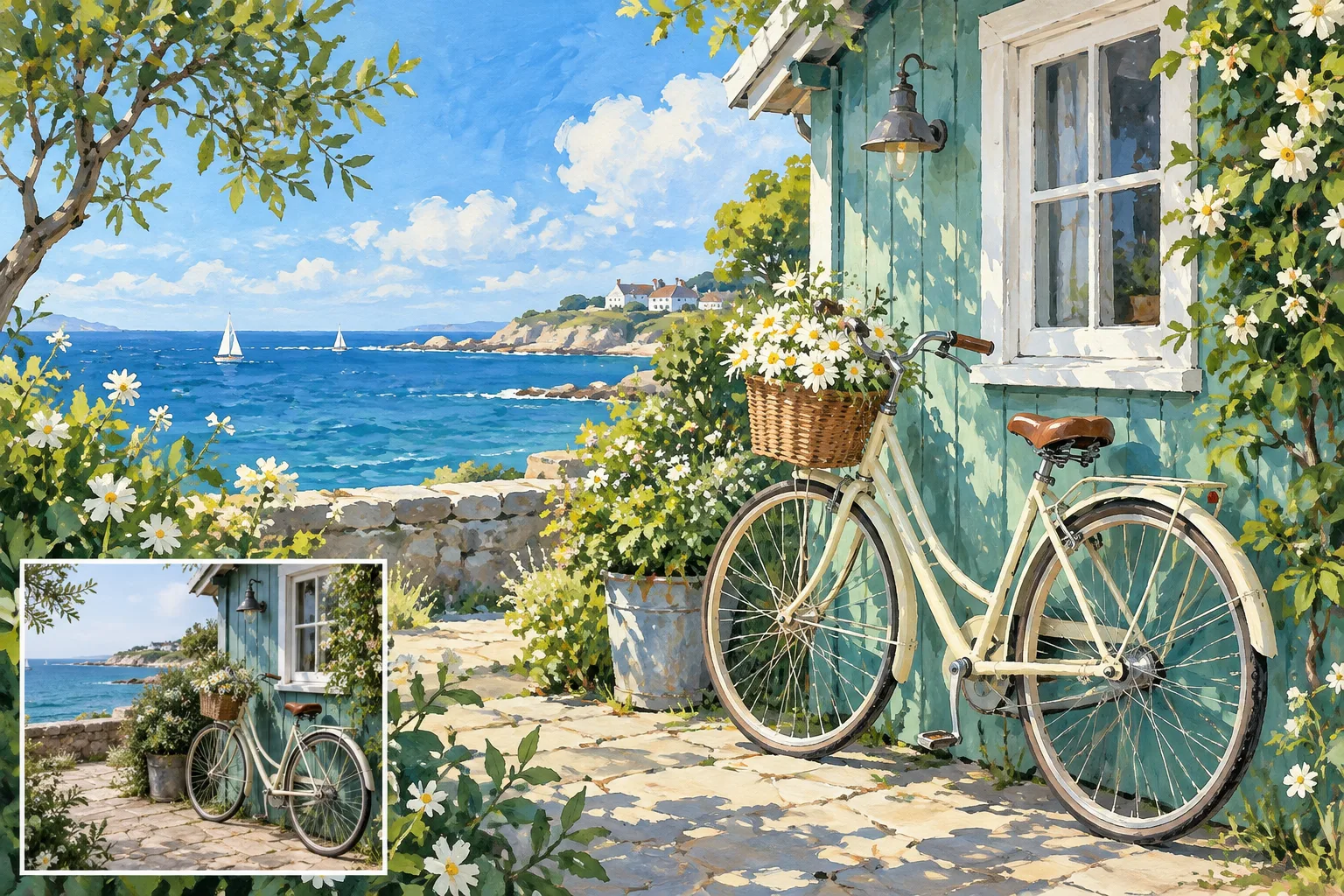
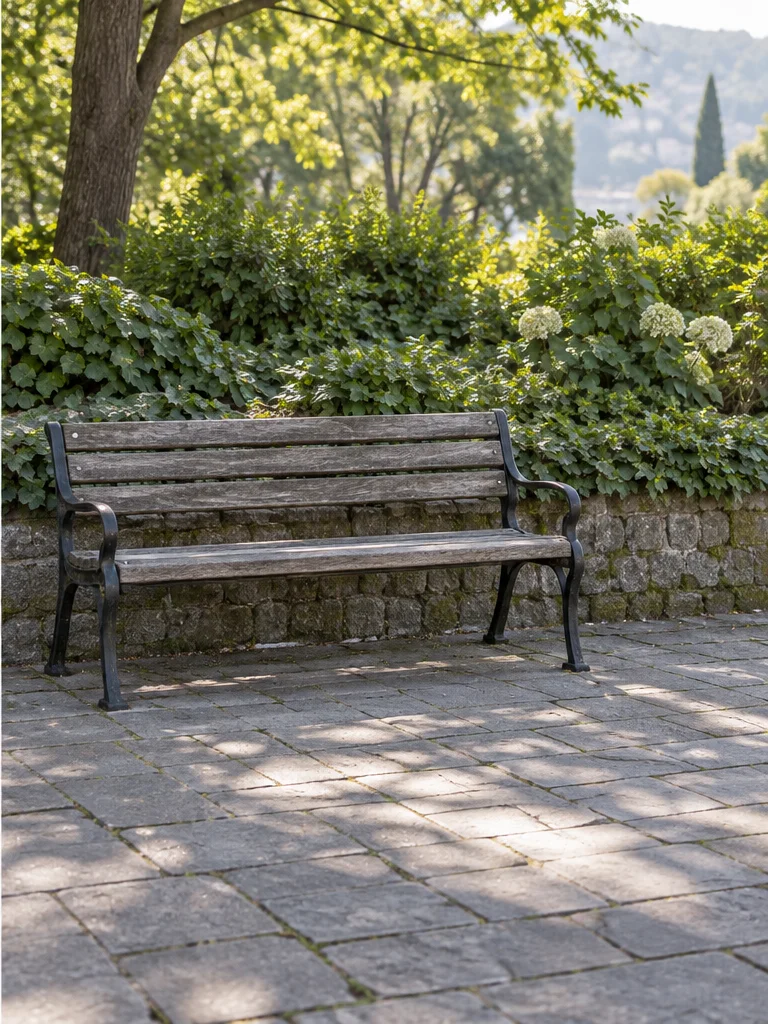
Remove unwanted people or objects from travel photos without drawing a mask. For a quiet park scene, try clearing a distracting bin while keeping the bench and afternoon light. Review the rebuilt background before sharing your image.
 Editing concept
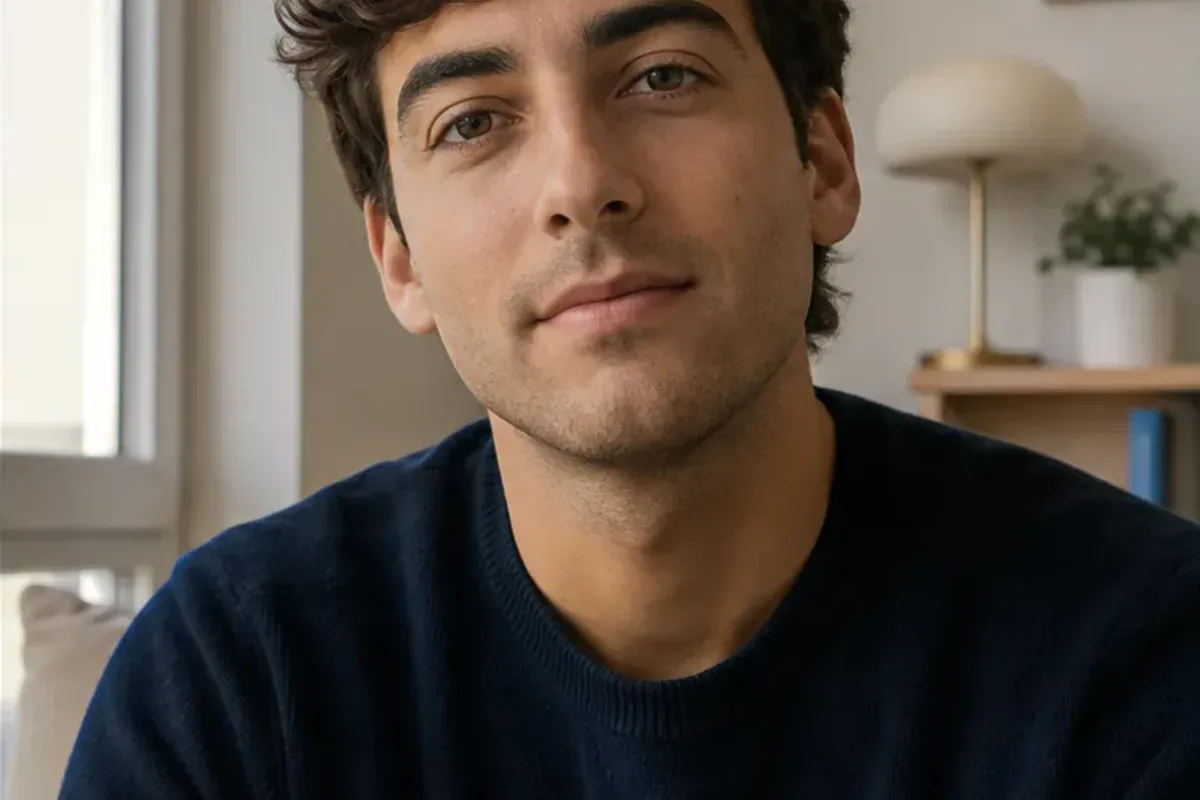
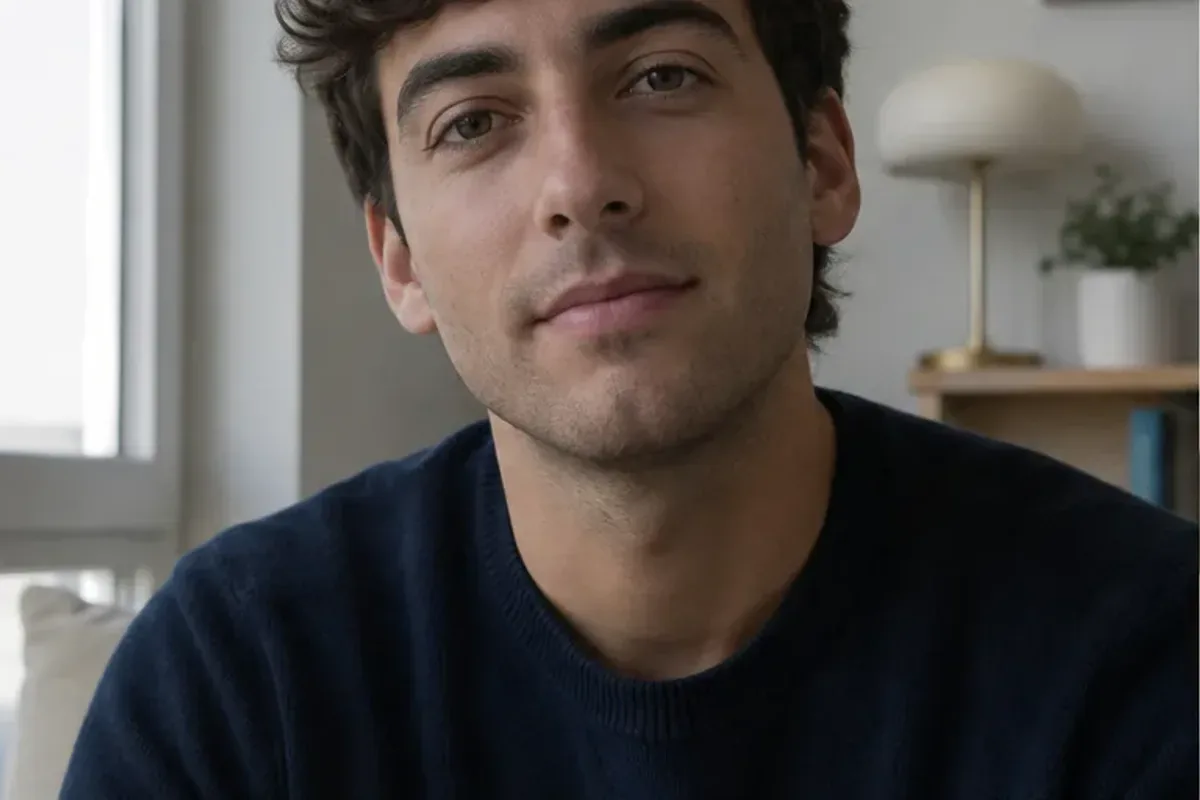
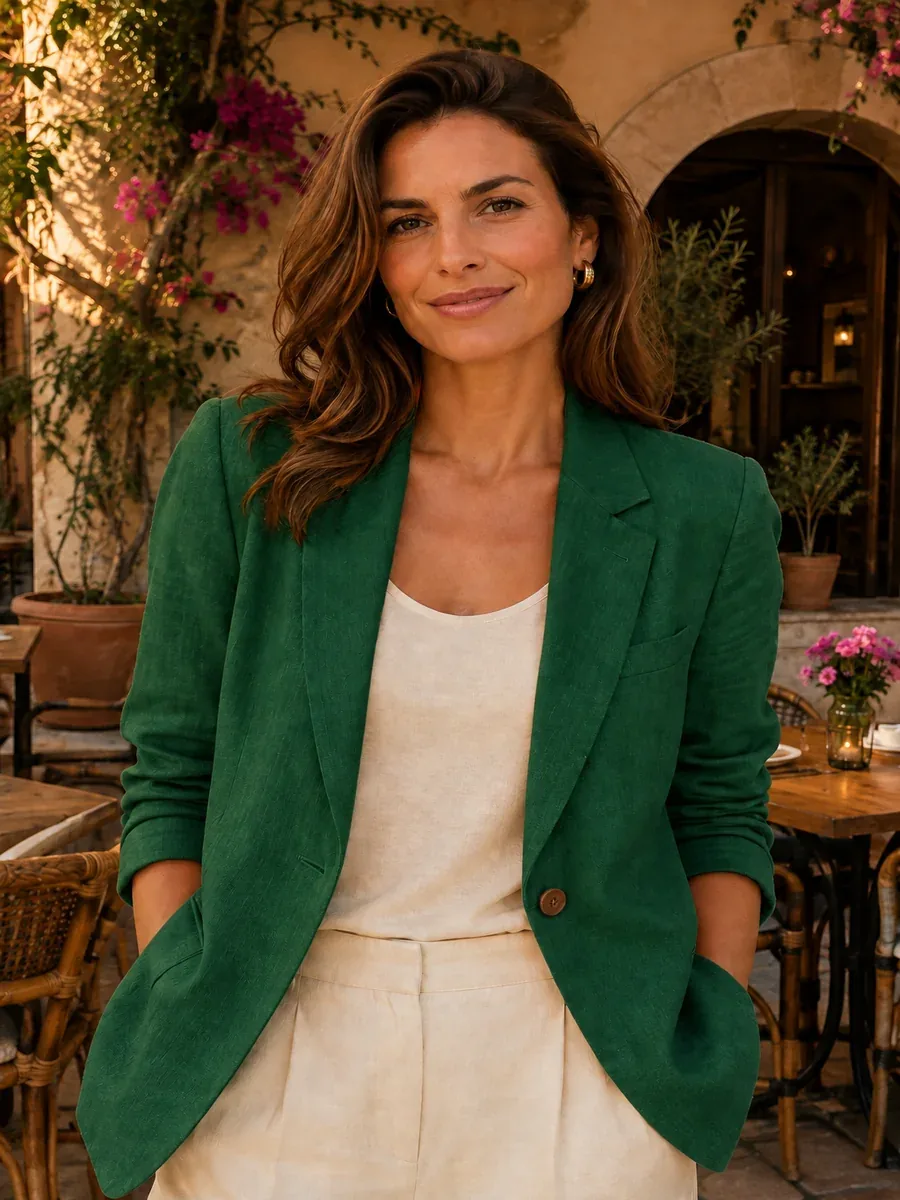
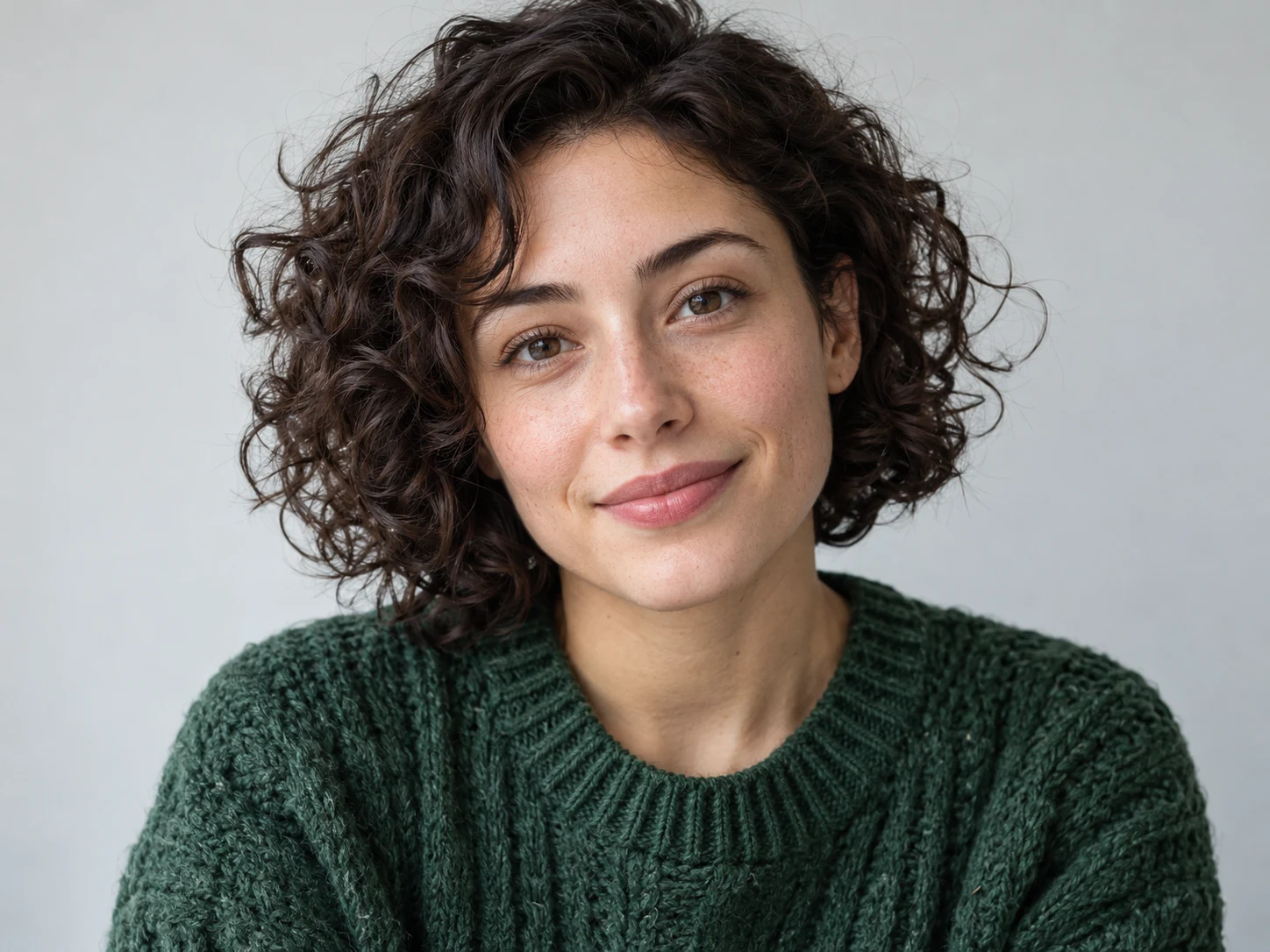
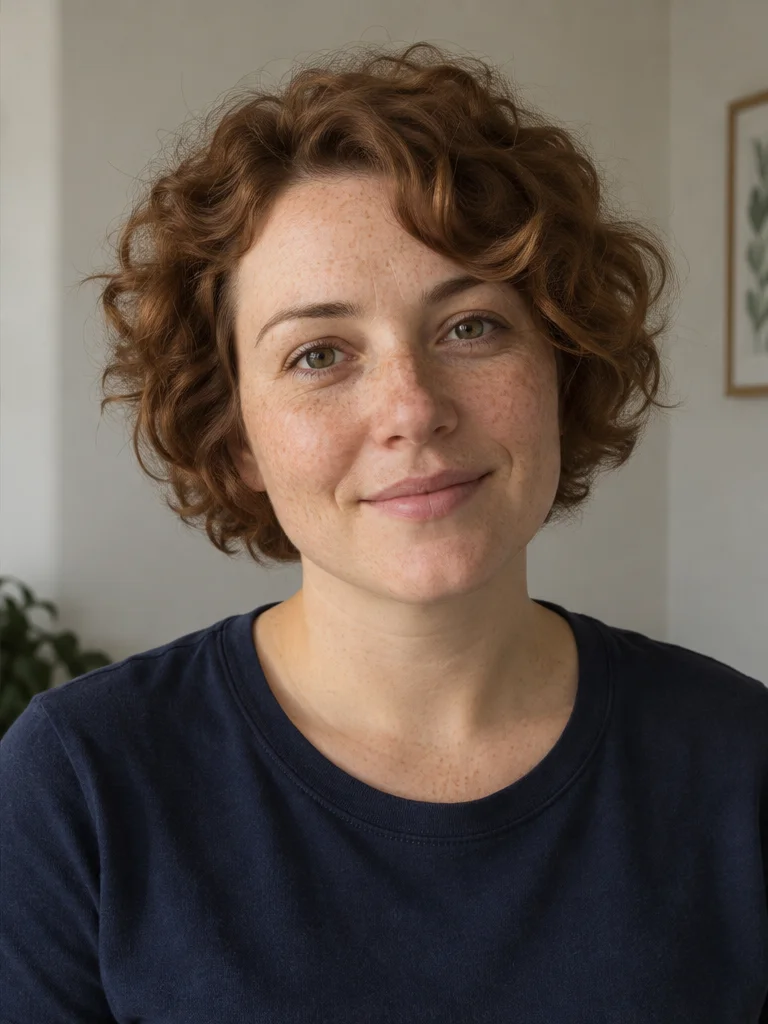
Retouch portrait lighting, adjust a color cast, or try a new clothing color with a few words. Use CiciGPT as an AI portrait editor for profile pictures and social posts. Ask it to preserve your features, then check faces and skin texture before sharing.
Describe one change and the details to preserve. Try one of these prompts with your own photo:
Review faces, lettering, and fine details before using a generated edit.
Upload an image, describe the edit, and review the result. Photo Edit is selected by default; guests can try 3 free edits daily.
Drop in a JPG, PNG, or WebP image. A product shot, a portrait, a moment worth keeping. Up to 20MB each.
Say what to change and what to keep. “Remove the person in the background. Keep the warm evening light.”
Generate your edit, compare the details, and download your favorite result. Refine your prompt to explore another version.
JPG, PNG & WebP · Up to 20MB per image. Generation costs are shown before you start. View pricingPrivacy
Use Multiple mode to guide an AI image edit with a subject photo and a second reference. Describe what to take from each image, such as a product from one and a setting from the other. The references guide one result; this is not batch editing.
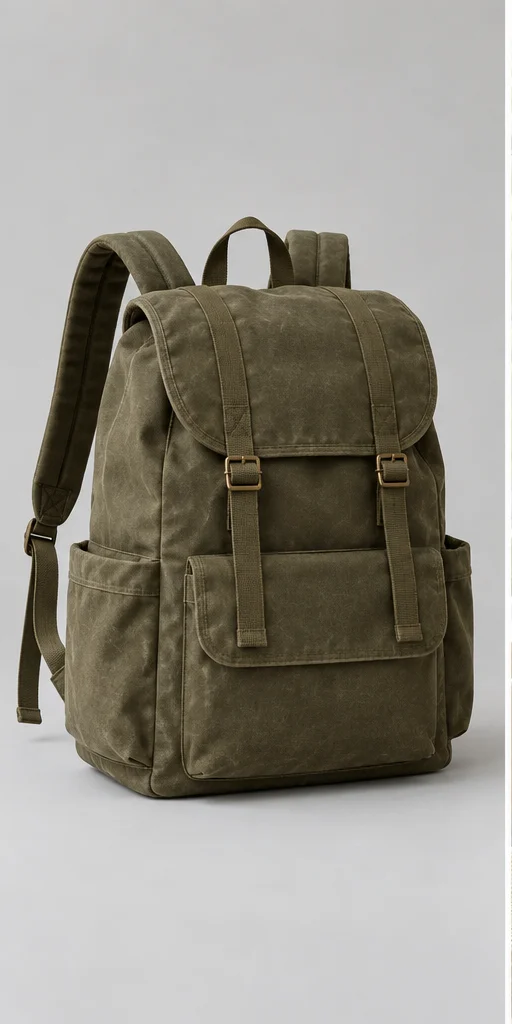
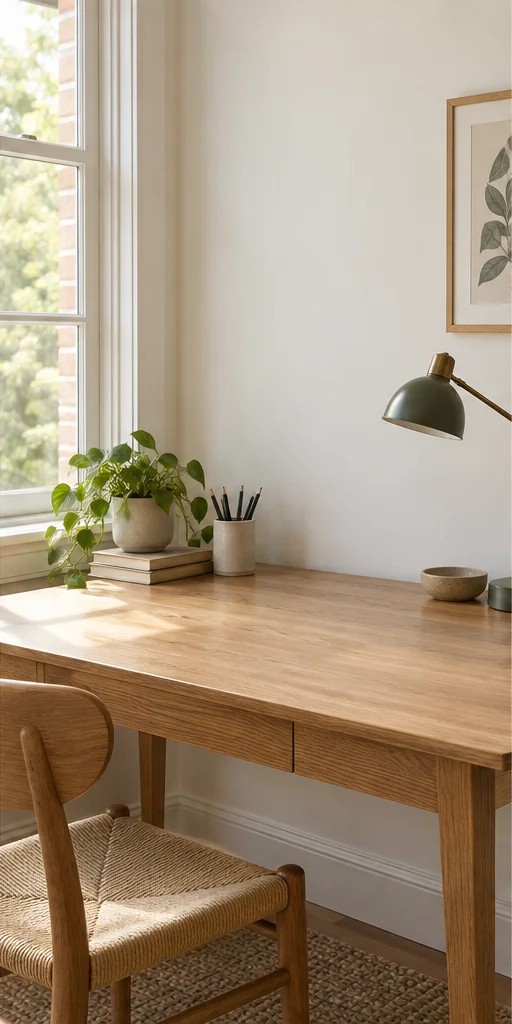
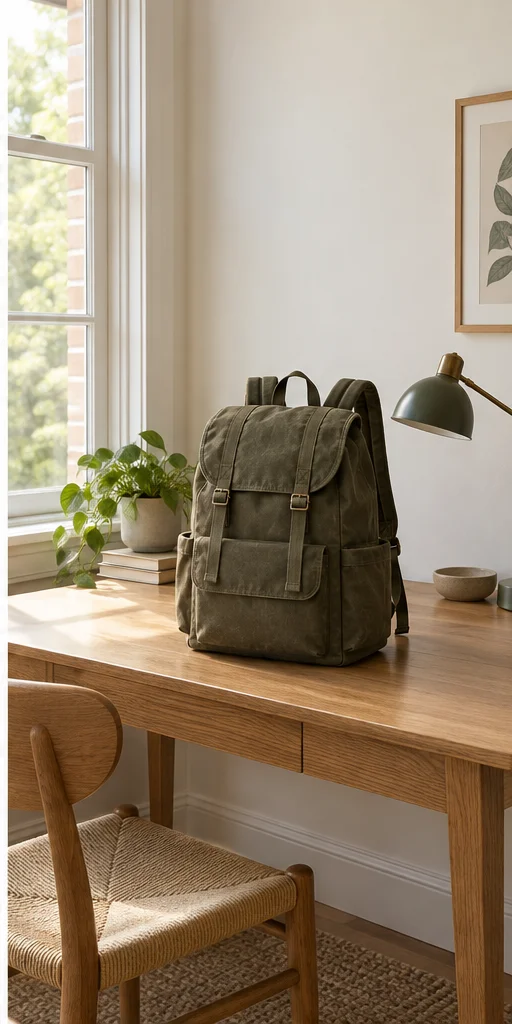
“Place the canvas backpack on the oak desk. Match the window light. Preserve the buckles, stitching, and olive canvas.”
Illustrative editing concept. Use the references to try your own composition, then review the generated details.
Have a specific task? Explore more CiciGPT image tools.
A few things to know before your next edit.
Back to the workspaceCiciGPT is an online AI photo editing tool that uses artificial intelligence to edit photos from written instructions. Upload an existing photo and describe an object removal, background change, or lighting adjustment. CiciGPT generates a revised image for you to review and download.
Upload your photo, describe what to change and what to preserve, then generate. Review the details before downloading the result.
Yes. Choose Photo Edit, the default model, to edit a photo with a prompt for free as a guest. Guests get 3 free edits per day, resetting at midnight New York time (ET), with no sign-up needed. A human-verification check may appear. Signed-in Photo Edit generations cost 5 credits; GPT Image 2.5 requires sign-in and credits.
Signed-in Photo Edit generations cost 5 credits. GPT Image 2.5 costs 2, 4, or 8 credits for low, medium, or high quality. New accounts receive 5 welcome credits once. Check the amount on Generate image before starting.
Yes. Photo Edit supports a main image and a second reference in Multiple mode. GPT Image 2.5 also supports multiple references. Explain what to take from each image; they guide one result rather than being edited as separate files.
Not always. Ask it to preserve the details that matter and inspect faces, text, edges, and small objects. A generated edit can change areas beyond the requested adjustment.
Traditional editing tools let you adjust pixels, layers, and masks directly. CiciGPT uses a written prompt to generate a revised photo, so you can request a background or lighting change without making each adjustment by hand. Generated edits can also change details you wanted to preserve; inspect the result when precise control matters.
Use photo editing for a specific change to an existing photo. For a new version, style, or atmosphere guided by a reference, exploreimage-to-image generation.
When you generate, your images and prompt are sent to CiciGPT and its processing providers. Our Privacy Policy says submitted content is not used for model training. A fixed server retention period is not specified, so avoid sensitive uploads. You can delete generated images from History or contact support about a privacy request. Read thePrivacy Policy.